Short answer
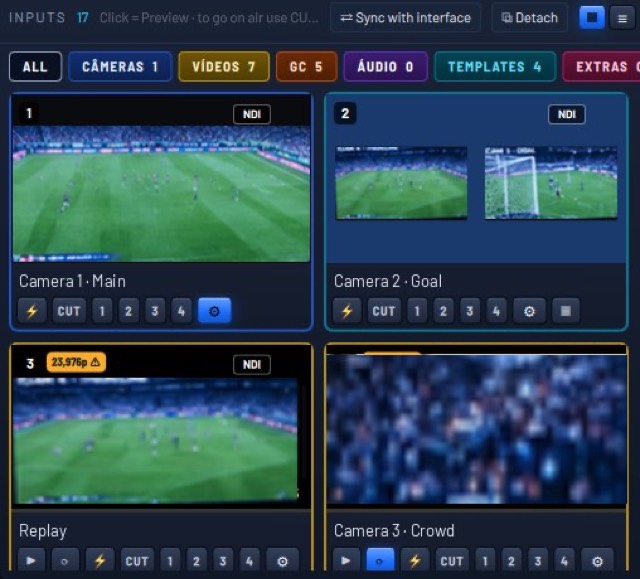
To play a video during a live stream, add the file to the production program as an input, prepare the video on Preview at the first frame and take the video to Program with a transition. The sound of the file has to go to the stream together with the picture, and somebody or something has to return to the camera at the end. In NWK Live Production the sound of a video goes on air when the video is on Program, the control bar shows the remaining time, and a trigger can return to the camera when the video ends.
On this page
Step by step
- Export each video at the frame rate of the project and with the sound at the level of the microphones.
- Add the files as video inputs and name each input by its place in the rundown.
- Mark in and out points if only one part of the file goes on air, and leave repeat off.
- Play each video once on Preview with headphones, then stop to return to the in point.
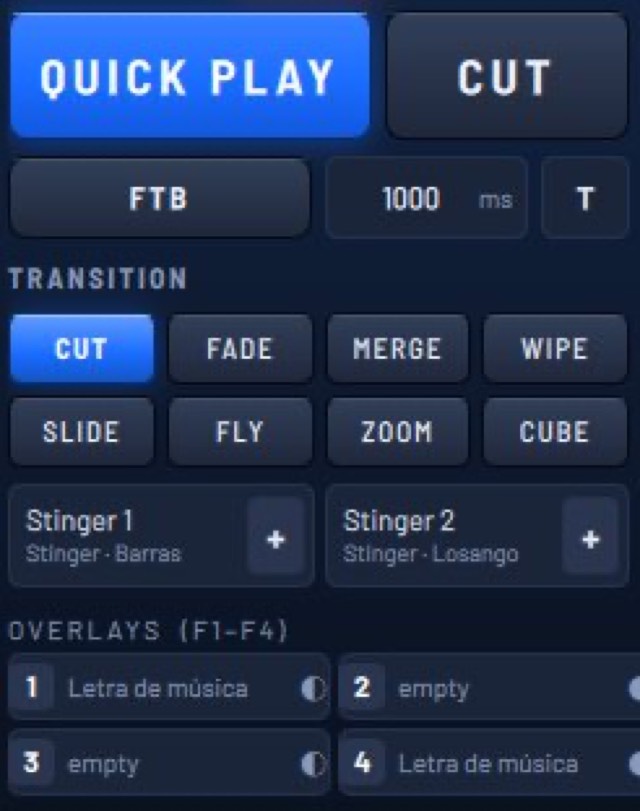
- At the cue, put the video on Preview and take the video to Program.
- Watch the remaining time on the control bar and prepare the next camera on Preview.
- Return to the camera by hand or with a trigger on the end of the video.
Prepare the files before the day
Most problems with videos on air are decided before the event. Ask for the files in advance, and treat a file that arrives at the door as a risk.
- Frame rate. A file at the same frame rate as the project plays without the small stutter of a conversion.
- Sound level. A video mixed much louder than the microphones makes the audience reach for the volume twice, once at the start and once at the end.
- Clean start and end. Half a second of black or of silence at the start hides a late press. A hard end with sound until the last frame asks for an exact cut.
- Names. Name each input as the rundown calls the video, with a number for the order. The idea of a rundown is in write a rundown for a live show.
NWK accepts MP4, MOV and M4V files as video inputs, and the files can be dragged from a folder to the inputs panel. If a corrected version arrives later, Change file in the gear of the thumbnail swaps the file and keeps the name and the settings of the input.
Take the video to air
The safe order is always the same: the video goes to Preview, the operator checks that the picture is the first frame, and a transition takes the video to Program. In NWK, when a video is on Preview or on Program, a control bar appears below the picture with play, pause, stop, frame by frame, the in and out marks and LOOP.
With an in or an out point marked, play runs only the marked region. That is how a long file gives only the 40 seconds that matter, without editing the file again. While the video is on air, the bar of the Preview does not move the video: press Tab or use the bar below Program.
To review a video without touching the stream, use the player of the thumbnail, marked as preview: its sound goes only to the headphones.
The sound of the video and the microphones
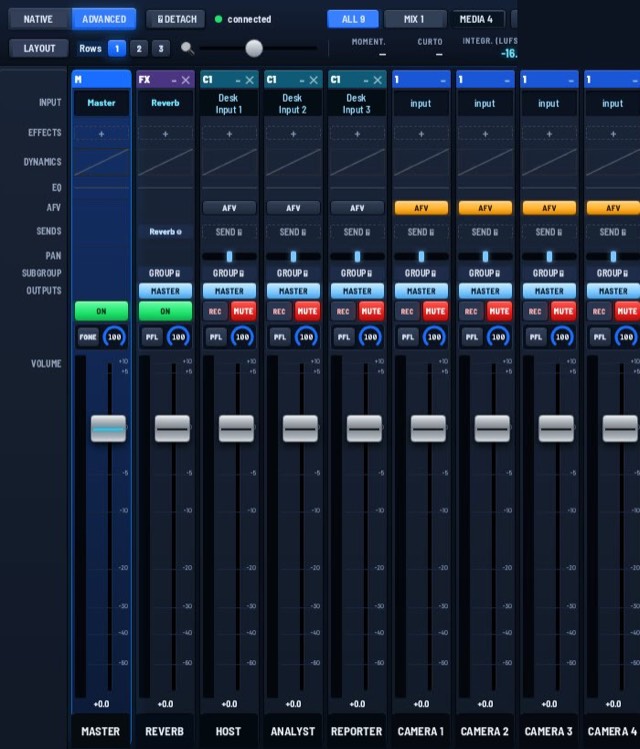
The sound of a video goes on air when the video is on Program, and stops when the video leaves. The second half of the job is the microphones: an open microphone during a video adds coughs, whispers and the sound of the room playing the same video with a delay. Close the microphones of the stage while the video plays and open the microphones again a moment before the return. The idea of sound that follows the picture is explained in AFV, audio follows video.
If the room also has to hear the video, agree with the sound operator in advance on how the sound of the computer reaches the console.
The end of the video
Click the timecode on the control bar to change from elapsed time to remaining time. Near the end of the video the counter turns red. A large timecode on the picture can be turned on for the operator and the presenter; the large timecode appears only on the screens of the program and does not go to the stream or to the recording.
The return can be automatic. A trigger with the event OnCompletion on the video and a transition function with the camera returns to the camera when the video reaches the end, with repeat off. The details and the variations are in automate with triggers.
Stinger, sequence or sound only
| Need | Tool in NWK | How it behaves |
|---|---|---|
| A short animation that covers the change from one picture to another | Stinger 1 or Stinger 2 | The video plays on top of everything; at the cut point the Preview goes to Program behind the video |
| Several videos in a row, such as the break of an event | Playlist | Each video stays on air until the end and the next item enters with the current transition |
| A jingle or music without picture | Audio file input | Plays, pauses and repeats like a video |
| A background that repeats | Video with LOOP | Repeats the whole file or only the marked region |
A stinger normally uses a video with transparency, such as ProRes 4444 or HEVC with alpha. A video without transparency also works, but covers the whole screen during the transition. If nobody changes the cut point, the cut happens halfway through the video. What a stinger is, in general, is in the glossary entry on stingers.
Care on the day
- After each rehearsal, stop every video so that every video is back at the in point.
- Keep repeat off on videos that play once. A video in loop never reaches the end.
- Keep a copy of every file on the disk of the computer, not only on a removable drive.
- Videos with commercial music or with images of third parties are published by the stream. Check the rights with the organization of your country.
Related questions
Why does the audience not hear the video I play on the stream?
The sound of the file has to enter the mix that goes to the stream. In NWK the sound of a video goes on air when the video is on Program. If the video is on Program and there is no sound, check that the file has an audio track and that the audio of the input is on.
How do I avoid a frozen frame at the end of a video?
Return to the camera at the last frame or a little before. Watch the remaining time on the control bar, where the counter turns red near the end, or create a trigger that makes the transition to the camera when the video ends.
Can I play only one part of a long video?
Yes. Mark the in and the out point on the frames you want. In NWK play then runs only the marked region, and Reset plays the whole video again.
In the NWK help center
- Add a video
- Play, loop and mark in and out points of a video
- Put inputs on air in sequence with the Playlist
- Use a stinger
- Add music or a jingle (audio file)
Written and reviewed by the NWK Live Production team (Setor 360 Tecnologia e Eventos Ltda). Published .
NWK plays video and audio files as inputs, with in and out marks, two stingers, a Playlist and triggers for the end of a video.
Try NWK free for 7 days