Short answer
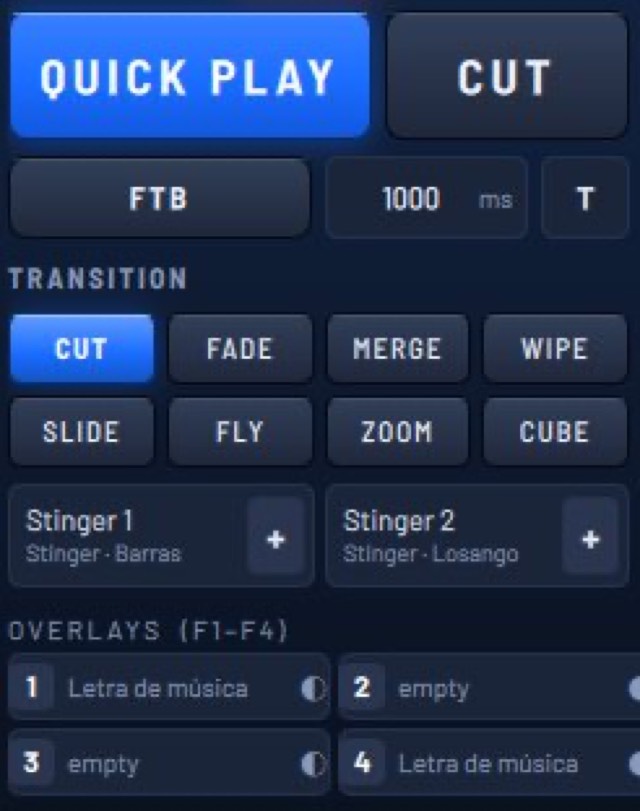
Start the stream a few minutes early with a waiting screen in loop, then play a countdown video that ends exactly at the announced time. The countdown is a video file of fixed length, so the moment to press play is the start time minus the length of the file. In NWK Live Production the waiting screen is a video with repeat on, the countdown is a video with repeat off, and a trigger takes the opening to air when the countdown ends.
On this page
Step by step
- Prepare two files: a waiting screen that loops cleanly and a countdown video of known length.
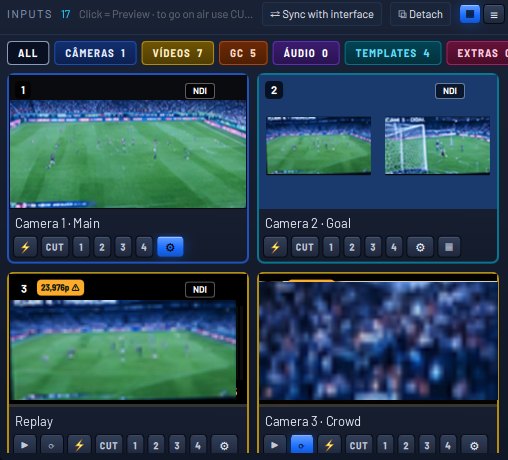
- Add both as video inputs; turn repeat on for the waiting screen and off for the countdown.
- Create a trigger with the event OnCompletion on the countdown video and a transition to the opening.
- Start the stream early with the waiting screen on Program.
- At the start time minus the length of the countdown, take the countdown video to air.
- Watch the remaining time on the control bar and have the first camera and microphone ready.
- Let the trigger take the opening to air when the count reaches zero.
What each screen is for
Platforms take some seconds to show a stream, and the audience arrives over several minutes. A stream that starts at the exact minute of the event loses the first sentences. A stream that starts early needs something on screen while the room is not ready.
| Screen | What it shows | How long |
|---|---|---|
| Waiting screen | Name of the event, start time, music or ambient sound | From the start of the stream until the countdown |
| Countdown | Minutes and seconds running to zero | The last minutes, usually 5 or 10 |
| Opening | Intro video or the first camera | At the announced time |
Sound matters on both screens. A silent waiting screen looks like a broken stream, and the people who arrive early use that time to adjust the volume.
Prepare the two files
Waiting screen. A short video that ends as it begins repeats without a visible jump. A still image also works, but movement shows the audience that the picture is live. Write the start time on the art with the time zone if the audience is in more than one region.
Countdown. A countdown that goes to air is a video file in which the numbers are part of the picture. Make the file in a video editor or in a presentation program and export the file at the frame rate of the project. Keep two or three lengths, such as 10, 5 and 1 minute, to adapt when the event runs late. Put the music inside the file, so that picture and sound end together.
NWK accepts MP4, MOV and M4V files as video inputs. The sound of a video goes on air when the video is on Program.
The setup in NWK Live Production
Add the two files as video inputs. On the thumbnail of the waiting screen, turn on repeat; if only one part of the file loops well, mark the in and out points, and the loop repeats only the marked region. Leave repeat off on the countdown, because the end of the video is the signal for the next step. The clicks are in Add a video.
Then create a trigger: event OnCompletion, the countdown video as the input, and a transition function with the opening video or the first camera. OnCompletion happens when the video reaches the end with repeat off. For a fade that starts while the last second is still running, use OnPlaybackRemaining with a chosen time. The whole reasoning is in automate with triggers.
NWK also has a Clock title, placed in a corner of the picture with or without seconds, which can stay over the waiting screen through an overlay.
End on time
The only calculation is a subtraction: a countdown of 5 minutes for an event at 19:30 goes to air at 19:25:00. Use a clock with seconds and press on the second.
While the countdown is on Program, the control bar below the picture shows the time of the video. Click the timecode to change to the remaining time; near the end of the video the counter turns red. The large timecode on the picture appears only on the screens of the program and does not go to the stream or to the recording, so the operator and the presenter can read the same number from a distance.
If the event runs late, do not pause the countdown on air. Stay on the waiting screen and start a shorter countdown when the stage confirms.
A waiting loop with several pieces
When the waiting screen is a sequence, such as the art of the event, a sponsor card and a short video, use the Playlist. Videos stay on air until the end, the other inputs stay for the time you choose, in steps of 5 seconds, and the Repeat box returns to the first item at the end. Stop the Playlist before you take the countdown to air.
The same care used for videos in the middle of the event applies here; see play videos and stingers during the show.
Before the day
- Run the sequence from the waiting screen to the first camera at least once, with the real files.
- Check the level of the music against the level of the first microphone, so that the opening is not much louder or quieter.
- Confirm that the countdown file has the same frame rate as the project.
- Music on a waiting screen is published like any other music. Check the rights with the organization of your country before using a commercial song.
Related questions
How long should a countdown before a live stream be?
Five to ten minutes is common for events with an announced time. A longer countdown holds a screen that nobody watches, and a countdown shorter than one minute does not give the audience time to arrive. Start the stream before the countdown, with a waiting screen.
Can I show the countdown only to the team and not to the audience?
Yes. In NWK the timecode on the picture can show the remaining time of a video in large numbers, and it appears only on the screens of the program. It does not go to the stream or to the recording.
What happens if the event is not ready when the countdown ends?
With a trigger on the end of the countdown, the opening goes to air by itself. If the stage is not ready, pause the triggers with Pause all before the end and go back to the waiting screen by hand.
In the NWK help center
- Add a video
- Play, loop and mark in and out points of a video
- Put inputs on air in sequence with the Playlist
- Triggers
- Create a title or lower third
Written and reviewed by the NWK Live Production team (Setor 360 Tecnologia e Eventos Ltda). Published .
NWK plays video files in loop, shows the remaining time to the operator and has triggers for the end of a video.
Try NWK free for 7 days