Short answer
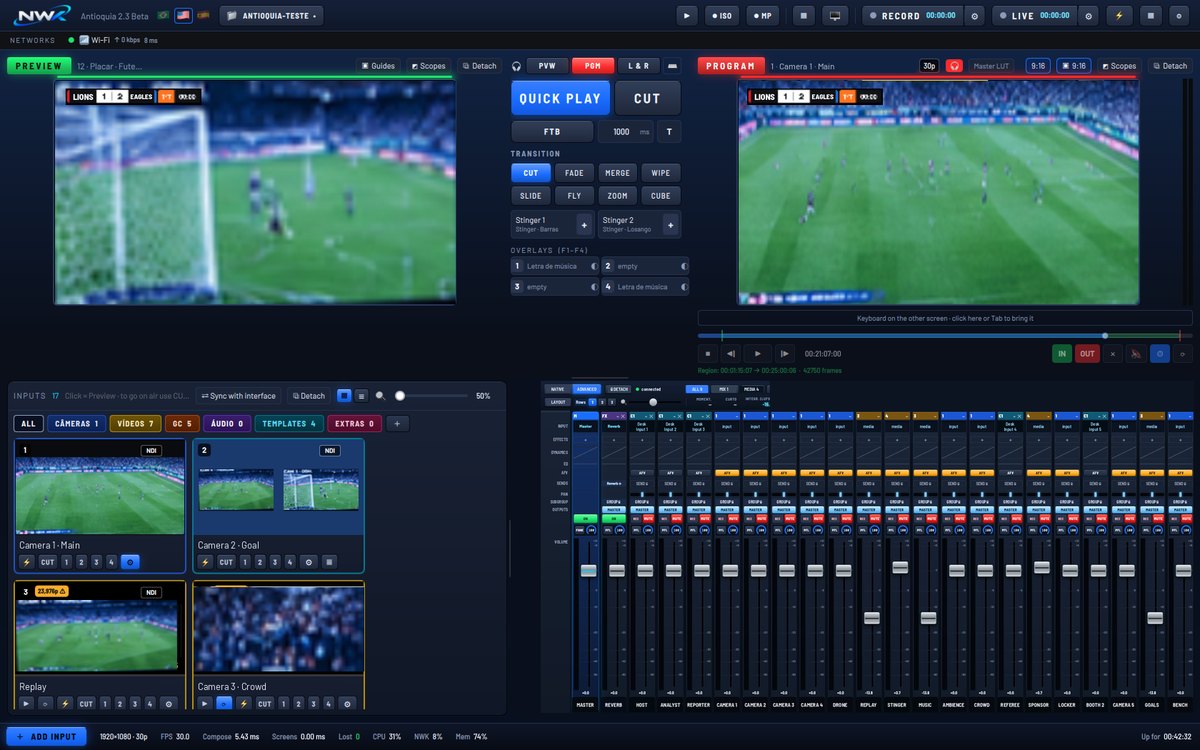
To return to the camera automatically when a video ends, the production program needs a rule that links the end of the video to a transition. In NWK Live Production that rule is a trigger: in Shortcuts and Triggers, in the Triggers tab, choose the event OnCompletion, the video as the input, and a transition function with the camera. With the repeat of the video off, the trigger fires when the video reaches the end, and nobody has to watch the counter to press the cut.
On this page
Step by step
- Add the video and the camera as inputs and leave the repeat of the video off.
- Click Shortcuts and Triggers, open the Triggers tab and click New trigger.
- In When it happens, choose OnCompletion; in On which input, choose the video.
- In Do what (function), choose a transition, such as Fade or the hard cut, with the camera as the input.
- Leave Wait before (Delay) at 0 and click Save.
- Put the video on air, let the video play to the end and watch the camera return.
- Repeat the test with the real video of the event, from the first frame to the last.
Why the end of a video goes wrong by hand
While a video plays, the operator has nothing to do and one thing to remember. That combination produces the two classic mistakes: the cut that comes early and removes the last sentence, and the cut that comes late and leaves a frozen last frame or a black screen on air. An automatic rule makes the return happen at the same point every time, and frees the operator to prepare what comes after the video.
For someone who produces alone, this is one of the first automations worth building; see live production with one person.
The trigger, piece by piece
A trigger in NWK joins an event, an input and a function:
| Field | Choice | Why |
|---|---|---|
| When it happens | OnCompletion | The video reaches the end, with repeat off |
| On which input | The video | The event belongs to this input |
| Do what (function) | A function of the Transition group, such as Fade or the hard cut, with the camera | The function takes the camera to Program |
| Wait before (Delay) | 0 | The return starts as soon as the video ends |
The trigger belongs to the input chosen in On which input, so each video that should return to the camera needs a trigger of its own. Triggers are saved in the project: when you open another project, the triggers of that project apply. The clicks are in the help article Triggers.
Start the return before the last frame
OnCompletion fires when the video has already ended. A hard cut at that point works well. A fade that starts only at the end dissolves from a picture that no longer moves. When the video should dissolve into the camera while the video still moves, use another event:
| Event | When it happens | Use |
|---|---|---|
| OnCompletion | The video reaches the end | Return with a hard cut |
| OnPlaybackRemaining | A chosen time is left before the video ends | Start a fade a little before the end |
| OnPlaybackTime | The video reaches a chosen time | Leave the video at a fixed point, before the credits for example |
Triggers that go well with this one
- Video back to the start. With the event OnTransitionOut on the video and the function that restarts the video, the video is ready for the next time it goes on air.
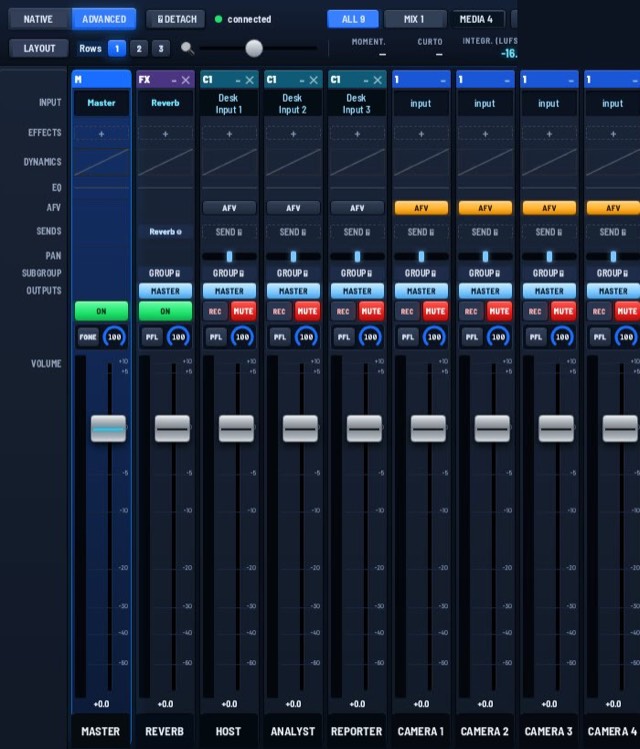
- Microphones during the video. With OnTransitionIn on the video and a function of the Audio group, a microphone channel is muted when the video goes on air; with OnTransitionOut, the channel is turned on again. The idea of sound that follows the picture is in AFV, audio follows video.
- Name on screen. When the camera of the speaker goes on air, put the lower third with the name on Overlay 1.
In the events OnTransitionIn and OnTransitionOut, the transition functions are left out, so that two triggers never call each other in a loop. That is why the return to the camera hangs on the end of the video and not on the video leaving Program.
When the Playlist is the better tool
A trigger solves one reaction: this happened, do that. For several videos in a row, or for waits longer than the 30 seconds that the Delay allows, use the Playlist. In the Playlist you click the inputs in the order in which the inputs should go on air. Videos stay on air until the end, and the other inputs, such as images, cameras and titles, stay for the time you choose. A trigger can also start the Playlist, because starting, stopping and the next item of the Playlist are in the function list. A channel that plays by itself the whole day is another subject, in build a 24-hour channel.
Keeping control on air
- Pause all. The Pause all button holds every trigger: nothing fires on its own until you click Resume triggers. Shortcuts, the Stream Deck and the buttons still work. Each trigger also has a switch of its own.
- Watch the counter. In the control bar below the picture, click the timecode to change to the countdown. Near the end of the video the counter turns red, and you know that the camera is about to return.
- Repeat off. With LOOP on, the video never reaches the end, and OnCompletion does not happen.
- Camera ready. The trigger takes the camera to air as the camera is. Check framing and microphone before the video ends.
Related questions
The video ended and the camera did not return. What should I check?
Check four things: the repeat of the video is off, because OnCompletion only happens with repeat off; the switch of the trigger is on; Pause all is not active; and the project that is open is the project in which the trigger was created, because triggers are saved in the project.
Can the program wait a few seconds before returning to the camera?
Yes. In NWK each trigger has a Delay in milliseconds, up to 30 seconds. 1000 ms is 1 second. For longer waits, use the Playlist.
Does one trigger work for every video of the event?
No. In NWK the trigger belongs to the input chosen in On which input. Create one trigger for each video that should return to the camera, or put the videos in a Playlist.
In the NWK help center
Written and reviewed by the NWK Live Production team (Setor 360 Tecnologia e Eventos Ltda). Published .
NWK has triggers for the events of each input and of the program, saved in the project, and a Playlist for sequences.
Try NWK free for 7 days