Short answer
One person can run a live production when the setup removes decisions during the event: fixed cameras, few sources, graphics prepared in advance, one key or button for each action and audio that needs little attention. Rehearse the whole sequence and check everything before going on air, because during the event nobody else is free to look for a problem.
On this page
Simplify before adding equipment
Every source added is one more thing to watch. A person working alone looks at the picture, listens to the sound, follows the event and operates the program at the same time. Plan for what that person can sustain for the whole event, not for the first ten minutes.
- Use fixed cameras on tripods. One wide shot that always works and one closer shot already allow cutting.
- Avoid any camera that needs someone to follow the subject by hand.
- Choose one transition and use the hard cut for the rest.
- Prepare titles, names and videos before the event. Typing a name during the program takes the eyes off the picture.
- Keep everything within reach of one chair: keyboard, headphones, the monitor and the audio controls.
One key or button for each action
Looking for a button with the mouse takes seconds that a cut does not have. Give each frequent action a key on the keyboard or a button on a control surface: each camera, the transition, each title. Mark the keys if needed. After some rehearsal the hands find the keys without the eyes leaving the monitors.
Automate what always happens in the same way. If the name of a speaker always appears when the camera of that speaker goes on air, the program can do that without a second key.
Audio that needs little attention
Audio is the part that suffers most when one person does everything, because a problem in the sound is slower to notice than a problem in the picture.
- Use few microphones and set the levels in the rehearsal, with people speaking at the real volume.
- Keep headphones on during the whole event, listening to what goes to the stream.
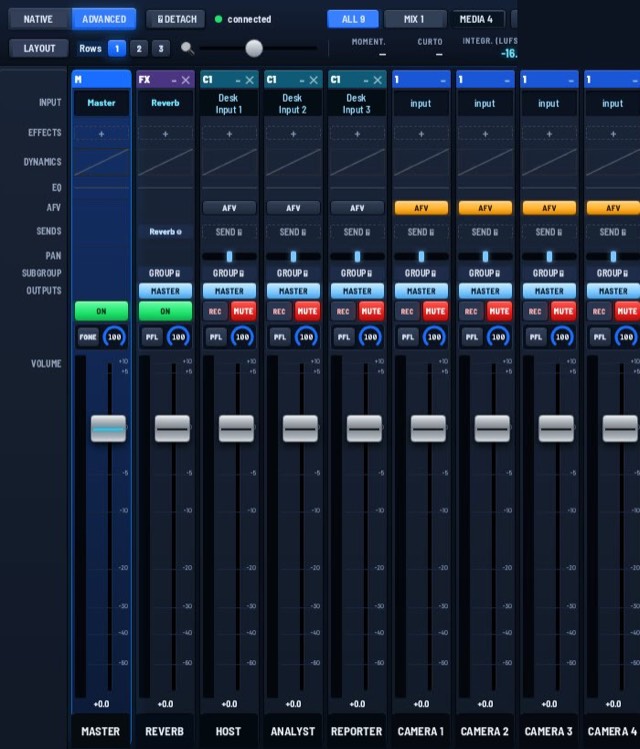
- Let the sound of videos open and close together with the picture. That function is called audio follows video.
- If the room has a sound operator, ask for a mix made for the stream and treat it as one source.
Prepare and check before going on air
A written sequence of the event, with what goes on screen at each moment, replaces the director who would be telling you what comes next. Rehearse the passages that involve several actions in a row, such as the opening.
Finish the setup early and run a complete check: every camera, every microphone, the recording, the connection and the destination. A checklist is in rehearsal and checklist before the event. Have a still image or a wide shot to go to when something fails, so that you can solve the problem off air.
What helps in NWK Live Production
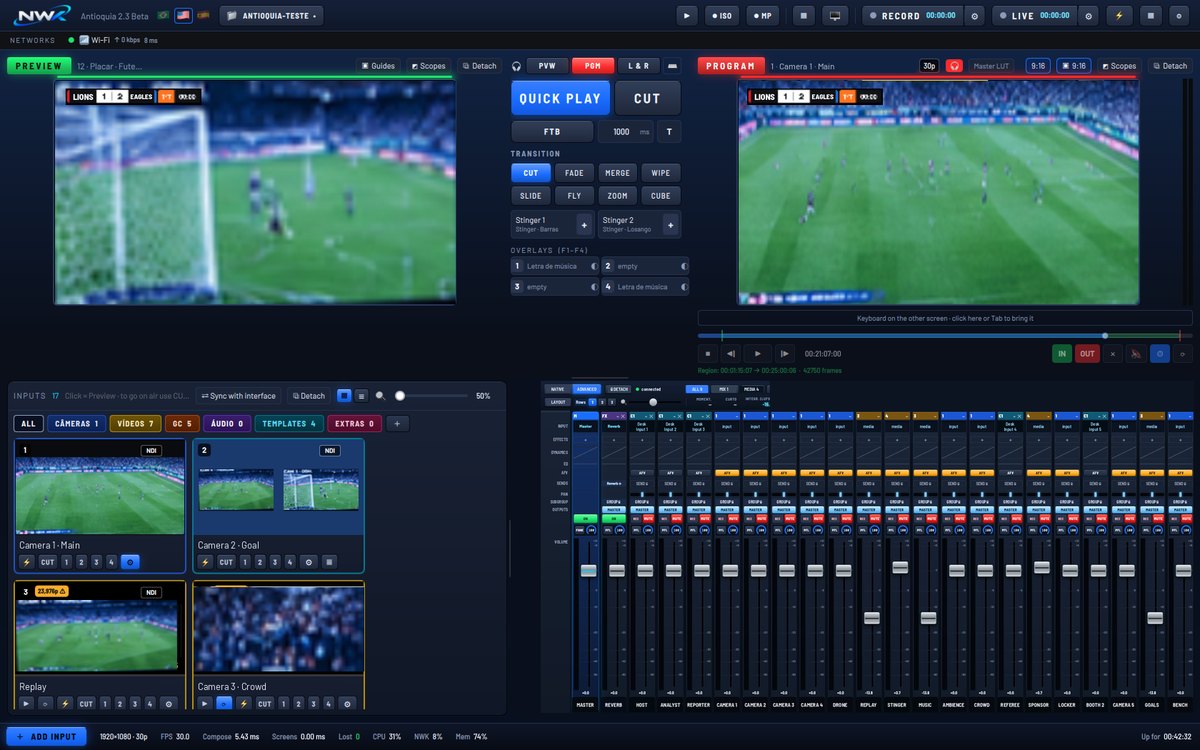
- Keys that come ready: 1 to 9 put the first nine inputs in Preview, Enter runs the transition and F1 to F4 turn the four overlays on and off. You can create your own shortcuts on the keyboard, on a Stream Deck button or on a MIDI device. See default shortcuts.
- Stream Deck over USB: each input becomes a button with number and name, green when the input is in Preview and red when it is in Program. See Stream Deck over USB for the models that sync automatically.
- Triggers: NWK runs a function by itself when something happens, for example putting the title with the speaker's name on an overlay when the speaker's camera goes on air. See triggers.
- AFV: with AFV on, the sound of an input turns on when the input goes on air and is muted when it leaves.
- Automatic level (AGC): raises or lowers the volume of a channel toward a target, which helps with a person who speaks sometimes close to the microphone and sometimes far from it.
- Check before going live: a list that checks inputs, microphones, disk, internet and destinations and shows what needs attention. See check before going live.
When to ask for a second person
Ask for help when the event has a band or many microphones, cameras that must follow movement, replays, or a lot of text that changes during the program. The first job to hand over is the audio. The division of jobs by crew size is in live production crew roles.
Related questions
Can one person run a multicamera live stream?
Yes, with fixed cameras, prepared graphics and one key for each action. The limit is attention, not equipment: each source that needs to be watched or adjusted during the event takes attention from the others.
How many cameras can one person handle alone?
It depends on how much attention each camera asks for. A fixed camera on a tripod asks for almost none after it is framed. A camera that needs someone to follow the subject asks for a person. Start with a wide shot and a closer shot, and add a camera only when the first two run without effort.
What do I do when something fails and I am alone?
Put a safe source on air, such as the wide shot or a still image, and solve the problem off air. Decide before the event what that safe source is and which key takes it to air.
In the NWK help center
- Default keyboard shortcuts
- Connect the Stream Deck directly over USB
- Triggers
- Make audio follow video (AFV)
- Check everything before going live
Written and reviewed by the NWK Live Production team (Setor 360 Tecnologia e Eventos Ltda). Published .
NWK has ready-made keys, shortcuts of your own, triggers and a check before going live.
Try NWK free for 7 days