Short answer
Live production automation comes in three layers. A shortcut runs a function when you press a key. A trigger runs a function by itself when something happens, such as a camera going on air or a video ending. A control panel puts those functions on physical buttons. NWK Live Production has all three: default and custom shortcuts, triggers for events of the inputs and of the program, and direct control from a Stream Deck, a MIDI device or Bitfocus Companion.
On this page
Which layer solves which problem
| Situation | Use |
|---|---|
| The same action many times in an event | A shortcut |
| An action that always follows another one | A trigger |
| Someone who operates away from the keyboard, or without looking | A button on a panel |
| A timed sequence of videos and images | A playlist |
Start with what is repeated most and with what causes the worst mistake when forgotten. The usual first candidate is the name graphic that should appear whenever a certain camera goes on air. For someone working alone, automation is what frees a hand; see one-person live production.
Shortcuts in NWK Live Production
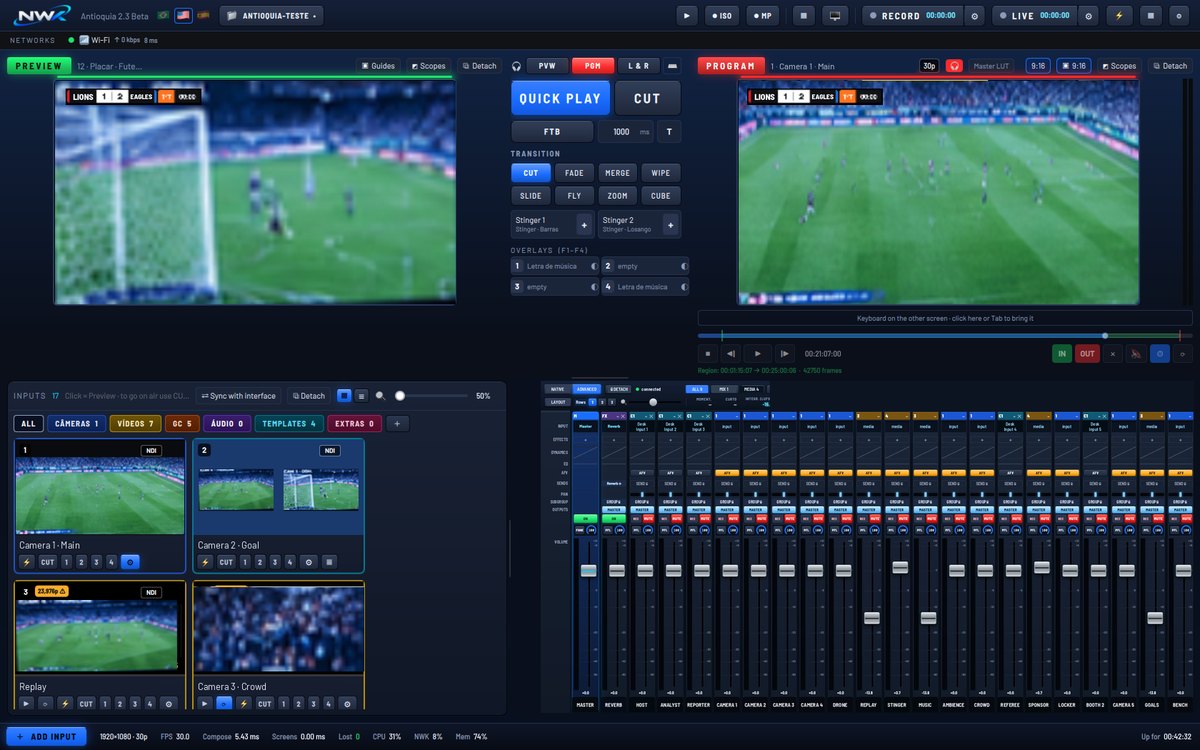
Some keys come ready: Enter runs the panel transition from Preview to Program, F1 to F4 turn Overlays 1 to 4 on or off, and F5 to F10 control the scoreboard. A few keys are fixed and cannot be reassigned: 1 to 9 put an input on Preview, and Space plays or pauses a video and never cuts. The full table is in default shortcuts.
In the My shortcuts tab you create your own: choose a key, the function and the input. The key can be a keyboard key, a Stream Deck button or a key on a MIDI device. One key can hold more than one function; the functions run together, in list order. Your shortcuts are saved on the computer and apply to any project.
Triggers: the program acts when something happens
A trigger joins an event, an input and a function. An example: when the speaker's camera goes on air, put the lower third with the speaker's name on Overlay 1.
| Kind of event | Examples |
|---|---|
| The input changes place | Goes into or out of Program, Preview or an overlay |
| A video | Starts, pauses, ends, reaches a chosen time |
| Signal | The input loses or gets back its signal; the CALL guest connects or leaves |
| The program | Streaming, recording or ISO starts or ends; the Master stays silent for a chosen time; a chosen interval goes by |
Each trigger can wait before acting, with a Delay in milliseconds of up to 30 seconds. Triggers are saved in the project. The Pause all button holds every trigger until you resume, while shortcuts and buttons keep working. Two triggers that call each other do not end up in a loop.
What can be automated
Shortcuts, triggers and panel buttons choose from the same function list, organized in groups: Transition, Overlay, Input, Audio, Output and recording, Playlist, NDI®, Player, Bible and lyrics, Project, Scoreboard and the program's own windows. Examples: start and stop streaming and recording, mute a channel, change volume gradually, put an input on an overlay, restart a video, add a point on the scoreboard.
Buttons outside the keyboard
- Stream Deck over USB. Plug it in and each input becomes a button with its number and name, with nothing to install. The Mini and the 2017 model do not sync on their own yet. The button turns green when the input is on Preview and red when it is on Program, which works as a tally under your fingers. See Stream Deck over USB.
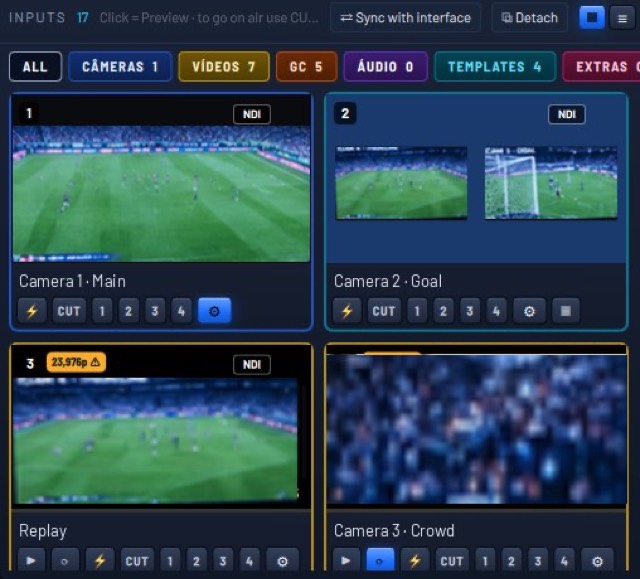
- Choosing each button. In Sync with interface, a button can be a fixed input, any shortcut function, CUT, AUTO or a page change. While that window is open, pressing a button on the device only selects it; nothing goes on air.
- MIDI devices. A MIDI device appears in the same list when plugged in, and each key, pad or button can receive a function.
- Bitfocus Companion and other panels. NWK accepts a connection at address 127.0.0.1, port 8099. By default only the same computer connects; other computers on the network have to be authorized one by one. See Bitfocus Companion.
Care with automation on air
- Rehearse every trigger with the real inputs. An automation that fires at the wrong moment goes on air like any other mistake.
- Keep the way to stop everything at hand. In NWK that is Pause all.
- Write down what each key and each button does, for whoever replaces you.
- Automate one thing at a time and use it in a real event before adding the next.
Related questions
What is the difference between a shortcut and a trigger?
A shortcut waits for you to press a key or a button. A trigger acts by itself when an event happens, such as an input going on air, a video ending or the stream starting.
Do shortcuts and triggers travel with the project?
In NWK, triggers are saved in the project: opening another project brings that project's triggers. Your own shortcuts are saved on the computer and apply to any project.
Do I need the manufacturer's app to use a Stream Deck with NWK?
No. NWK talks to the Stream Deck directly over USB, and the manufacturer's app has to be closed for NWK to take over the buttons. If you prefer to set the buttons up in that app, turn off automatic sync and use the address of each shortcut.
In the NWK help center
Written and reviewed by the NWK Live Production team (Setor 360 Tecnologia e Eventos Ltda). Published .
NWK has default and custom shortcuts, triggers saved in the project and direct control from a Stream Deck, a MIDI device or Bitfocus Companion.
Try NWK free for 7 days