Short answer
Microsoft Teams can broadcast the audio and video of a meeting to the local network with NDI®, and the production program receives each stream as a source. According to Microsoft's pages, checked on November 10, 2026, three things have to be on: the broadcast production policy, set by the administrator; the Production tools option in the settings of the Teams app; and Broadcast over NDI inside the meeting. Each participant becomes one video stream, and the audio of the meeting comes mixed, the same in every participant stream.
On this page
The streams Teams offers
Microsoft's support page lists these NDI streams. All the statements in this table come from that page.
| Stream | What it carries |
|---|---|
| Primary speaker | Switches by itself to whoever is speaking. It does not include the audio and video of your own computer |
| Local | The audio and video that your computer sends to the meeting |
| Individual users | One stream per participant, at the quality that your Teams app is receiving. A participant without video is sent as a screen with the Teams logo |
| Screen sharing | The screen share that arrives in the meeting |
| Large gallery | A stream of that view of the meeting |
For a production with cuts, the individual streams are the useful ones: each remote person becomes an input that you frame, title and cut like a camera.
What has to be turned on
Microsoft describes three steps, in this order.
- The administrator of the organization turns on the policy “Broadcast production with NDI and SDI hardware”, in the Teams admin center, under Meetings, Meeting policies, in the Audio & video section. Microsoft recommends not turning it on as a global setting, and applying it to the users who need it.
- The user opens Settings and more, Settings, App permissions. Under Production tools, the user downloads the NDI files from the link shown there and turns on Production tools. This cannot be done during a meeting, and Microsoft says to repeat it after each Teams update.
- In the meeting, the user selects More actions, Streaming, Broadcast over NDI. Microsoft's page says the meeting attendees are notified that broadcasting is on.
If the option does not appear in the app, the first thing to check is whether the policy is applied to that account. That is a request for the IT team of the organization that owns the account, and it takes time: ask for it days before the event, not on the day.
The limits Microsoft states
- The quality is the quality of the call. Each stream goes out at the quality that the Teams app is receiving, and what goes out is limited by the number and the quality of the streams the app receives.
- Pin the video you need. Microsoft says to pin a participant's video so that the video stays connected.
- Two or three video streams per computer. For stability, Microsoft says to try limiting the NDI video streams going out of a single computer to two or three.
- The large gallery view changes what arrives. Switching to it stops the app from receiving the other participants' video; going back to the gallery restores them.
- The streams stay on the local network. The computer with Teams and the computer of the production have to be on the same network. If a source does not show up, see NDI source not showing.
The audio: one mix, and the return
Microsoft's page says that the incoming audio of the meeting is mixed together and is the same in all the individual user streams. There is no isolated audio per participant.
- Use the audio of a single Teams source in the mixer and turn off the audio of the others. Two sources with the same mix, both open, add the same sound twice.
- You cannot lower one remote person and raise another in your mixer. Levels between participants are fixed by the meeting.
- The participants have to hear the show without hearing themselves. Send to the meeting a mix that leaves out the audio of the meeting. That mix is a mix-minus.
When isolated audio per person matters, a guest link in the browser gives one channel per guest. The page on bringing a video call on air compares the two paths.
Receiving the Teams sources in NWK Live Production
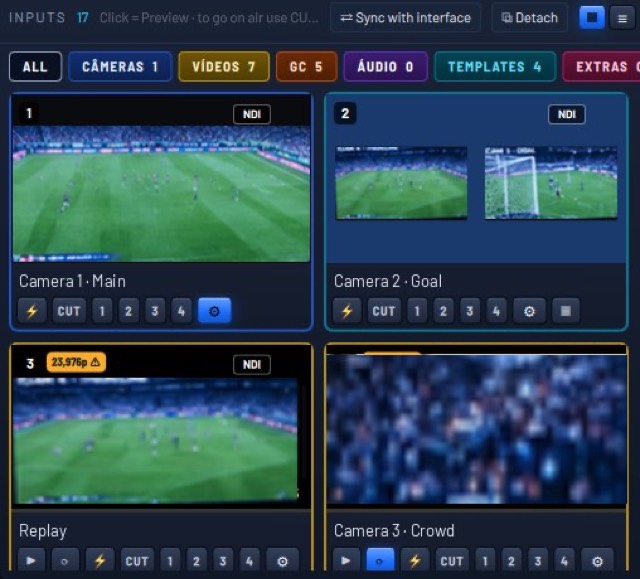
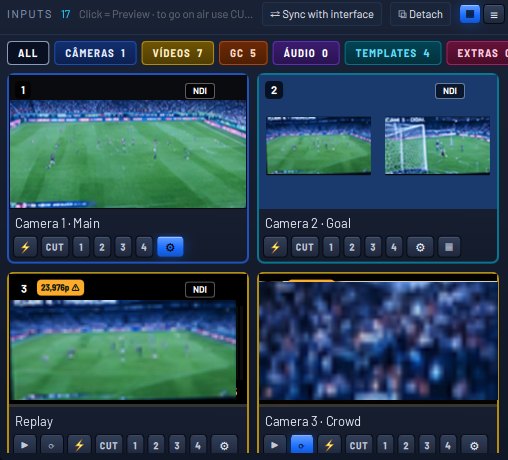
In NWK, each Teams stream is added as an NDI source of the local network: Add input, NDI, and the source in the list. NDI Tools, which is free, has to be installed. The sound of the source becomes a channel in the mixer.
- One audio only: on the thumbnail of each extra Teams input, the speaker disables the audio of the input, and the input then plays nowhere.
- The return to the meeting: on Mac, the virtual microphone of NWK appears in Teams as the microphone “NWK Live Studio” and sends the Master or an Output from A to E. Use an Output with “Master minus…” and check the meeting input, so that the meeting does not come back to the participants.
- The picture to the meeting: the NDI output of the Program, opened in NDI Virtual Input from NDI Tools, appears in the meeting as the camera “NDI Video”.
NWK is sold by subscription, with a 7-day free trial. See the pricing page. NDI® is a registered trademark of Vizrt NDI AB.
Related questions
Why is Broadcast over NDI missing from my Teams?
According to Microsoft, the option depends on a meeting policy that the administrator of the organization turns on for the user, and on the Production tools option in the settings of the app, which cannot be turned on during a meeting. Check the settings before the meeting. If Production tools is not there, ask the IT team of the organization that owns the account.
Does Teams send separate audio for each participant over NDI?
No. Microsoft's support page says the incoming audio of the meeting is mixed together and is the same for all individual user streams. You get one video stream per participant and one audio mix of the meeting. Use that audio from a single source in your mixer.
How many Teams participants can I bring in over NDI?
The Microsoft pages cited here do not give a maximum, and the support page says to try limiting the NDI video streams to two or three on any single computer, for stability. The quality of each stream is the quality the Teams app receives. For more people, test with the real number of participants before the event.
In the NWK help center
- Add an NDI® source
- Use NWK as a camera and microphone in Zoom, Microsoft Teams or Google Meet
- Use outputs A–E and echo-free return (Master minus…)
- Enable or disable an input's audio
Sources and references
- Microsoft Support: Broadcasting audio and video from Microsoft Teams with NDI and SDI technology (checked November 10, 2026)
- Microsoft Learn: Allow broadcast production in Teams meetings with NDI and SDI hardware (checked November 10, 2026)
Written and reviewed by the NWK Live Production team (Setor 360 Tecnologia e Eventos Ltda). Published .
NWK receives NDI sources from the local network as inputs, with the sound of each source on a channel of the mixer, on Mac.
Try NWK free for 7 days