Short answer
Twitch receives your stream over RTMP on an ingest server, and identifies it by the stream key of your channel. In the streaming program you fill in three things: the server, the key and the quality. Take the maximum bitrate, the keyframe interval and the codecs from the Broadcasting Guidelines that Twitch publishes, and keep the bitrate at no more than two thirds of the upload you measured.
On this page
What Twitch asks from the encoder
The Twitch developer documentation, consulted on November 10, 2026, describes the path this way: the broadcaster sends video with a streaming encoder, over RTMP, to an ingest server. The address has the format rtmp://ingest-server/app/stream-key. The stream key is assigned by Twitch and identifies the stream; the broadcaster gets it from the dashboard of the channel.
The same documentation sends the reader to the Twitch Broadcasting Guidelines for the recommended settings and codecs.
Where each setting comes from
| Setting | Where the value comes from | How to decide |
|---|---|---|
| Resolution and frame rate | The combinations listed in the guidelines | Choose the one your upload and your computer hold for the whole event. See 720p, 1080p or 4K: which resolution to stream. |
| Video bitrate | The range and the maximum in the guidelines | Never above the maximum, and never above two thirds of the measured upload. |
| Keyframe interval | The value the guidelines ask for | Type a fixed value in seconds. Do not leave it on automatic. See keyframe interval. |
| Audio | The codec and the bitrate in the guidelines | See Stream audio: AAC, bitrate and channels. |
The ingest server and the key
Twitch has many ingest servers, and the documentation says that the broadcaster selects the one that receives the stream. Twitch publishes the current list in a public reference, which is in the sources of this page.
Recommendation: choose the server closest to the venue, or the automatic option when the program has one.
Anyone who has the stream key can go live on your channel. Do not show the key on screen and do not send it in a group chat. How to protect it is in stream keys and RTMPS.
Test without showing the stream
Twitch documents an optional parameter for tests: ?bandwidthtest=true at the end of the address, after the stream key. According to the documentation, the parameter disables live viewing of the stream and is used to check the health of the connection in the Twitch Inspector tool.
After the test, remove the parameter: a stream that starts with the parameter is not shown to anyone. Other ways to rehearse are in Test a live stream without anyone watching.
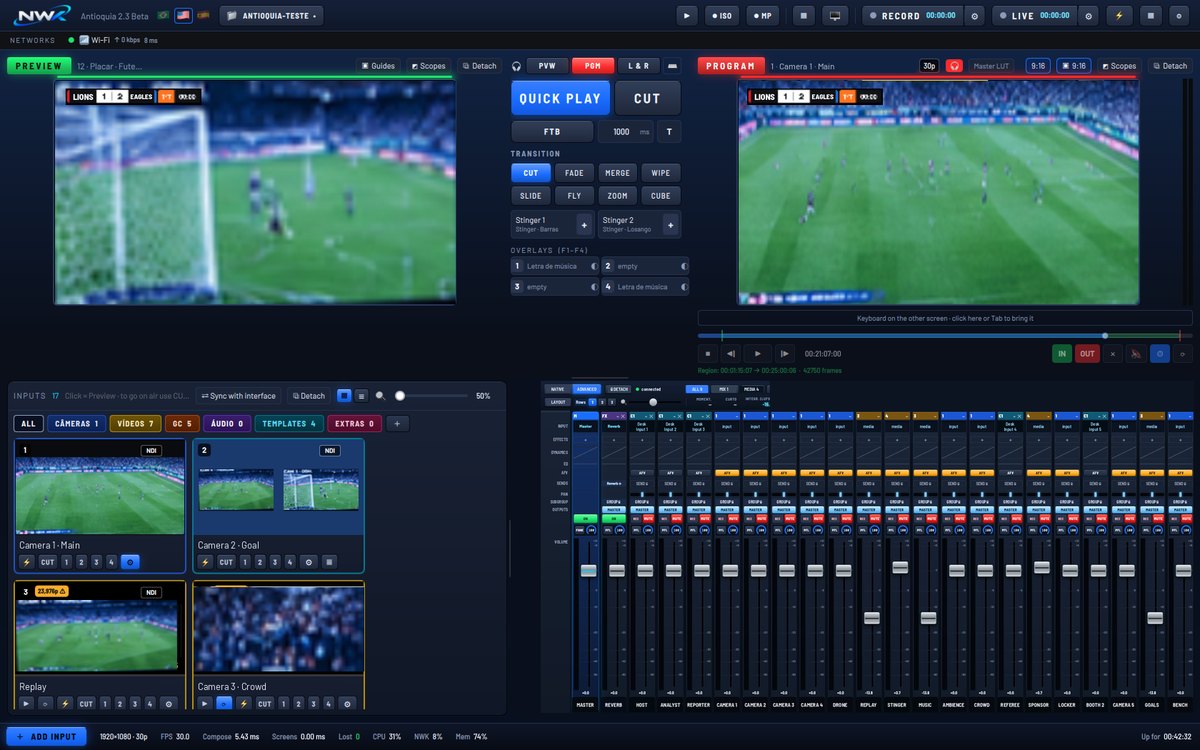
Twitch in NWK Live Production
NWK Live Production is a production and streaming program for Mac. In “+ New destination” there is a ready-made Twitch template that fills in the server, and NWK shows where the key is: Creator Dashboard, Settings, Stream. You paste the key in the “16:9 · Horizontal” box. See add a destination.
- The stream goes out in H.264 with AAC audio, over RTMP.
- Each destination has its own resolution (4K, 1440p, 1080p or 720p), frame rate (same as the project or half) and bitrate. NWK shows the range the bitrate can go for the chosen resolution. See quality per destination.
- The pre-flight check looks at inputs, microphones, disk, internet and destinations before the stream starts.
Related questions
What bitrate should I use on Twitch?
Use a value inside the range that the Twitch Broadcasting Guidelines give for your resolution and frame rate, never above the maximum listed there and never above two thirds of the upload you measured at the venue. If viewers of your channel cannot choose a lower quality, prefer a moderate value.
Where do I find the Twitch stream key?
Twitch assigns the stream key to the channel, and the broadcaster gets it from the channel dashboard. If the key appeared on screen or was shared by mistake, replace the key on Twitch and update the streaming program.
Can I stream to Twitch and to another platform at the same time?
Technically yes: each platform is a separate destination with its own key, and the upload has to carry the sum of the streams. Before you do it, read the Twitch terms that apply to your channel, because platform rules about simultaneous streaming exist and change.
In the NWK help center
Sources and references
- Twitch Developers: video broadcasting overview (consulted 2026-11-10)
- Twitch Developers: Get Ingest Servers reference (consulted 2026-11-10)
Written and reviewed by the NWK Live Production team (Setor 360 Tecnologia e Eventos Ltda). Published .
NWK has a ready-made Twitch destination, with its own quality and a check before going live.
Try NWK free for 7 days