Short answer
For a YouTube live stream, send H.264 over RTMPS at a constant bitrate, with a keyframe every 2 seconds and stereo AAC audio at 128 kbps. For 1080p, YouTube publishes 5 to 14 Mbps at 30 frames per second and 6 to 17 Mbps at 60. Turn on live streaming days before the event: YouTube says the first activation may take up to 24 hours.
On this page
What the account needs first
YouTube lists these conditions to stream live:
- The channel is verified.
- The channel had no live streaming restrictions in the past 90 days.
- The person streaming is at least 16 years old.
YouTube also says that enabling a live stream for the first time may take up to 24 hours. After that, the channel can go live right away. A channel that has never streamed should turn live streaming on days before the event, not on the day.
Where the server address and the key are
In YouTube Studio, click Create and then Go live. The Live Control Room opens. In the Stream tab, YouTube shows the stream URL, which goes in the server field of the encoder, and the stream key.
If the channel has streamed before, YouTube loads the previous settings, including the stream key, so the encoder does not need a new key for every stream. When the encoder starts sending, YouTube creates the watch page and the stream is live; to end, stop sending from the encoder.
For an event with a date, use the Manage tab and Schedule stream. On the day, start the encoder, wait for the preview in the Live Control Room and click Go live. Treat the key as a password: the reasons are in stream keys and RTMPS.
The encoder settings YouTube publishes
| Setting | What YouTube publishes |
|---|---|
| Protocol | RTMP or RTMPS; RTMPS is recommended |
| Video codec | H.264, H.265 (HEVC) or AV1 |
| Frame rate | Up to 60 frames per second |
| Keyframe interval | 2 seconds recommended, no more than 4 seconds |
| Bitrate mode | Constant bitrate (CBR) |
| Audio codec | AAC or MP3 |
| Audio | 128 kbps in stereo, at 44.1 kHz |
The picture is progressive, with square pixels. The audio choices are explained in stream audio: AAC, bitrate and channels.
Resolution and bitrate
By default YouTube detects the resolution and the frame rate of what arrives. The video bitrate follows the table YouTube publishes. In H.264:
| Resolution and frames | Minimum | Recommended |
|---|---|---|
| 720p at 30 or 60 fps | 3 Mbps | 8 Mbps |
| 1080p at 30 fps | 5 Mbps | 14 Mbps |
| 1080p at 60 fps | 6 Mbps | 17 Mbps |
The full table, up to 4K and with the AV1 and H.265 values, is in the bitrate table from 720p to 4K. YouTube notes that 4K streams do not offer the low-latency option.
Vertical streams and the test
YouTube accepts a vertical picture, taller than wide. According to YouTube, vertical streams fill the screen of viewers on phones, and viewers can also find these streams while browsing YouTube Shorts.
YouTube recommends testing before going live, with audio and with movement similar to the real event. A test with privacy set to private or unlisted shows the same picture without calling the audience.
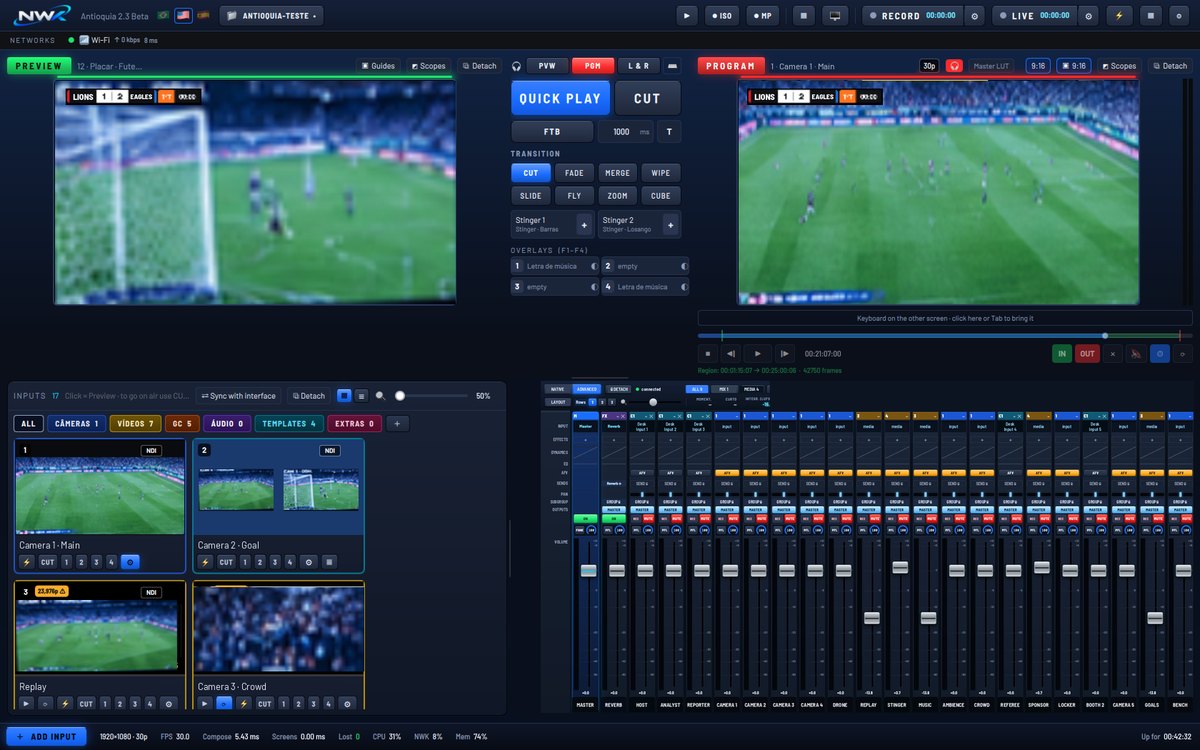
YouTube in NWK Live Production
In NWK Live Production, “+ New destination” has a ready-made YouTube template that fills in the server. Paste the stream key into the Key field of the “16:9 · Horizontal” box. The template shows where YouTube keeps the key: YouTube Studio › Go live › Stream key. See add a destination.
- The stream uses H.264 with AAC audio.
- In the Quality box, each destination has its own resolution, frames and bitrate in kbps. See quality per destination.
- On Mac, the “9:16 · Vertical” box of the destination sends an upright crop of the Program with its own key.
- The pre-flight check tests whether each destination that is on has a key and whether the server responds.
NWK runs on Mac with Apple Silicon and is sold by subscription, with a 7-day free trial. See the pricing page.
Related questions
What bitrate should I use for 1080p on YouTube live?
In H.264, YouTube publishes a minimum of 5 Mbps and a recommended 14 Mbps for 1080p at 30 frames per second, and 6 to 17 Mbps for 1080p at 60. Use the lower part for a person talking and the upper part for sports and concerts, as long as the upload carries the bitrate with headroom.
What keyframe interval does YouTube want?
YouTube recommends a keyframe every 2 seconds and says the interval should not exceed 4 seconds. An encoder set to automatic keyframes may send them farther apart, so set the interval by hand.
Does the YouTube stream key change every time?
No. YouTube says that when the channel has streamed before, the previous settings load automatically, including the stream key, so the encoder does not need to be updated. Create a new key on YouTube when the current one may have been seen by someone else.
In the NWK help center
Sources and references
- YouTube Help: choose live encoder settings, bitrates and resolutions (checked Nov 2026)
- YouTube Help: create a YouTube live stream with an encoder (checked Nov 2026)
- YouTube Help: get started with live streaming (checked Nov 2026)
Written and reviewed by the NWK Live Production team (Setor 360 Tecnologia e Eventos Ltda). Published .
NWK has a ready-made YouTube destination, with its own resolution, frames and bitrate, and tests the server before you go on air.
Try NWK free for 7 days