Short answer
A meeting application accepts one camera and one microphone. To take a production into the meeting, the Program has to appear on the computer as a camera and the mix as a microphone. In NWK the picture leaves through the NDI® output of the Program and becomes a camera with NDI Virtual Input, and the sound leaves through the NWK virtual microphone. In the meeting, you choose the two.
On this page
Step by step
- Install the virtual microphone once, with the program off air.
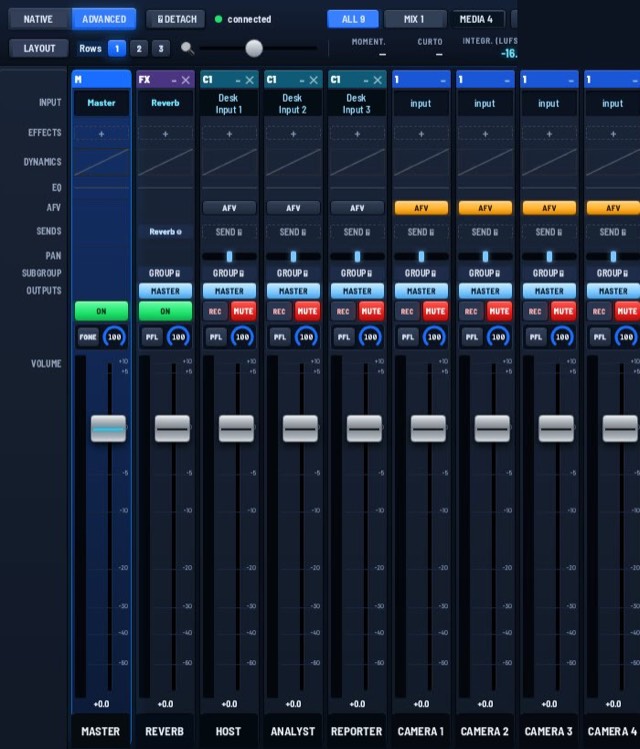
- Choose what the virtual microphone sends: the Master or one of the outputs A to E.
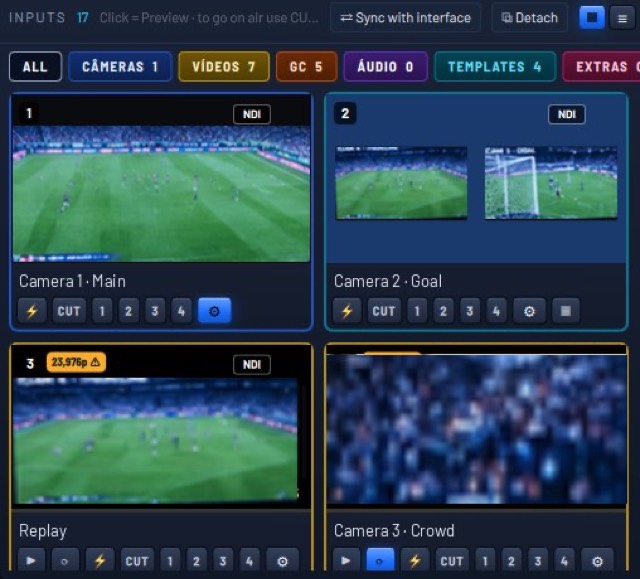
- Turn on the NDI output of the Program.
- Open NDI Virtual Input and choose the NWK output.
- In the meeting, choose the microphone “NWK Live Studio” and the camera “NDI Video”.
- If the sound of the meeting enters the production, send to the meeting an output without that sound.
- Join the meeting from a second device and check what the participants see and hear.
A meeting sees one camera and one microphone
Meeting applications were made for one person in front of a webcam. They do not receive a stream by server and key, as the video platforms do. The way in is to present the production to the computer as if it were two devices.
| What goes | How it leaves the production | What you choose in the meeting |
|---|---|---|
| Picture | The Program, already switched, as a virtual camera | The camera |
| Sound | The mix, as a virtual microphone | The microphone |
The picture: Program as a camera
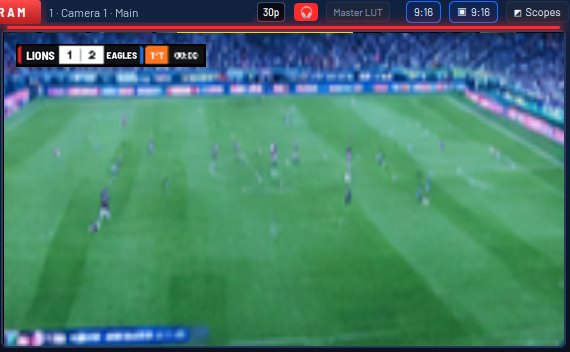
In NWK the picture goes through the NDI output of the Program. NDI Virtual Input, from the free NDI Tools package, receives that output and presents it to the computer as a camera, which appears in the meeting as “NDI Video”. The page on NDI in NWK explains the output.
A meeting compresses the picture more than a video platform does and may reduce the resolution and the frame rate. Use large titles, avoid small text and prefer cuts to long transitions. Your own preview in the meeting may appear mirrored; what counts is what the participants receive.
The sound: the mix as a microphone
The NWK virtual microphone takes the sound of the mixer to the meeting. It is installed once, and during installation the sound of the computer restarts for a few seconds, so install it before the event and never on air. After that you choose what it sends: the Master, which is what goes on air, or one of the outputs A to E. The page on the virtual microphone covers it in detail.
Meeting applications treat the microphone as a voice: they reduce noise and adjust the level by themselves. Music and applause can be cut as if they were noise. Look in the audio settings of the meeting application for the option that keeps the original sound or reduces the noise suppression.
Do not send the participants their own voices
If the sound of the meeting also enters the production, for example to put a participant on air, the Master carries the voices of the participants. Sent back to the meeting, those voices return to their owners with a delay. The solution is a mix with everything except the meeting, which is a mix-minus.
In NWK, turn on “Master minus…” on one of the outputs A to E, mark the input of the meeting so that it does not return, and choose that output in the virtual microphone. The outputs A to E do not go to the stream or to the recording, which always receive the Master.
Test as a participant
- Join the meeting from a phone or a second computer, with headphones, and watch for a minute.
- Check that the picture is the Program and not the webcam of the computer.
- Speak, play a video and play music: listen to each one on the second device.
- Ask someone to speak in the meeting and confirm that the voice does not come back to that person.
- Close the applications you do not need. The meeting application also uses the processor of the computer.
Related questions
Do the participants see the titles and graphics?
Yes. The meeting receives the Program, which is the picture that goes on air, with the sound of the Master or of the output you chose.
Why do the participants hear their own voices?
The sound of the meeting is entering the production and going back to the meeting inside the mix. Send to the meeting an output with everything except the input of the meeting.
Why does music sound bad in the meeting?
Meeting applications process the microphone as a voice and reduce what they consider noise, which includes music. Look in the audio settings of the meeting application for the option that keeps the original sound.
In the NWK help center
- Use NWK as a camera and microphone in Zoom, Microsoft Teams or Google Meet
- Send audio to Zoom, Teams and Meet
- Send the Program over the network with NDI
- Use outputs A–E and echo-free return
Written and reviewed by the NWK Live Production team (Setor 360 Tecnologia e Eventos Ltda). Published .
NWK sends the Program and the sound of the mixer to Zoom, Teams and Meet from a Mac.
Try NWK free for 7 days