Short answer
To connect two computers with NDI®, put both on the same local network by cable, turn on an NDI output in a program on the computer that sends, and add that source as an input in the program on the computer that receives. The source appears in the list by the name of the computer and of the output. Picture and sound travel together, so check the sound in the mixer of the computer that receives before going on air.
On this page
Step by step
- Connect the two computers by network cable to the same switch or router.
- Install the free NDI Tools on the computers whose programs ask for it.
- On the computer that sends, turn on the NDI output and give it a clear name.
- On the computer that receives, add an NDI input and choose the source in the list.
- Confirm that the picture arrives and moves without stutter.
- Check the sound of the source in the mixer and mute any second path of the same sound.
- Leave the link running for some minutes before the event.
What you need
- The same local network. The two computers on the same switch or router. The source announces itself on the local network, and the list of the receiver only shows what is on it.
- Cable. Gigabit network cable on both. Video over Wi-Fi stutters and loses sound.
- A program with NDI output on the computer that sends, and a program with NDI input on the computer that receives.
No capture card and no video cable are used. NDI explained describes how the protocol works, and network gear for NDI shows how to add up the bandwidth when there is more than one source.
What goes from one computer to the other
| You want | Computer that sends | Computer that receives |
|---|---|---|
| Slides or a second screen in the program | The computer with the presentation sends its screen | The production computer adds the source as an input |
| The finished program in another room | The production computer sends the Program | A computer connected to a screen or projector shows it |
| One computer to produce, another to stream or record | The production computer sends the Program | The second computer receives it as its only input |
| A camera of one computer used on another | The first computer sends that input alone | The second adds it as an input |
The free NDI Tools package includes a tool that sends the screen of a computer as a source, which serves the first case when the presentation program has no NDI output.
The computer that sends, in NWK
In NWK Live Production the Program goes out over NDI with the audio of the Master, at the resolution and frame rate of the project, when you turn on the output in the NDI tab of the settings. There you choose the name on the network and the quality, from the full size of the project down to smaller options that use less network. NWK shows an estimate of how much network the output will use and warns if it may not be enough. See send the Program over the network with NDI.
To send one input alone, click NDI on its thumbnail. It appears on the network as a source of its own, with its own audio, named after the input. NWK needs NDI Tools installed and tells you when it is missing. If the computer is also on Wi-Fi, NWK warns you to turn Wi-Fi off while sending.
The computer that receives, in NWK
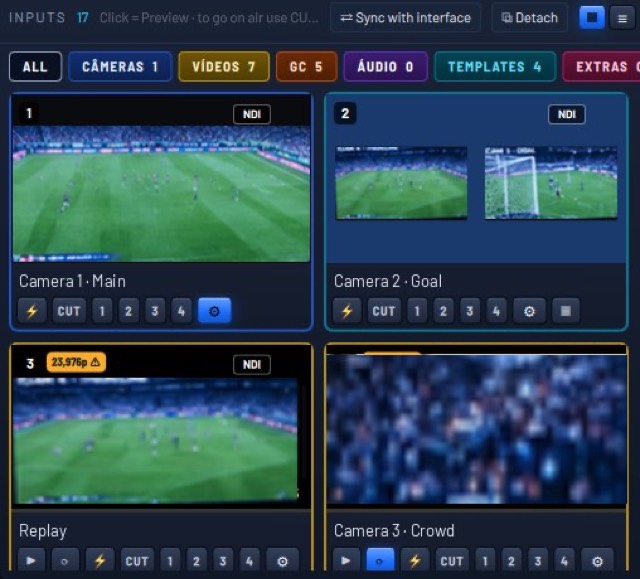
Add an input of the NDI type. The window searches the network and lists the sources; click the one you want. If you know the name, you can type it in the format COMPUTER (Output name). The sound of the source becomes a channel in the mixer, like the sound of a camera. The steps are in add an NDI source, and NDI in NWK describes the two directions.
Sound and delay
The sound that arrives with the source is one more path. If the same microphone also reaches the second computer by cable or by an audio interface, the audience hears it twice, with a short gap between the two. Choose one path and mute the other.
The link adds a small delay to the picture and to the sound of that source together. When the picture comes over the network and the sound comes straight from a mixing console, the sound arrives first: delay the audio channel until the mouth and the voice match.
When it does not work
| What you see | Where to look |
|---|---|
| The source is not in the list | NDI source not showing: output turned off, different networks, permission or firewall |
| Picture stutters or sound drops | Network gear for NDI: Wi-Fi in the path, a slow port, too many sources on one cable |
| Sound doubled | The same sound arriving by two paths; mute one |
| The source appears and the picture is black | On the computer that sends, confirm that there is picture in what is being sent |
Related questions
Do I need a capture card to connect two computers with NDI?
No. NDI sends picture and sound over the network cable. A capture card is the other way to do it, with an HDMI cable from one computer into the other.
Does NDI work over Wi-Fi between two computers?
It can connect, and it is not reliable for a live event. Wi-Fi capacity changes from second to second, and the result is stutter and gaps in the sound. Use a network cable on both computers.
Can the two computers be in different places, over the internet?
NDI as described here is for one local network. To take a signal from one site to another over the internet, the usual protocol is SRT.
In the NWK help center
- Add an NDI source
- Send the Program over the network with NDI
- Adjust gain, balance and delay
- Pre-flight check
Written and reviewed by the NWK Live Production team (Setor 360 Tecnologia e Eventos Ltda). Published .
NWK receives NDI sources as inputs and sends the Program or a single input over NDI, on the Mac.
Try NWK free for 7 days