Short answer
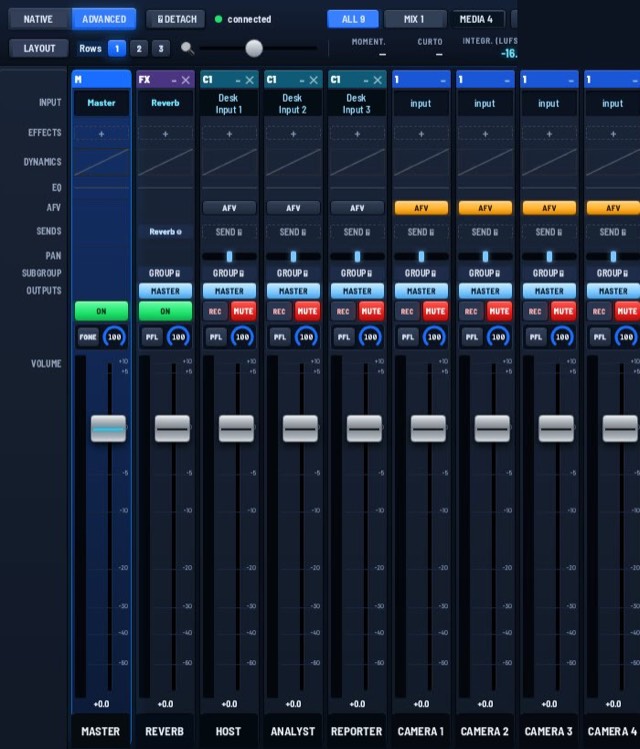
A meeting app such as Zoom, Microsoft Teams or Google Meet takes its sound from one microphone chosen in a list. To send the audio of a mixer into the call on a Mac, the mix has to appear in that list as a microphone, and that is what a virtual microphone does. NWK Live Production installs a virtual microphone called “NWK Live Studio” that carries either the Master or one of the outputs A to E into the meeting.
On this page
Why the meeting does not hear your mix
A meeting app listens to one audio device at a time. If you choose the microphone of the presenter, the participants hear only the presenter: the second microphone, the video that is playing and the music stay out. Putting a microphone in front of a loudspeaker brings the room, the echo and the noise along.
The mix made in the production program is exactly what the participants should hear. What is missing is a way to deliver that mix where the meeting app looks for it, in the list of microphones.
Three ways to deliver the mix
| Way | How it works | What to watch |
|---|---|---|
| Virtual microphone | A microphone that exists only in software and carries the sound a program sends to it | It is installed on the system and has to be chosen in the meeting app |
| Cable loop on an audio interface | An output of the interface is patched with a cable to an input, and the meeting uses that input | Takes one output and one input, and adds a conversion to analog and back |
| Second computer | The mix goes out by cable to a computer that only runs the meeting | More equipment, but the meeting does not compete with the production |
With one computer and no spare channels on the interface, the virtual microphone is the direct way.
The virtual microphone of NWK
In NWK Live Production, click ⚙ Settings and open the Zoom / Teams / Meet tab. Under Virtual microphone, click Install and type the administrator password of the computer. You install it only once. During installation the sound of the computer restarts for a few seconds, so do not install while on air.
Then choose what the microphone sends: Master, which is what goes on air, or one of the outputs A to E. In Zoom, Microsoft Teams or Google Meet, choose the “NWK Live Studio” microphone. The tab shows the state: not installed, installed · off, or sending audio. The Remove button takes the virtual microphone off the computer. The steps are in send audio to Zoom, Microsoft Teams or Google Meet.
So participants do not hear themselves
If the sound of the meeting also comes into your production, for example a remote speaker who goes on air, and the virtual microphone sends the Master, each participant hears their own voice coming back a moment later.
The fix is a mix that carries everything except the meeting itself. In NWK, turn on one of the outputs A to E in Settings › Audio, check Master minus… on it, check the input of the meeting in the table and choose that output for the virtual microphone. See outputs A–E and echo-free return. The concept is explained in mix-minus, and the other causes of doubled sound are in echo and doubled sound.
What to check in the meeting app
- Choose the virtual microphone as the microphone, and keep the speaker of the meeting on headphones or on a device that is not open in front of a live microphone.
- Meeting apps process the microphone for speech, with noise suppression and automatic level. Music and video sound can come out cut or pumping. Look in the audio settings of the meeting app for the option that reduces this processing.
- Ask one participant to tell you how it sounds before the meeting starts. Your own meters do not show what the meeting app did to the sound.
- To send the picture too, NWK uses the NDI® output of the Program; see use NWK as camera and microphone.
Related questions
How do I send the audio of a mixer to Zoom on a Mac?
The mix has to reach Zoom as a microphone. Use a virtual microphone fed by the mixer, or patch an output of the audio interface to one of its inputs with a cable. In NWK Live Production, install the virtual microphone in Settings, on the Zoom / Teams / Meet tab, and choose the “NWK Live Studio” microphone in Zoom.
Why do the participants hear their own voice back?
Because the mix sent to the meeting contains the sound of the meeting itself. Send a mix without that input. In NWK Live Production, use an output A to E with Master minus…, check the input of the meeting and choose that output for the virtual microphone.
Do the outputs A to E change what goes to the stream?
No. In NWK Live Production the stream and the recording always receive the Master. An output A to E is a separate mix, and removing the meeting from that output does not remove it from what goes on air.
In the NWK help center
- Send audio to Zoom, Teams or Meet
- Use NWK as camera and microphone in a meeting
- Outputs A–E and Master minus
Written and reviewed by the NWK Live Production team (Setor 360 Tecnologia e Eventos Ltda). Published .
NWK installs a virtual microphone on the Mac that carries the Master or one of the outputs A to E into Zoom, Microsoft Teams or Google Meet.
Try NWK free for 7 days