Short answer
A stream health warning says that the stream the platform receives does not match what the platform expects. YouTube's help page, checked on November 10, 2026, lists eight groups of messages: daily stream limit, stream format, bitrates, audio settings, video settings, keyframe frequency, video size, and primary and backup streams that do not match. Messages in red are critical and can stop the event from starting; messages in yellow are moderate and can lower the quality. Each one is fixed in the encoder settings or in the settings of the stream on the platform.
On this page
How to read a message
YouTube separates the messages by color. According to its help page, errors in red are critical and may keep the event from starting or cause problems for the viewers. Errors in yellow are moderate and may cause degraded quality.
- Read the message with a test stream before the event, not during it. The page on YouTube live settings covers the settings that the platform publishes.
- Fix red messages first.
- Change one setting, wait for the message to update, and only then change another.
The tables below follow the groups of the YouTube page. Other platforms have their own stream health pages, with other names and other values.
Format, audio and video messages
| Message group | What it means | What to do |
|---|---|---|
| Incorrect stream format | The encoder is not sending the video and audio formats that YouTube expects | Send H.264 video and AAC audio, and check the container and the codec profile |
| No audio stream | The stream has no audio. YouTube requires audio | Turn on the audio in the encoder |
| Multiple audio streams | More than one audio stream arrives, which causes ingestion problems | Send a single audio stream |
| More than 2 audio channels | The audio has more channels than stereo | Send mono or stereo |
| No video stream, or multiple video streams | No video arrives, or more than one | Send exactly one video stream |
| Interlaced video | The video is interlaced, which leaves artifacts in the picture | Send progressive video |
| Frame rate too high | The frame rate is above the maximum that the message states | Lower the frame rate, and adjust the keyframe frequency after that |
Bitrate, keyframe and resolution messages
| Message group | What it means | What to do |
|---|---|---|
| Incorrect bitrates, video | The video bitrate is above or below the value recommended for the resolution chosen on the platform | Use the bitrate recommended for that resolution. Without enough upload for it, lower the resolution |
| Incorrect bitrates, audio | The audio bitrate or sample rate is not what YouTube asks for | YouTube recommends 128 kbps for the audio and asks for a sample rate of 44.1 kHz |
| Incorrect video keyframe frequency | Keyframes arrive too far apart, which can cause buffering, or too close, which lowers the picture quality | Send a keyframe every 2 seconds. The message asks for four seconds or less |
| Incorrect video size | The width and height of the video are not the resolution chosen in the ingestion settings of the platform | Make the two match: change the encoder output or the resolution on the platform |
The page on keyframe interval explains why the interval matters, and the upload calculator shows how much upload a bitrate needs.
Stream limit and backup stream
- Daily live stream limit achieved. YouTube limits how many live streams a channel can create in a period of 24 hours, and its help page points to an article on how to raise the limit. The encoder has no part in this message. A channel that creates many test streams on the day of the event can reach it.
- Mismatched primary and backup streams. When you send a primary and a backup stream, both have to use identical settings for the switch between them to work. The page lists resolution, video codec, interlacing, profile, bitrate, frame rate, keyframe frequency, audio sample rate, audio channels and audio codec. Copy the settings from one encoder to the other.
When the viewers see stutter and no message fits
The YouTube page consulted for this guide lists configuration messages. A notice that the platform is receiving less video than it should is of another kind: less data arrives than the stream announces. That happens when the upload does not carry the bitrate or when the computer does not encode in time.
- If the recording on the computer is smooth and the stream is not, look at the network. See dropped frames: causes and fixes.
- If every viewer sees the stream stop at the same moment, the problem is on the sending side. See viewers see buffering.
Where these settings are in NWK Live Production
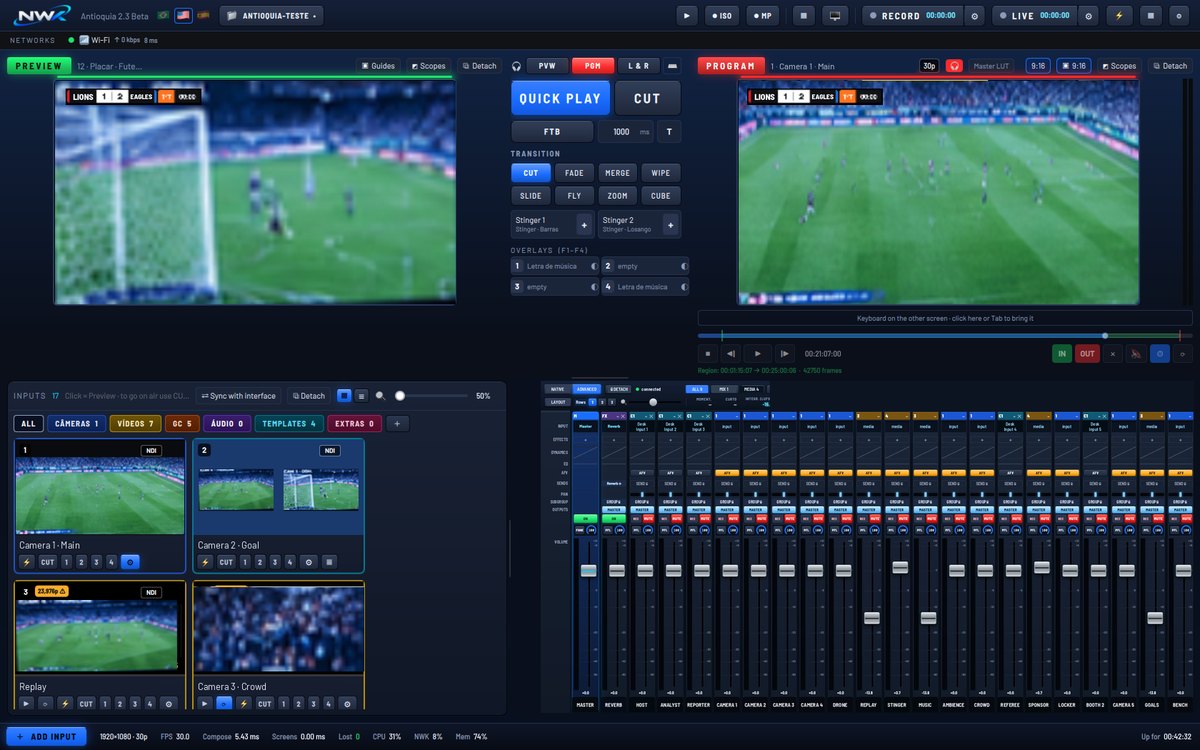
In NWK the stream goes out as H.264 video with AAC audio, by RTMP to YouTube. Each destination has its own resolution, frames per second and bitrate in the “Quality” box. NWK shows the range the bitrate can go for the chosen resolution and adjusts a value typed outside that range.
- For a video size or bitrate message, compare the resolution and the bitrate of the destination with what is chosen on the platform.
- Before the event, “✓ Check before going live” checks inputs, microphones, disk, internet and destinations. It only checks and warns: nothing goes on air.
- During the stream, a dot next to LIVE shows each destination: green on air, yellow reconnecting. NWK warns when the network has no bandwidth for the bitrate, and a destination can be turned off on air.
NWK is sold by subscription, with a 7-day free trial. See the pricing page.
Related questions
What does it mean when YouTube says it is not receiving enough video?
It means that less video data reaches the platform than the stream should deliver. The usual causes are an upload that cannot carry the bitrate and a computer that cannot encode every frame in time. Lower the bitrate, use a cable instead of Wi-Fi and check the dropped frames counter of your streaming program.
Can I go live with a yellow stream health warning?
According to YouTube, yellow errors are moderate and may cause degraded quality, while red errors are critical and may keep the event from starting. The page does not describe a yellow message as blocking the stream, but the viewers can see the effect. Fix it in the test stream, before the event.
Which keyframe interval removes the YouTube keyframe warning?
YouTube's help page says to send keyframes every 2 seconds, which is every 60 frames at 30 frames per second, and its message asks for a keyframe frequency of four seconds or less. Set a fixed interval of 2 seconds in the encoder when the encoder has that setting.
In the NWK help center
- Choose the quality of each destination
- Set up live streaming
- Check everything before going live
- The internet dropped during the stream
Sources and references
Written and reviewed by the NWK Live Production team (Setor 360 Tecnologia e Eventos Ltda). Published .
NWK sets resolution, frames and bitrate for each destination and checks destinations and internet before you go live, on Mac.
Try NWK free for 7 days