Short answer
A cheap HDMI to USB adapter does put a camera into the computer, and for a static shot at 1080p and 30 frames it is often acceptable. The limits come from the slow USB link most of them use: the video is compressed inside the adapter, the frame rate at 1080p is limited, the picture arrives later than the sound, and the adapter heats up over hours of use. The "4K" on the box usually describes the signal the adapter accepts, not what it delivers to the computer.
On this page
Where the limits come from
Uncompressed 1080p video does not fit in a USB 2.0 link. A low-cost adapter built around that link has two ways out: compress every frame before sending it, usually as a sequence of JPEG pictures, or send fewer frames and fewer pixels. Most do both, and let the program choose between a compressed format with more frames and an uncompressed format with very few.
The other limits are consequences. Compressing takes time, so the picture is late. Compressing takes power, in a tiny case with no ventilation, so the adapter gets hot. And the compression is made to be fast, not careful, so fine detail and gradients suffer.
What the box says and what it means
| On the box | What to check |
|---|---|
| "4K input" | The format the adapter accepts from the camera. Look for the capture or output format, which is the one the computer receives. |
| "1080p 60" | Whether 60 frames are delivered at 1080p, and in which format. Often the 60 frames exist only in the compressed format or at a lower resolution. |
| "USB 3.0" | A blue connector does not prove the speed. If the computer reports the device on a slow USB link, it behaves like one. |
| "Plug and play" | True for most: they follow the USB video class and appear as a camera. This says nothing about quality. |
| "Loop out" | A second HDMI connector that passes the signal on to a monitor. Useful, and independent of what is captured. |
What you see on air
- Blocks and smeared detail in motion, grass, crowds and fine text, from the compression inside the adapter.
- Uneven motion when the adapter delivers fewer frames than the project asks for.
- Lips out of sync. The picture is late and the sound from the audio console is not. The fix is to delay the audio; see Audio out of sync with the picture.
- Shifted colors or washed-out blacks on some units, with no setting to correct them in the adapter.
- Freezing or dropping out after an hour or two, from heat or from a weak USB connection. If the picture goes black, the diagnosis is in Capture card with no signal or a black screen.
When it is enough and when it is not
A low-cost adapter is a reasonable choice for a slide computer, a fixed wide shot, a secondary camera, or as a spare in the case. Slides and static shots compress well and do not need 60 frames.
It is a poor choice for the main camera of a paid job, for sports and fast motion, for projects at 50 or 60 frames, and for several units on the same hub. For those, see what to look for in a capture card.
How to test one before the event
- Connect the adapter straight to the computer, with the camera you will use.
- Open the list of formats the adapter offers and note which resolutions and frame rates exist, and in which format.
- Point the camera at something that moves, with fine detail, and look at the picture at full size.
- Clap in front of the camera and compare picture and sound.
- Leave everything running for the full length of the event. Touch the adapter at the end.
In NWK Live Production
In NWK Live Production the adapter appears in Add input › Video device (camera, capture card), like any device the system sees. Format can stay on Automatic (best up to 1080p 60) or be chosen by hand, and can be changed later in the gear of the thumbnail, under Capture format. See add a camera or capture card.
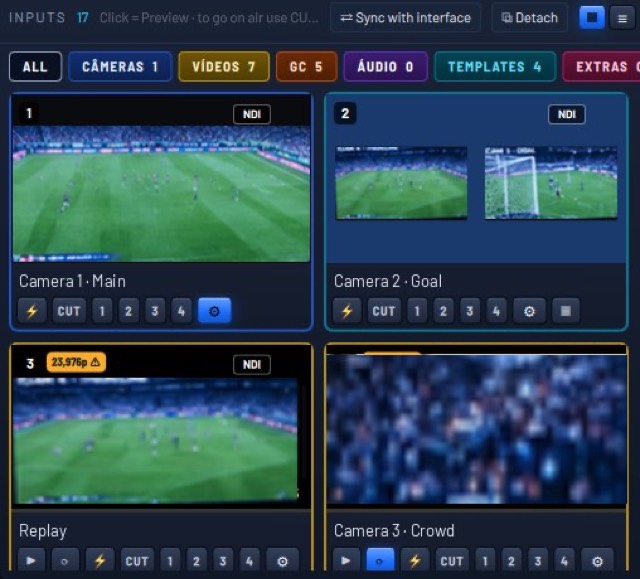
Each video input shows its frame rate in a badge on the thumbnail. The badge blinks when the rate does not match the project or when fewer frames arrive, and hovering over it shows three lines: Source sends, Arriving here and Project. That is the quickest way to see what a low-cost adapter is really delivering. See the input shows a frame rate warning.
Related questions
Are cheap HDMI capture adapters good enough for streaming?
For slides, a fixed shot or a backup camera at 1080p and 30 frames, often yes. For the main camera, fast motion or 60 frames, the compression and the limited frame rate show on air. Test the exact unit for the full length of the event.
Why does my cheap capture adapter only show 30 fps at 1080p?
Because the USB link it uses cannot carry more. Check the format list: many adapters offer more frames only in the compressed format or at a lower resolution. Also confirm that the adapter is on a fast port, without a hub.
Why is the video from my capture adapter delayed compared to the audio?
The adapter takes time to compress each frame, and the sound that comes from a separate audio interface does not wait. Delay that audio in the program until a clap looks and sounds together.
In the NWK help center
- Add a camera or capture card
- The input shows a frame rate warning
- Reconnect an input or change the device
Written and reviewed by the NWK Live Production team (Setor 360 Tecnologia e Eventos Ltda). Published .
NWK shows on each input the frame rate the source sends and the one that is arriving, and lets you choose the capture format by hand.
Try NWK free for 7 days