Short answer
For 1080p in H.264, YouTube publishes a minimum of 5 Mbps and a recommended 14 Mbps at 30 frames per second, and a minimum of 6 Mbps and a recommended 17 Mbps at 60. Inside that range, use more for sports and stage lighting and less for a person talking. The best bitrate is the highest one in the range that your upload carries with 50% headroom, counting every destination.
On this page
Upload calculator
- Total sent
- 6,2 Mbps
- Upload you should have (50% headroom)
- 9,2 Mbps
The numbers are an estimate. Measure your real upload at the venue, at the time of the event.
The range YouTube publishes for 1080p
These are the values of YouTube's encoder settings page for live ingestion, in megabits per second of video:
| 1080p | H.264 minimum | H.264 recommended | AV1 and H.265 minimum | AV1 and H.265 recommended |
|---|---|---|---|---|
| 30 fps | 5 Mbps | 14 Mbps | 4 Mbps | 10 Mbps |
| 60 fps | 6 Mbps | 17 Mbps | 4 Mbps | 12 Mbps |
The same page lists 128 kbps for stereo audio. H.264 is the codec that RTMP destinations accept almost everywhere, so the H.264 columns are the ones most productions use. The values for 720p, 1440p and 4K are in 720p, 1080p or 4K.
How to choose inside the range
The minimum keeps a still picture clean. Movement, fine detail and camera noise need more.
| Content | Where to be in the range |
|---|---|
| A person talking, slides, still background | Lower part |
| Service, lecture or interview with several cameras and cuts | Middle |
| Sports, concerts, moving lights, crowds, water | Upper part, as far as the upload allows |
Recommendation: start near the middle, watch a recording of a rehearsal with the fastest scene of the event, and raise the bitrate if blocks appear when the picture moves. The symptoms are described in Pixelated or blurry stream. At 60 frames per second the encoder describes twice as many pictures, so the same content needs more bitrate than at 30.
How much upload each bitrate needs
The bitrate only works if the connection carries it. Add 160 kbps of audio and keep 50% of headroom:
| Video bitrate | Upload you should have, one destination |
|---|---|
| 5,000 kbps | 7.7 Mbps |
| 6,000 kbps | 9.2 Mbps |
| 8,000 kbps | 12.2 Mbps |
| 10,000 kbps | 15.2 Mbps |
| 14,000 kbps | 21.2 Mbps |
| 17,000 kbps | 25.7 Mbps |
The calculator at the top does the same sum for other values and for more than one destination. If the upload does not carry the minimum for 1080p with headroom, stream in 720p: a clean 720p picture looks better than a 1080p picture breaking into blocks. How to measure the upload is in how much upload speed a live stream needs.
Other platforms and other settings
Every platform publishes its own range, and some accept less than YouTube does. Before the event, open the encoder settings page of each platform you send to and use a value that fits its range. When the same stream goes to several platforms with one setting, the platform with the lowest limit decides.
Two settings go together with the bitrate. Use constant bitrate, explained in CBR or VBR, and a fixed keyframe interval of 2 seconds, explained in Keyframe interval: what to set and why.
Bitrate for 1080p in NWK Live Production
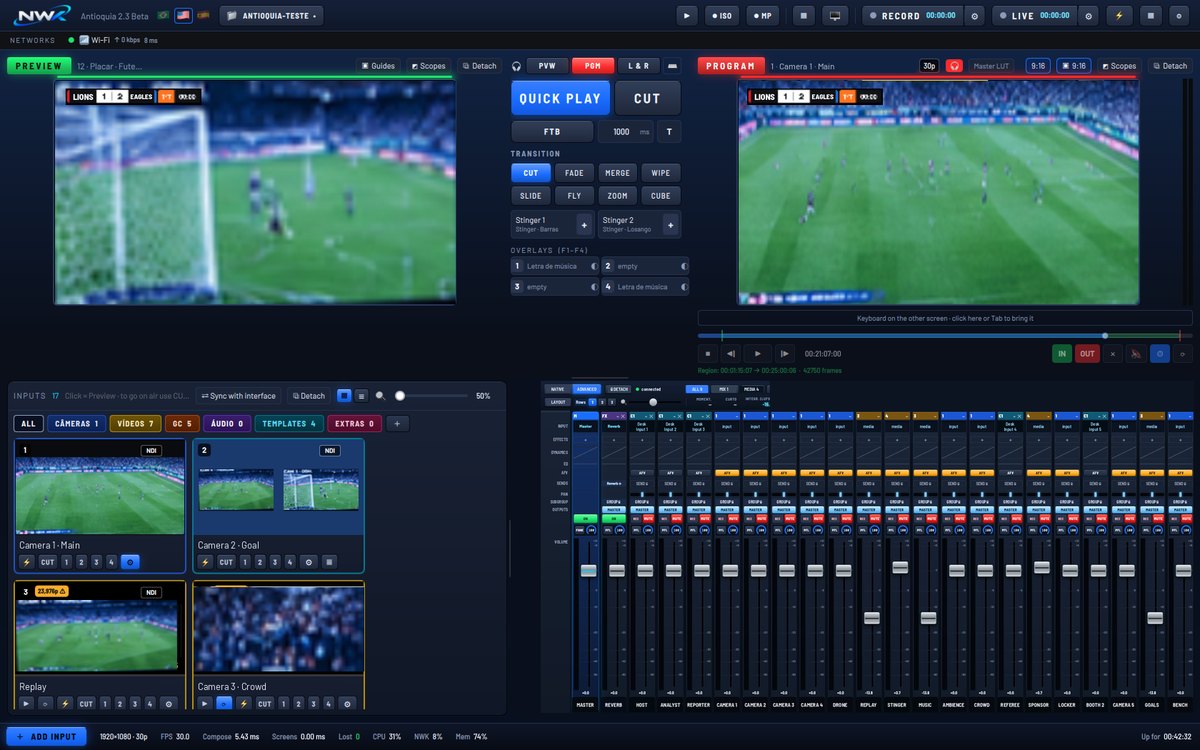
In NWK Live Production the quality is chosen per destination, in the Quality box: the resolution, with 1080p among the options, the frames, same as the project or half when the project allows it, and the bitrate in kbps. The Minimum, Balanced and Maximum buttons fill in the bitrate, and below them NWK shows the range the bitrate can go for the chosen resolution. A value typed outside that range is adjusted automatically. See quality per destination.
Start with Balanced. One destination can go out in 1080p and another in 720p in the same stream, and destinations with the same quality share one encoder. The total upload of the destinations that are on appears next to Destinations, to compare with your connection.
Related questions
Is 6,000 kbps enough for 1080p?
For 1080p at 30 frames with little movement, 6,000 kbps is above YouTube's minimum and gives a clean picture. At 60 frames it is exactly the minimum, and sports or concerts tend to show blocks. Raise the bitrate if the upload allows it, or use 30 frames.
Does a higher bitrate always look better?
Up to a point. Above what the content needs, extra bitrate adds little that the viewer can see, because the platform encodes the video again. A bitrate above what your upload carries makes things worse: frames are dropped and the stream stutters.
What bitrate should I use for 1080p at 60 fps?
For YouTube in H.264, between 6 and 17 Mbps. Use the upper part of the range for sports and games, and check that the upload carries the total with 50% headroom. With limited upload, 1080p at 30 frames or 720p at 60 are safer choices.
In the NWK help center
Sources and references
Written and reviewed by the NWK Live Production team (Setor 360 Tecnologia e Eventos Ltda). Published .
In NWK each destination has its own resolution and bitrate, and the program shows the total upload of the destinations that are on.
Try NWK free for 7 days