Short answer
Bring the slides in as a source of their own, separate from the camera: through the HDMI output of the presenter's computer into a capture device, over the network, or as exported images. Combine the two in a layout with the slide large and the presenter small beside it, and take the sound from a microphone on the presenter. During the webinar, alternate between the full camera, slide with camera and the full slide.
On this page
Step by step
- Choose how the slides arrive: HDMI into a capture device, the network, or exported images.
- Add the slides and the camera as two separate inputs.
- Put a microphone on the presenter and add it to the mixer.
- Build the layout with the slide large and the camera beside it.
- Prepare the title with the presenter's name and, if there are questions, the chat.
- Rehearse the whole presentation through the stream, including the videos inside the slides.
- Add the destination, run the pre-flight check and record the Program.
Three ways to bring in the slides
| Path | Works well when | Limit |
|---|---|---|
| HDMI output of the presenter's computer into a capture device | The presenter uses their own computer and any presentation software. Animations and videos arrive as they are | Needs a capture device and a cable to the production computer |
| Network, with NDI® | The two computers are on the same wired network and the presentation computer sends its screen as NDI | Depends on the network. Avoid Wi-Fi |
| Slides exported as images | There are few slides, without animation or video, and only one computer | Each slide is a still image |
In NWK each path is a type of input: video device for the capture device, NDI source for the network and image for the exported slides. When the capture device or the NDI source carries sound, that sound becomes a strip in the mixer, which is how the audio of a video inside the slides reaches the stream.
Slide and presenter on screen together
| Composition | When to use |
|---|---|
| Full camera | Opening, closing, questions, any moment without a slide |
| Slide large, presenter small beside it | Most of the presentation |
| Full slide | A dense chart, a table, a demonstration that needs the whole screen |
A slide left alone on screen for many minutes turns the webinar into narrated slides, and attention drops. Seeing the presenter is what keeps the audience. The page on picture-in-picture and split screen explains how to compose the two.
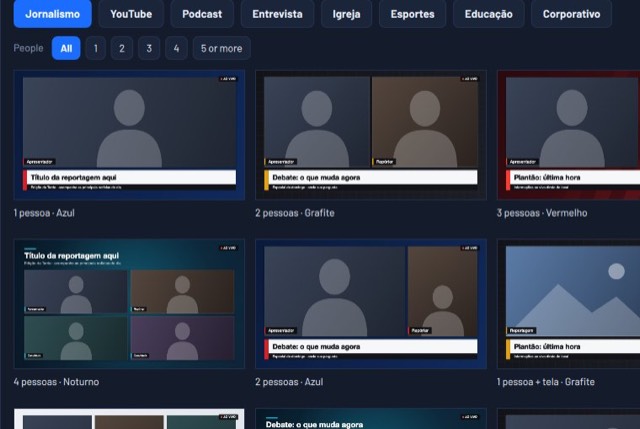
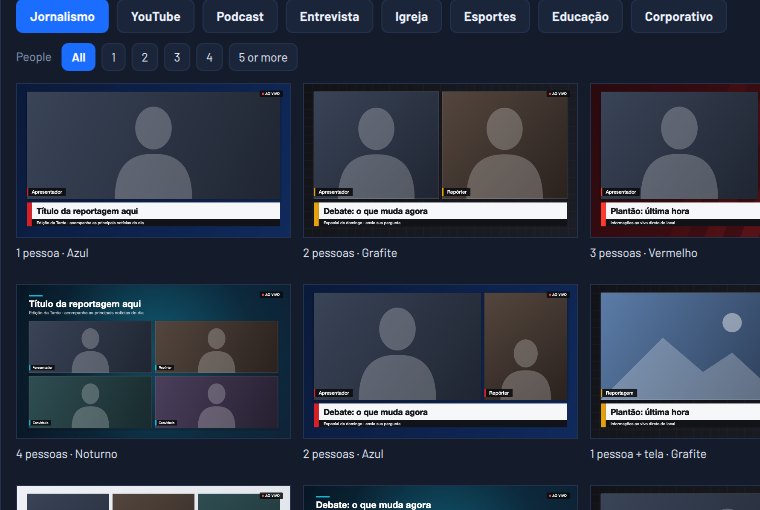
NWK has ready-made templates grouped by subject, among them Education and Corporate, with a filter by number of people. In each space of the template you choose what appears there, and the template becomes an input like any other, which you take to air with a cut.
Slides that survive the stream
- Use slides in 16:9, the same shape as the stream.
- Use large type and few lines. The audience may be watching on a phone, and the platform compresses the picture.
- Leave an empty area in the slide master where the presenter's picture will go, so that the presenter never covers text.
- Prefer dark text on a light background or the reverse, with strong contrast. Thin lines and small numbers disappear.
The sound comes from the presenter
Put a lapel microphone or a headset on the presenter. The microphone of the computer or of the camera records the room and the keyboard. If the slides have videos with sound, test that sound through the whole path before the day: it is the item most often forgotten in a webinar.
Names, questions and remote presenters
Show the name and the role of the presenter at the start and whenever someone joins late; see lower thirds for speakers. For questions, one person reads the chat and chooses what goes to the presenter. In NWK a web page can be an input, and that is how the YouTube chat goes on screen. A presenter who is in another city can join through a link in the browser: see remote guests by link.
Rehearsal and checklist
- Run the presentation from start to finish through the stream, with a private destination or only recording.
- On the presenter's computer: notifications off, power adapter connected, screen sleep off.
- Check each composition with the real slides, not with a test slide.
- Record the Program. The recording is the webinar that will be published afterwards for those who missed it.
Related questions
Can I run a webinar with only one computer?
Yes, with the slides exported as images and added as inputs on the production computer. With animations or videos in the slides, a second computer for the presentation, connected by HDMI or by the network, is the more reliable path.
Why does the text on the slides look blurry to the audience?
The platform compresses the picture, and small text is the first thing to suffer. Use larger type and fewer lines per slide, send the stream at the resolution of the slides and show the full slide when the content is dense.
How do I show the presenter and the slides at the same time?
Use a composition with two spaces: the slide in the large space and the camera in the small one. Build it before the event, as a single source, so that during the webinar it goes on air with one cut.
In the NWK help center
- Start with a ready-made template
- Add a camera or capture card
- Add an NDI source
- Add an image
- Add a web page
Written and reviewed by the NWK Live Production team (Setor 360 Tecnologia e Eventos Ltda). Published .
NWK has ready-made templates, titles, the audio mixer and recording in one program for Mac.
Try NWK free for 7 days