Short answer
The stream and the recording are separate encodes, and most live production programs let you set each one. Set the stream to what the upload carries with headroom, and set the recording higher: first a higher bitrate, then a higher resolution if the project and the cameras have it. The recording does not use upload. It costs disk space and extra work for the computer.
On this page
Why the two can be different
The stream is limited by the upload of the venue and by what the platform accepts. A stream above what the line carries loses frames, however good the cameras are.
The recording goes to a disk on the same computer. No network is involved, so the limit is how fast the disk writes and how much the computer can encode at once. That is why a modest stream and a clean recording of the same event are a normal combination: the audience watches live at the quality the internet allows, and the published video comes from the file.
A program that uses one encode for both gives the recording exactly the quality of the stream. Check in the settings whether the recording has its own resolution and bitrate.
What to raise in the recording, in order
- Bitrate. A higher bitrate at the same resolution removes the blocks in motion and in dark areas. It is the change with the most visible result.
- Resolution. Raise it only up to the resolution of the project and of the cameras. Recording 4K from a 1080p project makes a larger file with no extra detail.
- Codec. HEVC (H.265) keeps similar quality in a smaller file than H.264, if your video editor opens HEVC.
- Audio. A separate uncompressed audio file gives the editor more to work with than the audio inside the video.
Keep the frame rate of the recording equal to the project. For the choice of resolution on the stream side, see 720p, 1080p or 4K.
What it costs
| Recording bitrate | Disk space per hour |
|---|---|
| 12 Mbps | About 5.4 GB |
| 20 Mbps | About 9 GB |
| 40 Mbps | About 18 GB |
The other cost is processing. A recording with settings different from the stream is one more encode running at the same time. On a computer near its limit, that extra encode can be what makes frames drop. Rehearse with the stream and the recording on, for the full length of the event, and watch the processor.
The disk has to keep its speed for hours and have space to spare. External SSD for recording covers the disk.
Stream and recording quality in NWK Live Production
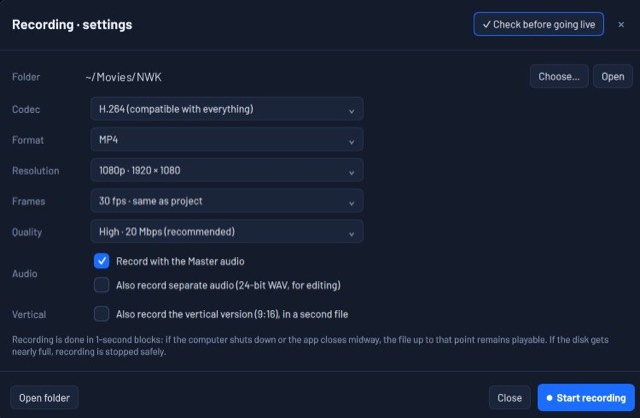
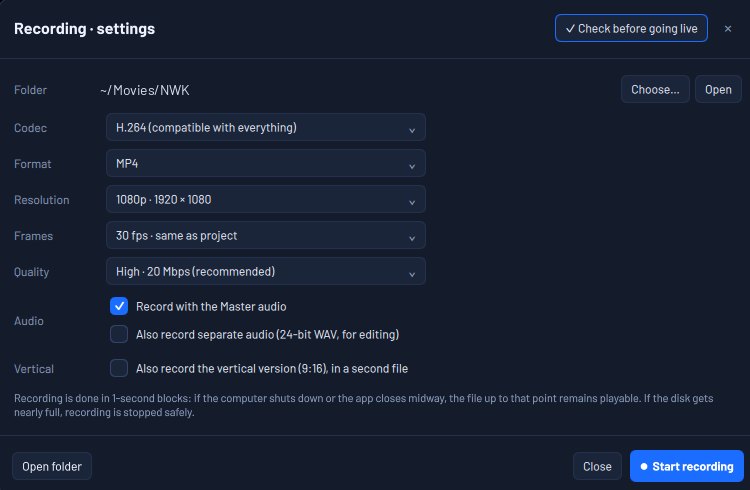
In NWK the recording and each destination have separate settings.
- Recording: click the gear next to RECORD. You choose the codec (H.264 or HEVC), the format (MP4 or MOV), the resolution (4K, 1440p, 1080p or 720p), the frames (same as the project or half, when the project allows it) and the quality: Good · 12 Mbps, High · 20 Mbps or Maximum · 40 Mbps. See recording settings.
- Each destination: in “Edit”, the “Quality” box has the resolution, the frames and the bitrate in kbps, with the “Minimum”, “Balanced” and “Maximum” buttons. See quality per destination.
For most cases the recording settings to use are H.264, MP4 and High quality. The recording can also write a separate 24-bit WAV file with the same name as the video. While a recording is running the options are locked, so set them before the event.
The per-camera files of the MultiCorder use the same format and the same quality chosen in the recording settings.
Common mistakes
- Raising the stream to improve the recording. The two are set separately; raising the stream only loads the upload.
- Recording at a resolution above the project.
- Choosing the highest setting without testing the computer for the length of the event.
- Recording in HEVC without checking that the editing computer opens it.
- Not checking free disk space before starting.
Related questions
Can I stream in 720p and record in 1080p at the same time?
Yes, in a program that sets the recording separately from the stream, and when the project is 1080p or higher. The stream is scaled down to 720p for the internet, and the recording keeps 1080p on the disk.
Does recording in higher quality use more internet?
No. The recording is written to the disk and does not use upload. It uses disk space and processing.
Does a higher recording bitrate make the stream worse?
Not by itself. The stream keeps its own bitrate. The stream can suffer only if the extra encode pushes the computer past its limit, which shows up as lost frames.
In the NWK help center
Written and reviewed by the NWK Live Production team (Setor 360 Tecnologia e Eventos Ltda). Published .
NWK has separate settings for the recording and for each destination: resolution, frames and bitrate.
Try NWK free for 7 days