Short answer
To stream a pre-recorded video as live, either upload it and schedule it with the platform's own premiere feature, or play the file as a source in a streaming program that is sending a live stream. The second way lets you add a live opening, live comments and a closing around the recording. Read the platform's rules first and do not tell the audience that a recording is happening now: say it is recorded, or simply do not call it live.
On this page
Platform rules and honesty with the audience
Each platform has its own rules, and the rules change. Read the current page of the platform you use before the event. On YouTube, the help center states that all content in live streams must follow the Community Guidelines and the Terms of Service, and the policy on spam and deceptive practices forbids titles, thumbnails and descriptions that mislead viewers about what the video delivers.
The practical rule that follows is simple. Do not write “live” in the title of a recording, do not answer the chat as if the speaker were reading it on stage, and do not let a countdown promise something that is not going to happen. A line on screen or in the description, such as “recorded on Saturday”, is enough.
Three ways to put it on air
| Way | How it works | Fits when |
|---|---|---|
| Platform premiere | You upload the file and schedule it. The platform plays it at the set time, with chat | The whole hour is the recording and nobody needs to speak live |
| File played by the streaming program | The program sends a normal live stream whose source is the video file | The platform has no premiere, or you send to several destinations |
| Recorded blocks with a live host | A host opens live, the recording plays, the host comes back for questions | The audience expects interaction |
YouTube describes its Premieres feature as a way for the creator and the viewers to watch a new video together in real time, with comments and live chat, and says the video stays on the channel as a regular upload afterward.
Prepare the file and the hour
- Export the video at the resolution and frame rate of the stream. A file at another frame rate plays with small jumps.
- Watch the whole file once on the streaming computer before the event.
- Start with a waiting screen or a countdown; see countdown and waiting screen.
- Decide what goes on air when the file ends: a closing card, or the live host.
- Put a person in the chat. A chat with no answer is what makes a recording feel abandoned.
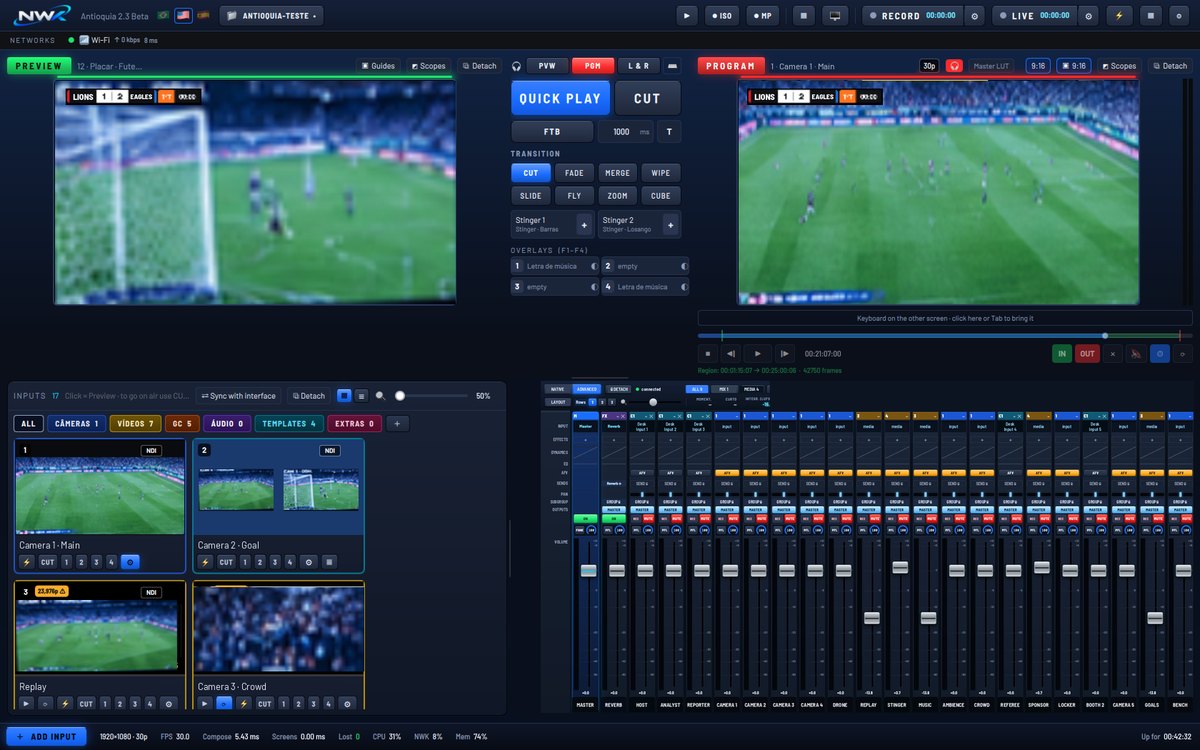
Recorded video in NWK Live Production
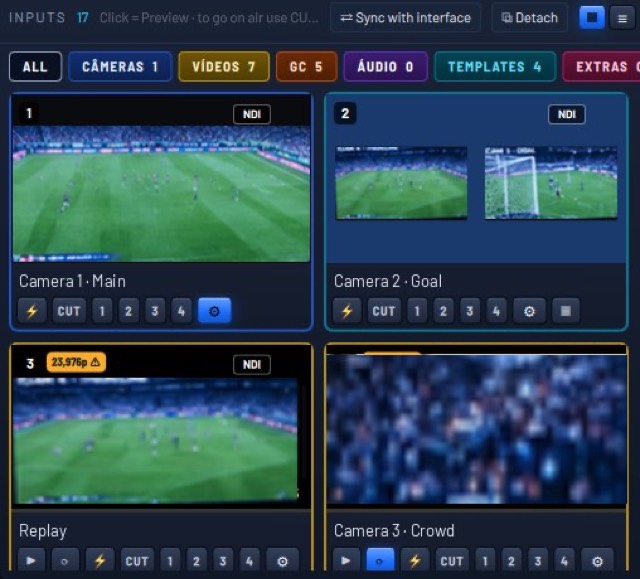
In NWK, a video file becomes an input. The accepted formats are MP4, MOV and M4V. You can mark an IN and an OUT so that only the chosen part plays, and the sound of the video goes on air when the video is on Program. See add a video.
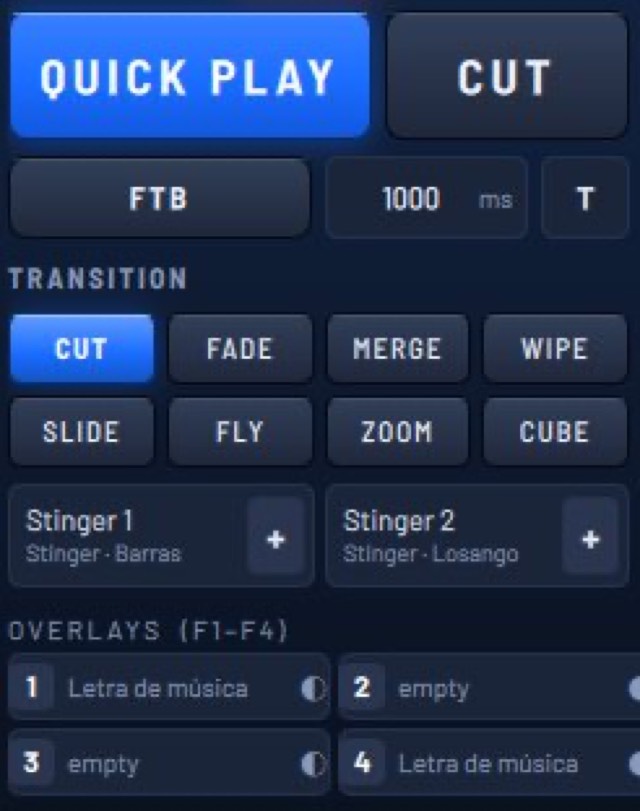
The Playlist puts inputs on air one after another with the current transition: videos stay until their end, and other inputs, such as a camera or a title, stay for the time you choose. That covers a live opening, a recorded block and a live closing. See the Playlist.
For a program that must start at an exact hour, the Scheduling Player plays a schedule of videos, images and live inputs. An item can have a fixed time, and in Automatic mode the schedule moves from one item to the next by itself. See the Scheduling Player.
Related questions
Is it allowed to stream a pre-recorded video as a live stream?
It depends on the platform, and each one publishes its own rules. On YouTube, live streams must follow the Community Guidelines, and misleading titles, thumbnails and descriptions are forbidden. Read the current rules of your platform and do not present a recording as something happening now.
What is the difference between a premiere and a live stream of a file?
In a premiere, the platform plays a file that you uploaded, at a scheduled time, with chat. In a live stream of a file, your computer plays the file and sends it as a live stream, so you can mix live parts in, but the result depends on your computer and connection.
Will the audience notice that the video is recorded?
Often, yes: nobody reacts to the chat, the light does not match the time of day, and the picture has cuts no live crew would make.
In the NWK help center
Sources and references
- YouTube Help: premiere a new video (YouTube Premieres)
- YouTube Help: spam, deceptive practices and scams policies
- YouTube Help: get started with live streaming (requirements and policies for live streams)
Written and reviewed by the NWK Live Production team (Setor 360 Tecnologia e Eventos Ltda). Published .
NWK Live Production plays video files as inputs, in a Playlist or in a schedule with fixed times.
Try NWK free for 7 days