Short answer
To fix audio delay on a live stream, measure it and then delay the sound by the measured amount. Record a clap in front of the camera with the microphone that goes on air, count in a video editor how many frames separate the hands from the sound, and convert the frames to milliseconds. Put that value in the audio delay of the microphone channel and record again to confirm.
On this page
Step by step
- Set up the camera and the microphone exactly as they will be used on air.
- Record a few claps in front of the camera, close to the microphone.
- Open the recording in a video editor and count the frames between the hands meeting and the sound.
- Convert the frames to milliseconds with the frame rate of the recording.
- Put that value in the audio delay of the microphone channel.
- Record the clap again and confirm that picture and sound land on the same frame.
- Write the value down and repeat the test whenever the video path changes.
Why the fix goes on the sound
In a live production the picture almost always arrives after the sound. The camera, the converter and the capture device each take time, and a microphone on an audio interface takes almost none. Nothing can make the picture arrive sooner, so the fix is to hold the sound back until the picture catches up.
This page covers the common case: sound early by a fixed amount. If the sound is late, if the error grows during the stream or if only one camera is wrong, find the cause first in audio out of sync.
Record the clap
Use the real chain: the same camera, the same cable and capture device, the same microphone, the same project frame rate. A test made with another camera measures another delay.
- Frame the hands and the microphone in the same shot, if possible.
- Clap three or four times, with a pause between claps. Several claps show whether the difference is constant.
- Record the Program on the computer. Do not measure on the platform player, which adds its own buffering.
In the editor, step frame by frame to the frame where the hands meet. Then look at the waveform: the clap is a sharp spike. Count the frames from the spike to the frame of the hands.
Turn frames into milliseconds
One frame lasts 1000 divided by the frame rate, in milliseconds. Multiply by the number of frames counted.
| Frame rate | 1 frame | 2 frames | 3 frames | 4 frames |
|---|---|---|---|---|
| 24 or 25 fps | about 40 ms | about 80 ms | about 120 ms | about 160 ms |
| 30 fps | 33 ms | 67 ms | 100 ms | 133 ms |
| 50 fps | 20 ms | 40 ms | 60 ms | 80 ms |
| 60 fps | 17 ms | 33 ms | 50 ms | 67 ms |
The count is accurate to about one frame, because the clap can fall anywhere inside a frame. Treat the result as a starting value and refine it in the next step.
Where to put the delay
- One microphone early: put the delay on that microphone channel.
- Every sound source early by the same amount, for example a mixing console feeding the whole show: put the delay once on the main mix.
- Camera sound: audio that enters together with the picture, through the same capture device, travels with the picture. Leave that channel without delay.
- Several cameras: one audio delay matches one video delay. Use the same type of camera and connection for all of them, or set the delay for the camera that shows faces in close-up.
Confirm and fine-tune
Record the clap again with the delay on. The spike and the hands should fall on the same frame. Then record someone speaking and watch the consonants P, B and M, where the lips close: these show an error that a clap test left behind.
Recommendation: when in doubt between two values, choose the one that leaves the sound slightly late. Sound arriving a little after the picture is what happens in a real room, where light arrives before sound. Sound before the picture looks wrong much sooner.
Audio delay in NWK Live Production
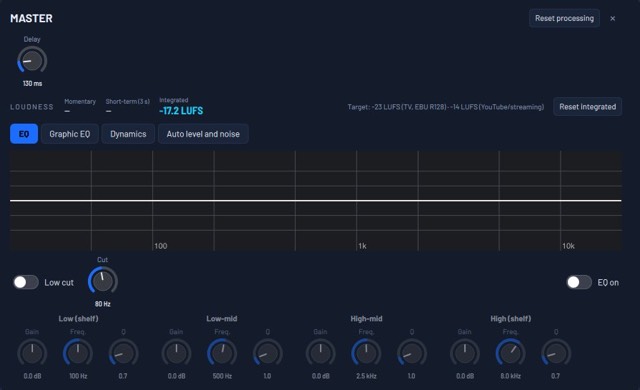
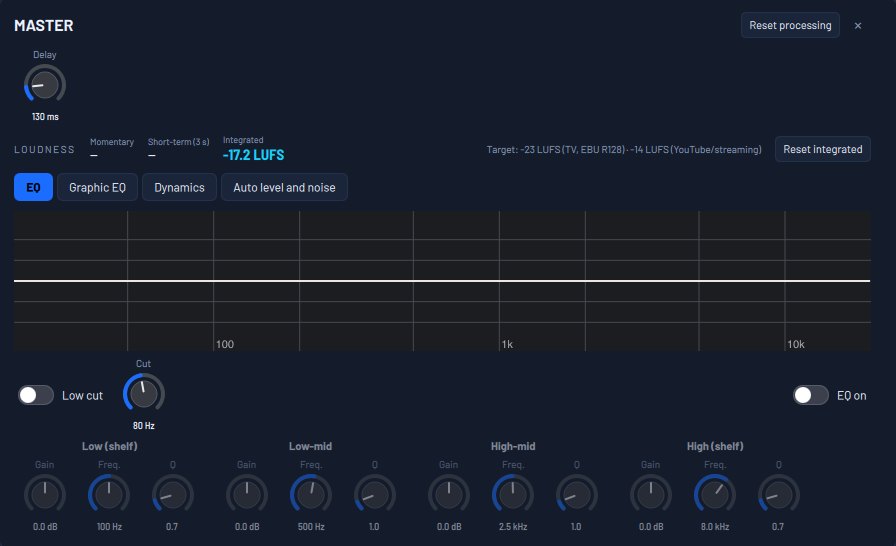
In NWK, each channel has a Delay knob in the FX window, from 0 to 900 ms. Delay is available on the inputs and on the Master, and the sound changes right away, even on air. Drag the knob with the Shift key for a finer adjustment; a double-click returns to the default value. See adjust gain, pan and delay.
When a camera or capture card is added, the Audio field offers the sound of the device itself, another audio device or no audio. See add a camera or capture card. On the Mac, Audio Unit plugins add 10 ms of delay to the channel that uses them: measure with the plugins already on.
Related questions
Can I fix sound that is late instead of early?
Not with audio delay. Audio delay only holds the sound back. When the sound is late, remove the slow step from the audio path, such as a wireless or Bluetooth link, or use the audio that enters together with the camera, which travels with the picture.
How much audio delay does a capture card add?
It depends on the camera, the converter and the capture device, so there is no single number. A clap test on the real chain gives the value for your setup in a few minutes, and the value stays the same while the chain does not change.
Why is lip sync right on my recording and wrong for the viewers?
If the local recording is in sync, the production is right. Check the stream on a second device with wired headphones: Bluetooth headphones and some televisions add their own delay to the sound.
In the NWK help center
Written and reviewed by the NWK Live Production team (Setor 360 Tecnologia e Eventos Ltda). Published .
NWK has a 0 to 900 ms audio delay on every input and on the Master, adjustable while on air.
Try NWK free for 7 days