Short answer
To edit ISO recordings, create a project in the video editor with the frame rate of the recording, import the file of each camera and put each one on its own track, lined up in time. Files that started together line up by their first frame; files that started at different moments line up by the sound they have in common. Join the lined-up tracks into a multicamera clip, cut by choosing the angle, and then finish the sound and put the graphics back.
On this page
Step by step
- Copy the folder of the recording to the editing disk and keep the original untouched.
- Create the project with the frame rate and the resolution of the recording.
- Put each camera on its own track, with all the files starting at the same point.
- Confirm the sync at the start, in the middle and at the end of the event.
- Join the tracks into a multicamera clip and cut by choosing the angle.
- Finish the sound, put titles and graphics back, and export.
Lining the files up
| How the files were recorded | How to line them up |
|---|---|
| All started by the same command, with the same length | Put the first frame of every file at the same point of the timeline |
| Started at different moments, with a sound in common | Use the editor's sync by audio, which compares the sound of the files, or line the waveforms up by hand |
Check the sync in three places: the start, the middle and the end. Pick a moment with a sharp sound and a visible movement, such as a clap, a door or a ball. If the files are in sync at the start and apart at the end, the frame rate of the project does not match the files, or a file had an interruption. Solve this before cutting.
The multicamera clip
Video editors have a function that joins several lined-up clips into one multicamera clip, also called a multicam sequence. The names change from editor to editor; the idea is the same. The viewer shows all the angles side by side while the clip plays, and you choose the angle with a click or with a number key. Each choice becomes a cut on the timeline.
- Go back and adjust: each cut can be moved in time, and the angle of each piece can be changed, without losing sync.
- Put the program recording on a track as a guide. The program shows the cuts made during the event; you keep the good ones and fix the late ones.
Sound and graphics
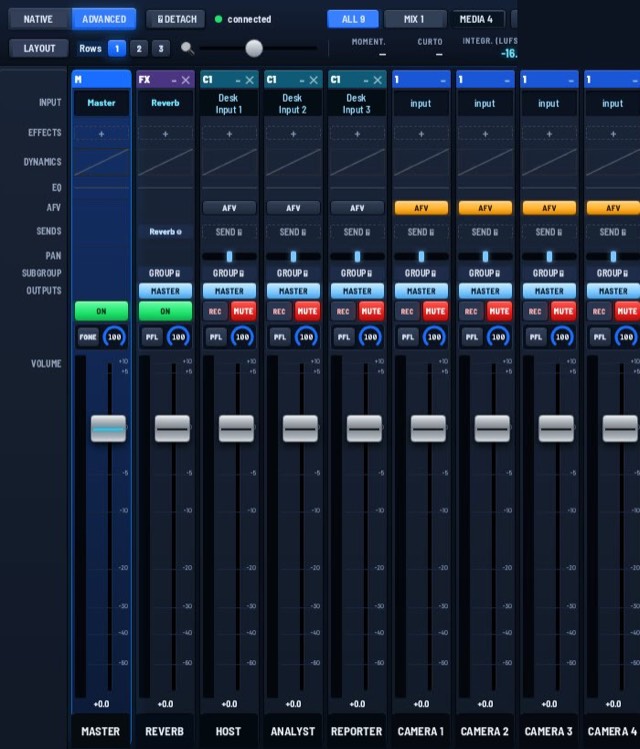
A multicamera clip uses one sound for all the angles. Choose the best source you have, in this order: a new mix made from the audio of each channel, the separate audio file of the program, or the sound embedded in the video files. Mix a multitrack recording after the event shows the first option.
ISO files are usually clean, without titles, lower thirds or scoreboard. This is what allows a new version, and it also means the graphics have to be put back. Redo the titles in the editor, or use pieces of the program recording where the graphic of the live event matters, such as a score at a given moment.
Files recorded in NWK Live Production
In NWK the per-camera recording is the MultiCorder, opened by the “⏺ ISO” button. What matters for the edit:
- All the files start together. In the editor, line them up by the first frame.
- All the files carry the Master audio, so every angle has the same sound to compare.
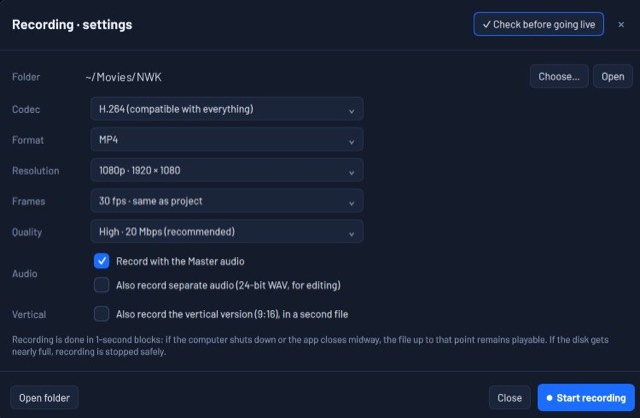
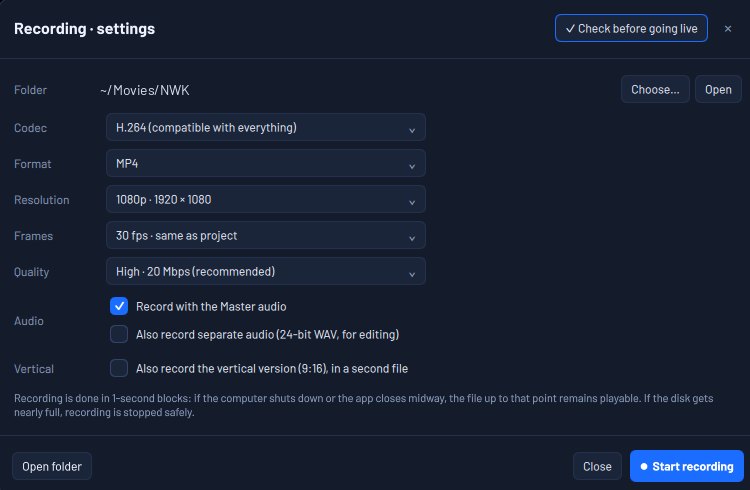
- The files use the format (MP4 or MOV) and the quality chosen in the recording settings. H.264 is the codec compatible with everything; choose HEVC only when the video editor opens HEVC.
See record each camera and recording settings.
Related questions
How do I sync ISO recordings in an editor?
If the files started at the same instant, put the first frame of each one at the same point of the timeline. If they started at different moments, use the editor's sync by audio or a clap recorded by all the cameras.
Do I need the program recording if I have the ISO files?
It is not required, but it helps. The program recording is the guide of the cuts made live, a backup, and the only file that has the graphics as they went on air.
Why are my ISO files in sync at the start and out of sync at the end?
The usual cause is a project with a frame rate different from the files, for example 30 in the project and 29.97 in the files.
In the NWK help center
- Record each camera to a separate file
- Recording settings
- Record the Program
- Record each channel (multitrack)
Written and reviewed by the NWK Live Production team (Setor 360 Tecnologia e Eventos Ltda). Published .
NWK records each camera to its own file, clean and starting together, while the program goes on air.
Try NWK free for 7 days