Short answer
Color correction in a live production is applied to each camera separately, because cameras differ and nothing can be fixed afterwards. Basic controls set brightness, contrast and saturation; color wheels remove a color cast from the shadows, midtones or highlights; a LUT applies a ready look; scopes show whether the result is right. NWK Live Production has all of these on each input, a LUT for everything that goes on air, and a chroma key per input.
On this page
What each tool fixes
| Tool | Use it when |
|---|---|
| Brightness, contrast, saturation | The whole picture is too dark, too flat or too pale |
| Color wheels | One camera looks warmer, cooler or greener than the others, or only the shadows or the highlights have a tint |
| LUT | You want a ready look, or the camera delivers a flat picture meant to be converted |
| Scopes | You need to measure instead of trusting the monitor and the room light |
| Chroma key | A green or blue background has to disappear so another picture shows behind the person |
A LUT is a table that exchanges each color that comes in for another color that goes out. A LUT does not know your camera or your light, so the correction comes before the LUT.
The order that works
- Fix what you can on the camera: exposure and white balance, with every camera pointed at the same scene. The method is in match color between different cameras.
- In the program, correct each camera until all of them agree with the best one.
- Apply the look last, to all cameras at once, so the cameras stay matched.
Reversing the order makes you match cameras through a look, which hides the differences you are trying to remove.
Color per input in NWK Live Production
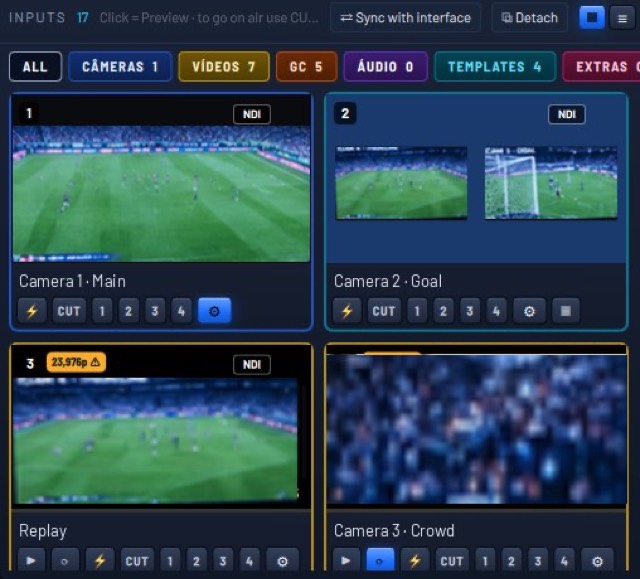
The gear on the thumbnail of each input opens its settings, with one tab per tool:
- Color: Brightness, Contrast and Saturation. See color, position, zoom and crop.
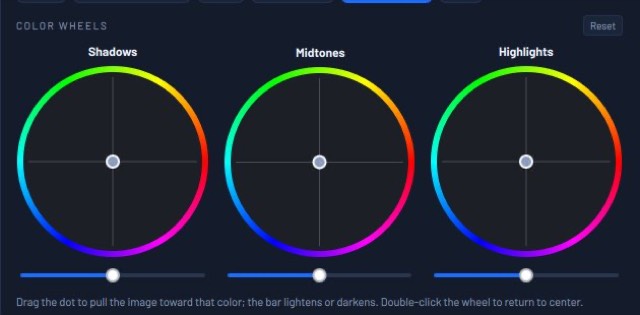
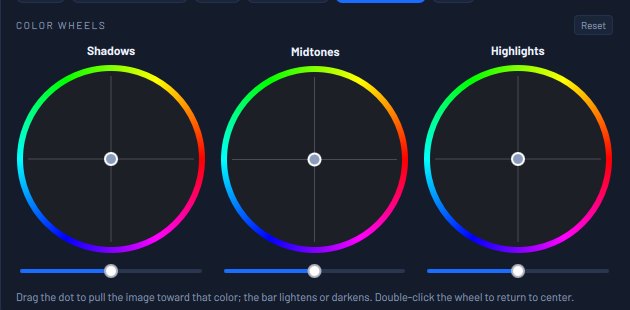
- Color wheels: three wheels, Shadows, Midtones and Highlights. Dragging the dot pulls the picture toward that color, the bar of each wheel lightens or darkens, and a double-click returns the wheel to center.
- LUT: a table with the name, the type and the purpose of each LUT, and a Strength from 0 to 100%. See color wheels and LUT.
The same settings window has Position and zoom, from 10% to 400%, and Crop of up to 45% on each side. With the camera used as an overlay, these make a small window over the Program, the subject of picture-in-picture and split screen.
One look for everything that goes on air
The Master LUT button, at the top of Program, applies a LUT to everything that goes on air, also with a Strength control. Titles, scoreboards and images keep their own colors. With a LUT chosen, the button shows its name. See Master LUT.
Use the LUT of the input for what belongs to one camera and the Master LUT for the look of the program.
Scopes: measure before you trust the monitor
In NWK, the Scopes menu at the top of Preview or Program offers four instruments:
| Scope | What it shows |
|---|---|
| Waveform (luma) | How bright each part of the picture is, from black to white |
| RGB parade | Red, green and blue side by side; on a white or gray object the three should be at the same height |
| Vectorscope | Which colors are in the picture and how saturated they are |
| Histogram | How much of the picture is dark, medium and bright |
The same menu has a zebra that marks what is clipped, above 95%, and a mark for oversaturated color. See guides, safe areas and scopes.
Chroma key on an input
Chroma key depends more on the light than on the software: light the background evenly, keep the person away from it and avoid clothes in the color of the background.
In NWK the chroma key is a tab in the settings of the input. Choose the color of the background and adjust three controls: Range, how much of the chosen color disappears; Soft edge, which softens the outline; and Remove spill, which removes the green or blue tint the background casts on the person. The removed background shows whatever is behind the input, so use the camera as an overlay or inside a template. See chroma key.
Related questions
Can I apply a LUT to one camera only?
Yes. In NWK each input has its own LUT tab, with a Strength from 0 to 100%, and that LUT applies only to that input. The Master LUT is a separate control that applies to everything that goes on air.
Why did the picture turn black after I turned on the chroma key?
The removed background shows what is behind the input. Alone on Program, the input has nothing behind it, and the removed area turns black. Put the camera on as an overlay or inside a template, with the new background behind it.
Which scope should I use to match two cameras?
Point both cameras at the same white or gray object and compare them on the RGB parade: equal heights of red, green and blue mean a neutral picture. Then use the waveform to bring the brightness of both to the same level.
In the NWK help center
- Input color, position, zoom and crop
- Color wheels and LUT
- Master LUT
- Guides, safe areas and scopes
- Chroma key
Written and reviewed by the NWK Live Production team (Setor 360 Tecnologia e Eventos Ltda). Published .
NWK has color, color wheels, a LUT and a chroma key on each input, a LUT for the whole program and four scopes on Preview and Program.
Try NWK free for 7 days