Short answer
Cut when the viewer needs to see something else: another person starts speaking, the action moves somewhere, or a reaction adds meaning. Check the next shot in preview before the cut, cut at the end of a sentence or on a movement, and hold the shot on air until there is a new reason to change it.
On this page
Every cut needs a reason
The viewer does not notice a cut that answers a question they already had: who is speaking, what the speaker is pointing at, how the room reacted. The viewer does notice a cut made only because some time has passed. Before each cut, ask what the new shot shows that the current shot does not. If the answer is nothing, stay on the current shot.
Reasons to cut and reasons to wait
| Situation | What to do |
|---|---|
| Another person starts speaking | Cut to that person, preferably at the end of the previous sentence. |
| The speaker mentions or shows an object, a slide or a person | Cut to what was mentioned, then come back. |
| The audience or another participant reacts | Cut to the reaction for a moment. A listening shot also covers a long answer. |
| The subject walks out of the frame | Cut to the wide shot, which shows where the subject went. |
| The camera on air needs to reframe or refocus | Cut away first, let the operator adjust off air. |
| The next camera is still moving, zooming or focusing | Wait. Cut only to a shot that is ready. |
| Nothing changed | Do not cut. |
Rhythm follows the content
There is no fixed number of seconds for a shot. The content sets the rhythm.
- Speech: cut at the end of a sentence or at a pause. A cut in the middle of a word calls attention to the cut.
- Music: cut on the beat or at the change of a musical phrase. A slow song asks for longer shots.
- Sports: keep the wide shot while the play is running and use closer shots when the play stops.
- Ceremonies: hold the shots longer. The moment matters more than variety.
The type of transition also changes the rhythm. See cut, fade, wipe and stinger.
Look at the preview before the cut
The preview monitor shows the next shot before the audience sees it. Check three things there: the framing is finished, the focus is right and the camera is still. If the team has an intercom, warn the camera operator before the cut and say which camera comes next.
Keep one shot that is always usable, normally the wide shot on a fixed camera. When something goes wrong on another camera, the wide shot is the place to go while the problem is solved.
Common mistakes
- Cutting between two shots of the same subject with almost the same size and angle. The subject appears to jump. Change the shot size or the angle clearly.
- Cutting too late, when the person has already finished speaking.
- Cutting back and forth quickly in a dialogue of short lines. A shot that shows both people solves it.
- Putting a camera on air while the camera is moving for no reason.
- Staying on the wide shot for the whole event because cutting feels risky.
Cutting in NWK Live Production
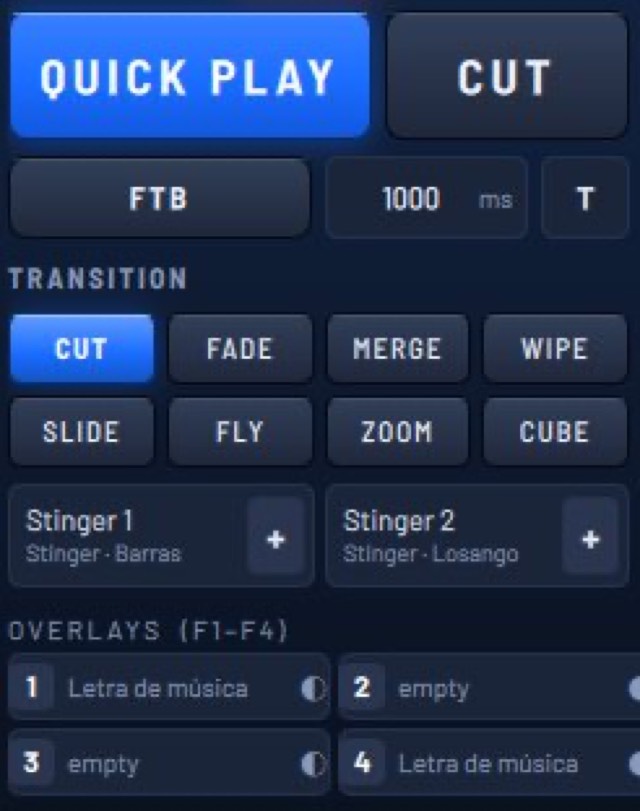
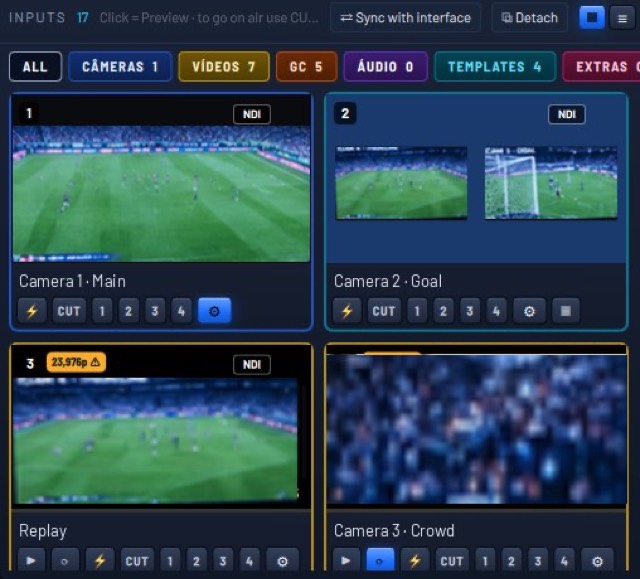
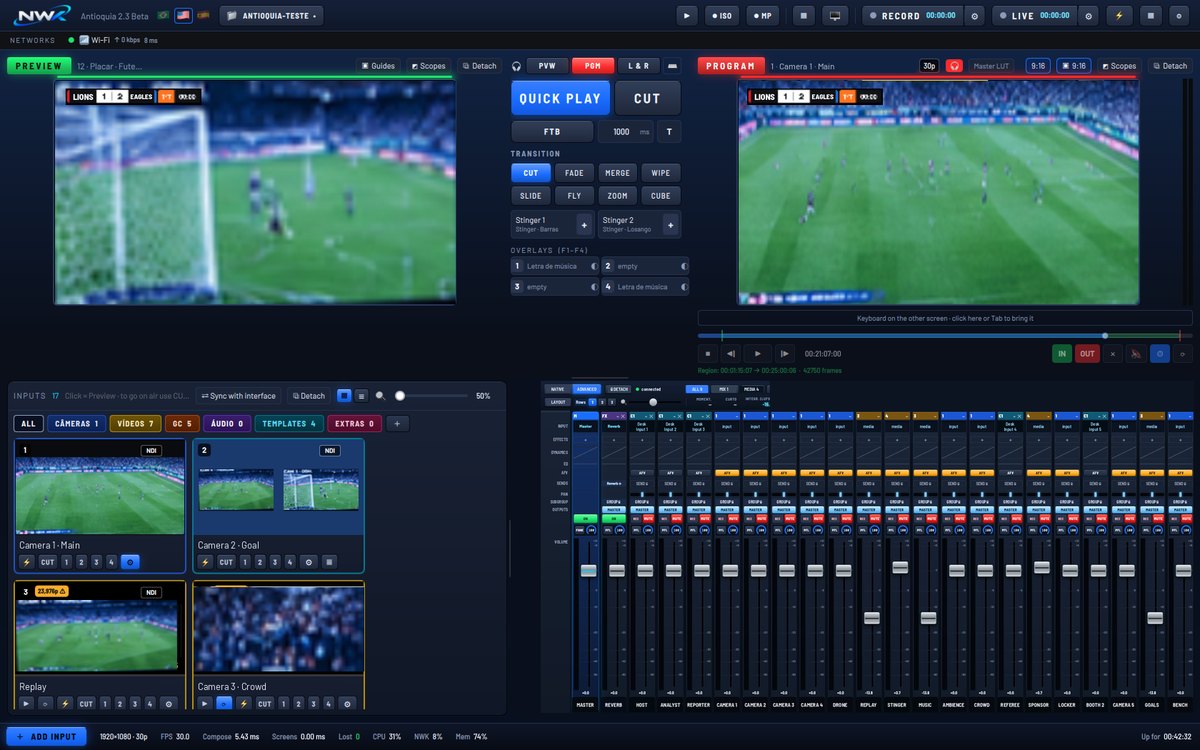
In NWK Live Production you prepare the next shot in Preview and take it to Program, which is what goes on air. Clicking a thumbnail only puts the input in Preview, so nothing goes on air by accident. Cut does a hard cut. Quick Play, or the Enter key, uses the transition selected in the panel. Keys 1 to 9 put the first nine inputs of the list in Preview.
Each thumbnail also has a CUT button and a ⚡ button that take that input straight to Program. See Cut and Quick Play and Preview and Program.
Related questions
How often should I cut between cameras?
There is no fixed interval. Cut when the new shot shows something the current shot does not: a new speaker, a reaction, a detail, a change in the action. A lecture can stay on one shot for a long time; a concert or a game asks for more cuts.
What is a jump cut and how do I avoid it?
A jump cut is a cut between two shots of the same subject that are almost equal in size and angle, so the subject seems to jump on screen. To avoid a jump cut, make the two shots clearly different: wide to close, or front to side.
Should I cut or use a dissolve between cameras?
Use a hard cut for most changes between cameras during continuous action or speech. Keep the dissolve for changes of place, time or mood, such as the passage from a talk to a music segment.
In the NWK help center
Written and reviewed by the NWK Live Production team (Setor 360 Tecnologia e Eventos Ltda). Published .
NWK shows the next shot in Preview and takes it to Program with Cut, Quick Play or the Enter key.
Try NWK free for 7 days