Short answer
A production has one frame rate, and every camera at a different rate is converted to it. A 60 fps camera in a 30 fps project, or the opposite, converts cleanly because one rate is exactly double the other. A 25 or 50 fps camera mixed with 30 or 60 fps cameras does not: frames are repeated or skipped several times a second and motion on that camera shows a regular stutter. Set all cameras to one rate when the cameras allow it.
On this page
What happens to the camera that does not match
The switcher builds each frame of the program at the rate of the project. A camera that delivers frames at another pace cannot supply exactly one new frame for each frame of the program, so some of its frames are shown twice or left out. Only that camera is affected. The other cameras, the graphics and the stream continue normally, which is why the problem often goes unnoticed until the operator cuts to that camera during a pan.
Which combinations work
| Camera | Project | What happens |
|---|---|---|
| 60 (or 59.94) | 30 (or 29.97) | One frame in two is used. Clean |
| 30 (or 29.97) | 60 (or 59.94) | Each frame is shown twice. Clean, but that camera looks less fluid than the 60 fps cameras beside it |
| 50 | 25, or the opposite | The same as the two lines above |
| 25 | 30 | 5 frames repeated each second. Visible stutter in motion |
| 50 | 60 | 10 frames repeated each second. Visible stutter in motion |
| 30 | 25 | 5 frames skipped each second. Visible stutter in motion |
| 24 | 30 | 6 frames repeated each second. Visible stutter in motion |
| 29.97 | 30 | One frame repeated about every 33 seconds. An occasional hiccup |
The rule behind the table: rates where one is an exact multiple of the other convert cleanly; rates from different families do not. Where the two families come from and which rate to choose for a production are in 25, 30, 50 or 60 frames.
Choosing the project rate with mixed cameras
- List the rates each camera can deliver on its video output, not only the rate set today. Many cameras offer several.
- If one rate is available on all cameras, use that rate on all of them and on the project.
- If the cameras are 30 and 60 of the same family, choose by the content: 30 for talks, services and interviews; 60 when the 60 fps cameras carry fast action. In a 60 fps project, keep the 30 fps camera on shots with little motion.
- If one camera cannot leave the other family, set the project to the rate of the majority and of the cameras that follow the action.
Check the rate of the video output of each camera. On some cameras the output setting is separate from the recording setting.
When a camera cannot be changed
- Give that camera the quiet shot. Repeated or skipped frames show in pans, in people walking and in a ball crossing the frame. A locked wide shot or a seated speaker hides most of the stutter.
- Do not pan or zoom on air with that camera.
- Convert outside the computer. A hardware frame-rate converter between the camera and the capture device delivers the rate of the project, at the price of one more device in the path.
- Video files are a different case. Convert them to the rate of the project before the event.
If the picture stutters and the rates already match, the cause is another one; see choppy or stuttering video.
How NWK Live Production shows the mismatch
In NWK Live Production the rate of the project is chosen in Settings › Project, and the help recommends the same rate as your cameras. The change is applied only while off air, and the image stops for about 3 seconds. See resolution and frame rate.
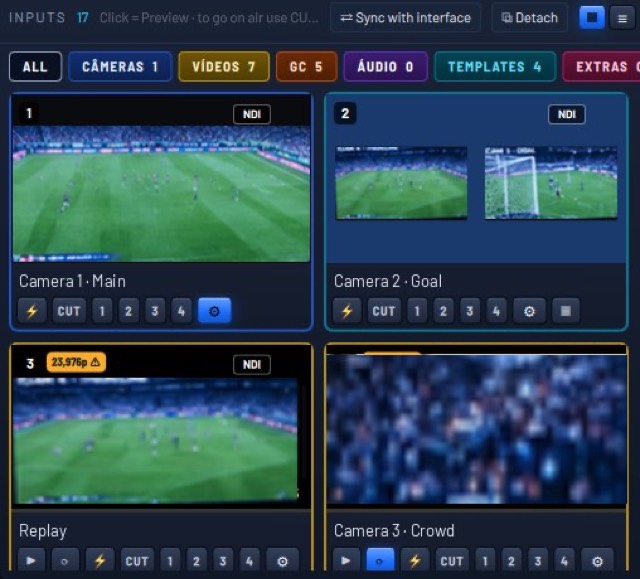
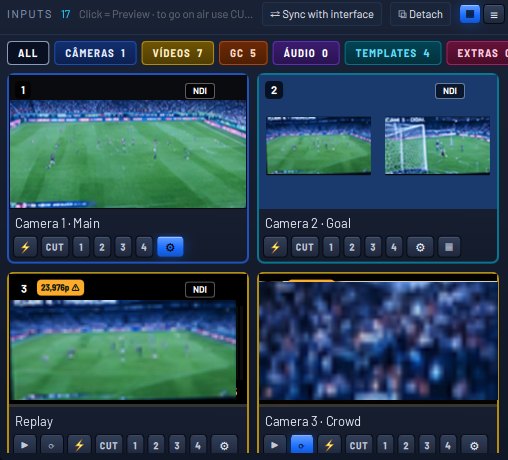
Each video input shows its rate in an fps badge on the thumbnail and on the Preview and Program monitors. When the input does not match the project, the badge blinks and gets the ⚠ sign. Hovering over the badge shows three lines: what the source sends, what is arriving and the rate of the project. Settings › Project lists every input outside the project rate, and the check before going live warns about the same inputs. See frame rate warning.
For a camera or capture card, the gear ⚙ on the thumbnail has the Capture format field, to choose another format without removing the input. See add a camera or capture card.
Related questions
Can I mix 30 fps and 60 fps cameras in the same live stream?
Yes. One rate is exactly double the other, so the conversion is clean in both directions. In a 30 fps project the 60 fps camera loses its extra frames; in a 60 fps project the 30 fps camera looks less fluid than the others.
Can I mix a 25 fps camera with 30 fps cameras?
It works, but the 25 fps camera will show a regular stutter in motion, because 5 frames are repeated each second. Set that camera to 30 if the menu allows it, or keep that camera on shots with little motion.
Does a camera at the wrong frame rate affect the other cameras?
No. Each camera is converted on its own. The cameras that match the project stay smooth, and only the camera at the other rate shows repeated or skipped frames.
In the NWK help center
- Frame rate warning
- Choose the resolution and frame rate
- Check everything before going live
- Add a camera or capture card
Written and reviewed by the NWK Live Production team (Setor 360 Tecnologia e Eventos Ltda). Published .
NWK shows the frame rate of each input on its thumbnail and warns when an input does not match the project.
Try NWK free for 7 days