Short answer
HDMI carries uncompressed picture and sound and is on almost every camera, so most small productions run on it. The limits are practical: the connector does not lock, the cable runs are short, the source and the receiver negotiate the format on their own, and protected content is blocked by HDCP. The version of HDMI rarely matters at 1080p. What matters is that the source, the cable and the capture card all support the format you want.
On this page
Versions and cables: what the numbers mean
The HDMI version describes what a device can do. The cable does not have a version: cables are certified by type, according to the bandwidth they carry. The organization that licenses HDMI publishes the types:
| Cable type | What the official page states |
|---|---|
| Standard HDMI Cable | Tested to transmit 1080i or 720p video |
| High Speed HDMI Cable | 1080p and beyond, up to 10.2 Gbps |
| Premium High Speed HDMI Cable | 4K/UltraHD, up to 18 Gbps |
| Ultra High Speed HDMI Cable | Up to 48 Gbps, 8K at 60 and 4K at 120. Introduced with the HDMI 2.1 specification |
| Ultra96 HDMI Cable | Up to 96 Gbps, for the HDMI 2.2 specification |
The HDMI 2.2 specification is backward compatible with earlier versions. In practice, a chain of HDMI devices works at what its weakest part supports. A project in 1080p at up to 60 frames is within reach of any High Speed cable in good condition. The cable type starts to matter with 4K at 50 or 60 frames.
The limits in a live production
- The connector does not lock. A tug on the cable disconnects the camera. The smaller connectors found on many cameras are more fragile than the full-size one. Tie the cable to the camera or the tripod so the pull never reaches the connector.
- Distance. Passive HDMI cables are meant for short runs. Beyond a few meters the result depends on the cable and on the format, and a cable that works at 1080p may fail at 4K.
- Automatic negotiation. The source asks the receiver which formats it accepts and chooses one. A camera connected to a capture card may choose a format different from the one it chose on the monitor.
- HDCP. Players, set-top boxes and consoles protect content, and the capture card shows black. See HDCP black screen: why it happens.
- Data over the picture. Many cameras send their on-screen information on the HDMI output until you turn it off. See Clean HDMI output.
When the camera is far away
| Option | When to use |
|---|---|
| Active or optical HDMI cable | One or two cameras a little too far for a passive cable. These cables have a direction: one end is for the source. |
| HDMI to SDI converter at the camera | Long runs, cables on the floor, events where people walk over them. See SDI: 3G, 6G and 12G. |
| Video over the network | When a network already reaches the camera position. |
Recommendation: avoid joining two HDMI cables with a coupler to gain length. Each joint is a place to fail, and the total length still counts.
Good practice with HDMI
- Set the output format in the camera menu by hand, in the resolution and frame rate of the project, instead of leaving it on automatic.
- Use the shortest cable that reaches, and keep a tested spare of each length.
- Label both ends. During an event, the fastest repair is swapping the cable.
- Turn the camera on after everything is connected. Some sources only negotiate the format when the cable is plugged in.
- Rehearse with the final cables. A cable that works on the bench at one meter proves nothing about the ten-meter one.
If the picture is black or says no signal, follow the diagnosis in capture card with no signal.
In NWK Live Production
An HDMI camera reaches the computer through a capture card. In NWK Live Production the card is added in Add input › Video device (camera, capture card), with Format on Automatic (best up to 1080p 60) or chosen by hand. See add a camera or capture card.
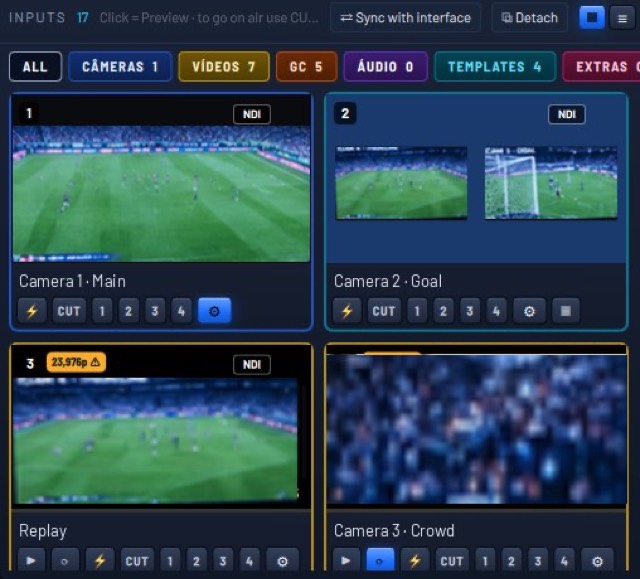
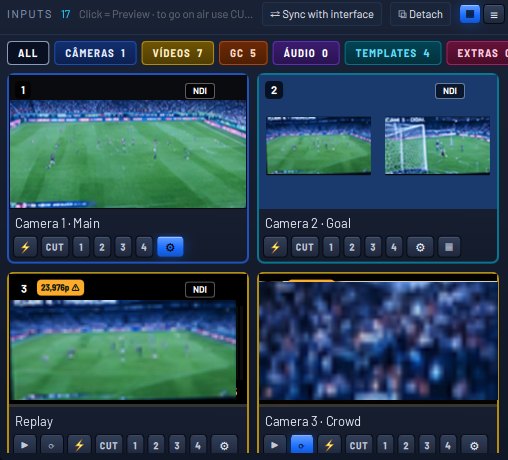
When an input loses its picture, the thumbnail shows ⟳ with the reason, or waiting for signal, and the gear is highlighted. NWK tries again by itself from time to time, and when the device comes back the picture comes back. This is useful with HDMI, where a bumped cable is the most common failure. See reconnect an input or change the device.
Related questions
How long can an HDMI cable be for live streaming?
There is no single number: it depends on the cable and on the format. Passive cables are meant for short runs, and a cable that works at 1080p may fail at 4K. For longer distances use an active or optical cable, or convert to SDI at the camera.
Do I need an HDMI 2.1 cable for a 1080p camera?
No. Cables are certified by type, not by version, and 1080p at up to 60 frames is within what a High Speed cable carries. An Ultra High Speed cable only becomes necessary for formats such as 4K at 120 frames.
Why does my HDMI camera work on a monitor and not on the capture card?
The source negotiates the format with each receiver. The monitor may accept a format the capture card does not, or the source may be sending protected content. Set the camera output by hand to 1080p at the frame rate of the project and test again.
In the NWK help center
- Add a camera or capture card
- The camera or capture card shows no picture
- Reconnect an input or change the device
Sources and references
- HDMI Licensing Administrator: HDMI cable types and their bandwidth
- HDMI Licensing Administrator: HDMI 2.2 Specification Overview
Written and reviewed by the NWK Live Production team (Setor 360 Tecnologia e Eventos Ltda). Published .
NWK shows the reason on the thumbnail when an input loses its picture and tries to reconnect by itself.
Try NWK free for 7 days