Short answer
Chroma key makes transparent every part of a picture that has a chosen color, normally the green or blue of a screen behind a person. Luma key makes transparent every part that is darker, or lighter, than a chosen brightness, such as the black background behind white text. Chroma key is the tool for people and objects in front of a colored screen; luma key is the tool for simple graphics and light effects that come over black or white with no transparency of their own.
On this page
How chroma key works
The keyer looks at the color of each pixel. Pixels close to the chosen color become transparent, pixels far from that color stay opaque, and pixels in between become partly transparent, which gives the soft edge around hair and shoulders.
The result depends on the screen being one even color. Cloth, distance and lighting are covered in chroma key setup and lighting.
How luma key works
The keyer ignores color and looks only at how bright each pixel is. Below a chosen level the pixel becomes transparent; above that level the pixel stays. Most keyers can invert the rule and remove the bright part.
Luma key suits material that was made over pure black or pure white:
- White text or a simple logo over black, from a source that sends no transparency.
- Light effects such as sparks, flares and fire filmed or rendered over black.
Chroma key and luma key side by side
| Chroma key | Luma key | |
|---|---|---|
| Removes by | Color | Brightness |
| Typical source | Camera in front of a green or blue screen | Graphic or effect over black or white |
| What goes wrong | Clothes of the screen color disappear; uneven light leaves patches; the screen tints the subject | Dark parts inside the graphic disappear too: black letters, shadows, dark outlines |
| Edges | Depend on the light and on the color detail of the camera | Often hard or with a dark fringe |
Chroma key in NWK Live Production
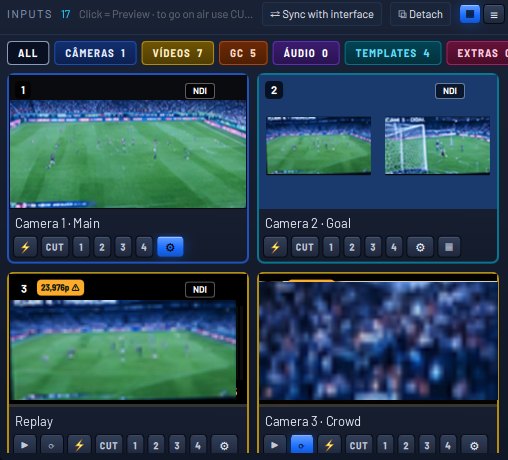
In NWK Live Production, chroma key is a setting of each input. The gear on the camera thumbnail opens the settings; on the Chroma key tab you click On, choose the green or blue of the background in Background color to remove, and adjust three controls.
- Range: how much of the chosen color disappears.
- Soft edge: softens the outline between the person and the background.
- Remove spill: removes the green or blue tint the background casts on the person.
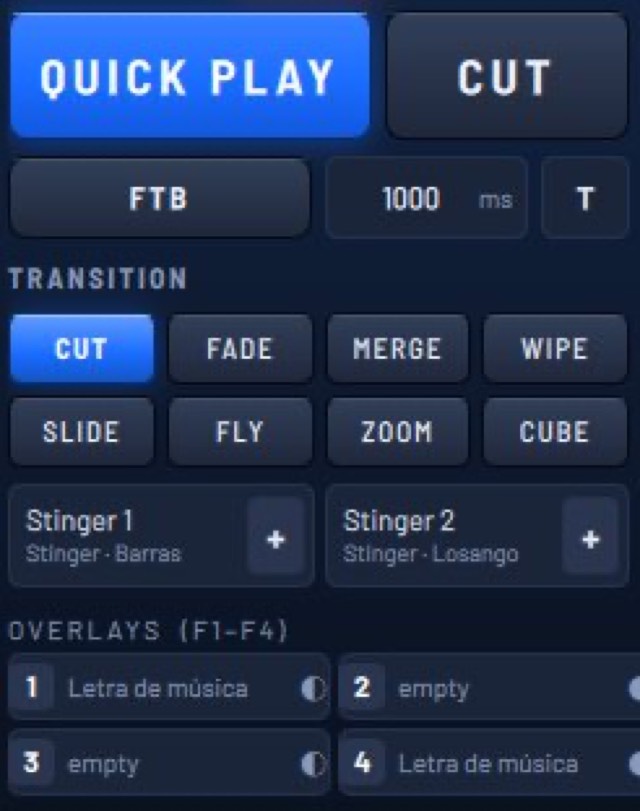
The removed background shows whatever is behind the input. Alone on the Program, the removed part turns black; put the camera on as an overlay, with buttons 1 to 4 on the thumbnail, or inside a template. See chroma key on the input.
Common confusions
- Luma key and linear key. A luma key builds the mask from the brightness of the picture itself. A linear key receives the mask ready, as a key signal or an alpha channel, and is more precise. See alpha channel, key and fill.
- Black is not removed on its own. A video over black stays over black until a luma key, or a file with transparency, takes the black away.
Related questions
Is green or blue better for chroma key?
Green is the usual choice for video, because cameras record green with more detail and a green screen needs less light. Use blue when the subject has green in it, such as plants, a green product or a green uniform.
Can I use luma key for a lower third?
Only when the lower third has no dark parts of its own. A luma key that removes black also removes black letters, shadows and dark outlines inside the graphic. A lower third with transparency, placed as an overlay, keeps all of that.
Why does the keyed camera show black instead of the new background?
The key only makes the background transparent. Something has to be placed behind the camera: a picture or a video on a lower layer. With nothing behind, the transparent part is shown as black.
In the NWK help center
- Remove a green or blue background (chroma key)
- Put titles and images on top with overlays F1 to F4
- Build a template from scratch
Written and reviewed by the NWK Live Production team (Setor 360 Tecnologia e Eventos Ltda). Published .
NWK has chroma key on each input, with range, soft edge and spill removal, and four overlays over the Program.
Try NWK free for 7 days