Short answer
A green screen works when the background is one even color: a matte cloth without wrinkles, lit evenly, with the person standing well in front of it and lit by separate lights. With that done, the key in the program needs little adjustment. When the background is wrinkled, shadowed or too close, no setting removes it without also eating into the person.
On this page
Step by step
- Stretch a matte green or blue cloth until it has no wrinkles or folds.
- Place the person about 2 meters (6 feet) in front of the cloth, or as far as the room allows.
- Light the cloth evenly, from both sides, with lights of its own.
- Light the person separately, and add a light from behind if you have one.
- Set the camera's exposure and white balance by hand.
- Turn on the chroma key for the camera input and choose the background color.
- Adjust range, edge softness and spill removal until the background disappears and the person stays whole.
- Put the camera over the new background and test with the person moving.
The cloth
The key removes one color. Everything that makes the background more than one color makes the key harder: wrinkles, folds, seams, shine and stains all show as lighter or darker green.
- Matte, not shiny. Shiny fabric reflects the lights as bright spots. Cotton-type cloth or a painted wall works; satin does not.
- Stretched. Clamp or tie the cloth on all four sides. A wrinkle is a shadow, and a shadow is a different color.
- Bigger than the frame. The cloth has to fill the picture behind the person, including when the person raises an arm.
| Color | When to choose |
|---|---|
| Green | The usual choice. It needs less light and is far from skin tones |
| Blue | When the person or an object on screen is green: a team shirt, a plant, a product |
The person must not wear the color of the background, and reflective objects such as glasses and jewelry pick up that color.
Distance from the background
A person standing close to the cloth causes two problems: the person's shadow falls on the cloth, and the cloth reflects green light back onto the hair, shoulders and clothes. This reflection is called spill.
As a recommendation, leave about 2 meters (6 feet) between the person and the cloth. In a small room, leave as much as you can and expect to use more spill removal. Distance also lets the background fall out of focus, which hides small defects in the cloth.
Two sets of light
Light the background and the person separately.
- Background: one soft light on each side, aimed at the cloth, so that the left, the center and the right have the same brightness. Look at the camera picture, not at the cloth: a brighter center or darker corners show there.
- Person: light the person to match the picture that will go behind. If the new background has the sun on the left, the main light comes from the left.
- From behind: a light behind and above the person outlines hair and shoulders and helps the edge of the key.
Set exposure and white balance on the camera by hand. On automatic, the camera changes the green every time the person moves, and the key that was right stops being right. A faster shutter reduces the blur on moving hands, which is the hardest part to key. To make cameras match each other, see matching color between cameras.
Adjusting the key in NWK
In NWK Live Production the chroma key is a setting of each input. Click the gear on the camera's thumbnail, open the Chroma key tab and click On. In Background color to remove, choose the green or blue of your background. Three controls do the rest:
| Control | Use it when |
|---|---|
| Range | Some background is left over. Increase until it disappears, and stop before the person starts to disappear |
| Soft edge | The outline of the person looks cut out with scissors |
| Remove spill | Hair, shoulders or clothes have a green or blue tint |
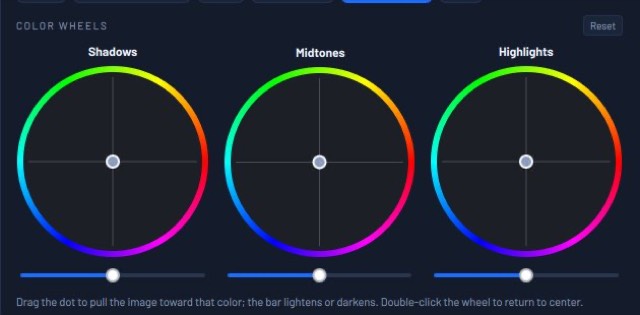
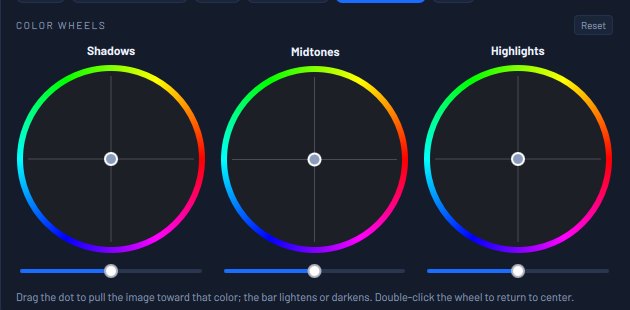
Adjust in that order, with the person moving their hands and turning their head. The clicks are in remove a green or blue background. The other color tools of an input are explained in chroma key, color wheels and LUTs.
Putting the new background behind
A keyed camera alone on Program shows black where the background was, because nothing is behind it. In NWK there are two ways to put something behind:
- Put the background picture or video on Program and the camera on top as an overlay, with buttons 1 to 4 on the camera's thumbnail. See using overlays.
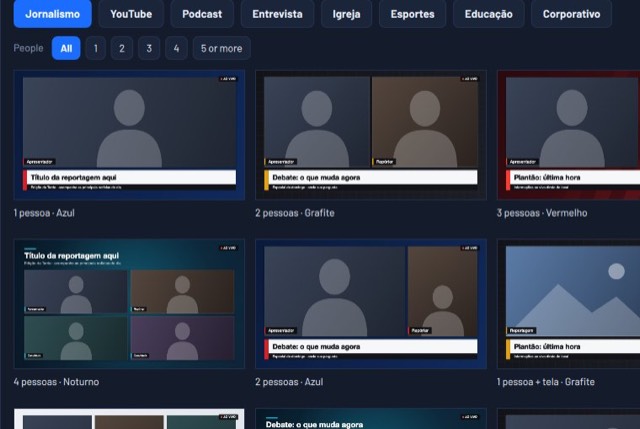
- Use the camera inside a template, with the other elements of the layout.
With zoom, position and crop on the camera input, the keyed person can be made smaller and moved to a side, as a presenter beside a slide. Picture-in-picture and split screen covers that layout.
When the key is not clean
| What you see | Likely cause | Fix first |
|---|---|---|
| Patches of background left | Wrinkles or uneven light | Stretch the cloth and even out the light before raising the range |
| Holes in the person | Clothing or object near the background color, or range too high | Change the clothing; lower the range |
| Green outline on hair | Person too close to the cloth | Move the person forward; add the light from behind |
| Edge flickers | Camera on automatic, or dark and noisy picture | Manual exposure; more light on the cloth |
Related questions
How far should I stand from a green screen?
As a recommendation, about 2 meters (6 feet). The distance keeps the person's shadow off the cloth and reduces the green light that the cloth reflects onto hair and clothes. In a small room, stand as far forward as the room allows and use spill removal in the program.
Is a green screen or a blue screen better for streaming?
Green is the usual choice because it needs less light and is far from skin tones. Choose blue when the person or an object on screen is green, such as a team shirt or a plant, because the key would remove it together with the background.
Why does my green screen background turn black instead of showing a picture?
The key only removes the color. Something has to be behind the camera for it to show. In NWK Live Production, put the background on Program and the camera on top as an overlay, or use the camera inside a template.
In the NWK help center
- Remove a green or blue background (chroma key)
- Put titles and images on top with overlays
- Start with a ready-made template
- Adjust color, position, zoom and crop
Written and reviewed by the NWK Live Production team (Setor 360 Tecnologia e Eventos Ltda). Published .
NWK has chroma key on each input, with range, soft edge and spill removal, plus overlays and templates to put the background behind.
Try NWK free for 7 days