Short answer
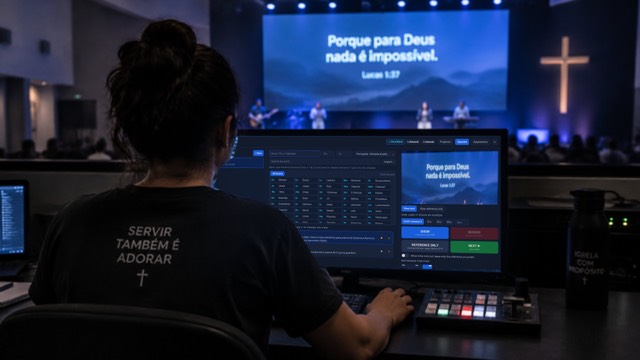
To display Bible verses on a live stream from a tablet, the streaming program has to offer a control page that the tablet opens in the browser. A volunteer sits where the preacher can be heard well, searches for each verse or picks it from a list prepared before the service, and puts it on screen and takes it off. The person switching cameras does not stop to type references.
On this page
Step by step
- Ask the preacher for the references of the sermon and the readings during the week.
- Add the Bible to the project and choose the version the church uses.
- Build the schedule of the service with the verses in order.
- Turn on the browser operators and give the Bible address and PIN to the volunteer.
- Connect the tablet to the same network as the computer and open the address.
- Test one verse on screen before the service starts.
- During the service, put each verse on air when it is read and take it off when the reading ends.
During the week: the references
The verse that appears at the right moment was found beforehand. Ask whoever is preaching for the list of references, in order, with the version to be read. The same goes for the opening reading, the offering and communion.
- Write the references the way they will be searched: book, chapter and verse or range, such as John 3:16 or Matthew 12:25-27.
- Long readings are easier to read on screen one verse at a time, advancing with the reader.
- Check the version. A translation different from the one the preacher reads from confuses those who follow the text on screen.
The versions that come with NWK Live Production are free to use, and a church that has the right to use another translation can import it. Bible and lyrics in NWK covers versions and rights.
The schedule of the service
A schedule is the list of the verses of one service, in order. With the schedule ready, the operator does not search during the sermon: the operator chooses the next item. In NWK the schedule can be built in the Bible window on the computer or by the operator in the browser, in the Schedules tab, where schedules can be created, duplicated, deleted, exported and imported. A schedule can be marked with the date of the service, and the one with today's date shows TODAY in the list.
Leave the search for what was not planned. Preachers quote verses that are not in the notes, and the operator needs to find them in a few seconds. See organize verse schedules and song lists.
Connecting the tablet
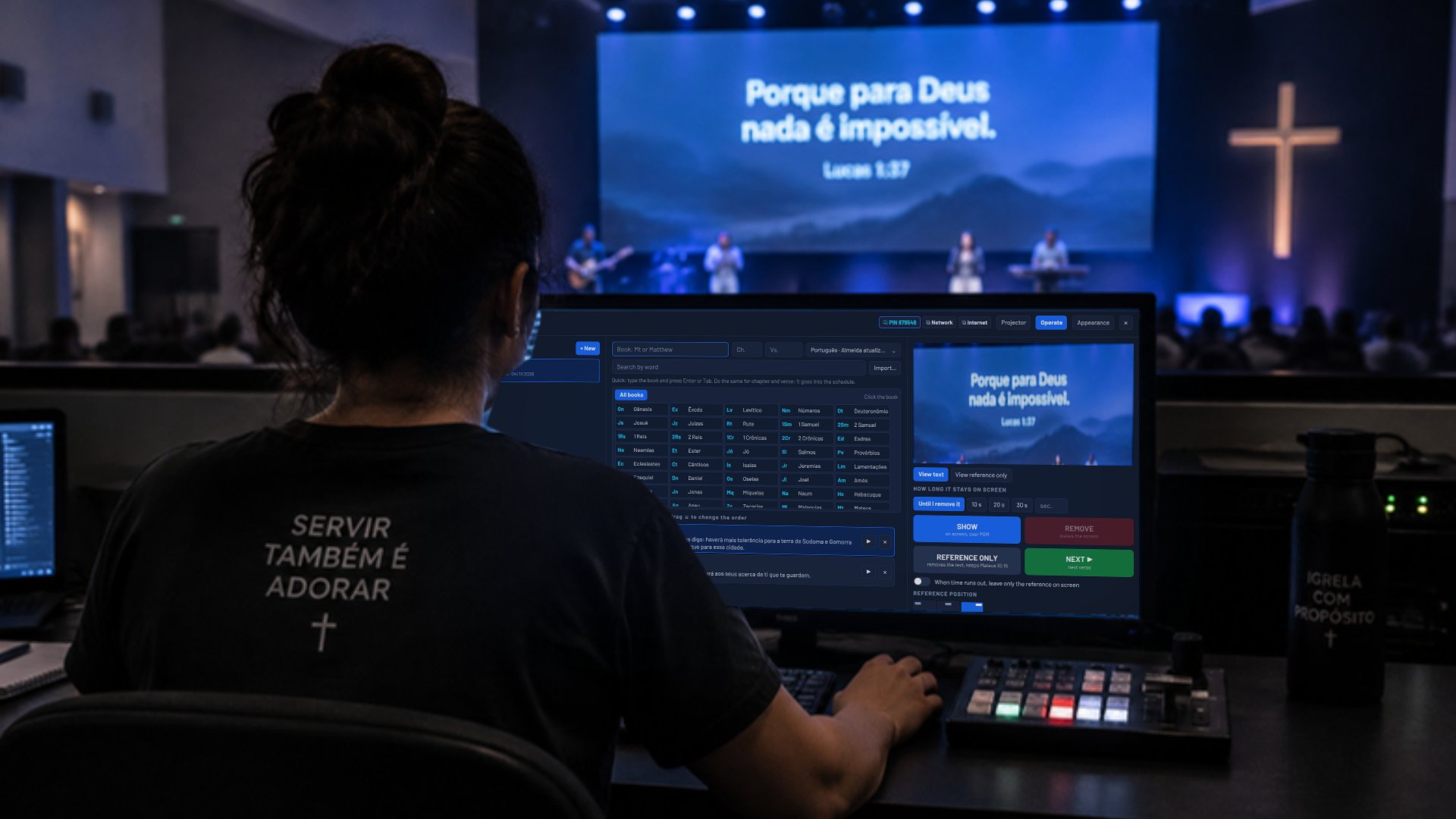
In NWK, open Settings, the Operators tab, and turn on Local network. The GC Bible address appears with its PIN. Copy the address and send it to the volunteer, with the PIN. The volunteer opens the address in the tablet's browser, types the PIN and clicks the Enter button. Nothing is installed on the tablet. The clicks are in put verses on screen from another computer or phone.
- The tablet has to be on the same Wi-Fi or network as the NWK computer. Use the church's internal network, not the guest network.
- The Bible has its own PIN, different from the lyrics and the audio. The PIN stays the same from one week to the next until someone clicks New PIN.
- Keep the tablet on the charger and set its screen not to turn off during the service.
Browser operators explains the PINs and access from outside the building.
During the service
| Moment | Button on the operator's page |
|---|---|
| The preacher announces the reference | Find the verse or choose it in the schedule |
| The reading starts | Put on air |
| The reading goes on to the following verse | Next ▶ |
| The preacher comments on the passage for a long time | Reference only, which leaves the reference without the text |
| The subject changes | Take off air |
| A verse quoted now that may come back later | + To schedule |
The page shows the state at all times: ON AIR, REFERENCE ON AIR or OFF AIR. With a keyboard connected to the tablet, Ctrl+Enter puts on air, Space puts on or takes off, and the arrow keys change the verse.
A verse left on screen after the reading covers the preacher for those watching at home. When in doubt, take it off.
Where the operator sits
The operator has to hear the preacher clearly and, if possible, see the screen where the stream or the projection appears. A seat in the front rows or beside the sound desk works better than the back of the room behind a glass. The operator and the person switching cameras need a simple way to talk, even if it is a message on the phone, for the case of a verse that does not appear.
For the verses and the song lyrics, use two volunteers when the team allows: the songs and the sermon ask for attention at different moments, but the transition between them is fast. Preparing the lyrics before the service covers the other half.
If the verse does not appear
| What the operator sees | What to do |
|---|---|
| The address does not open | Check that the tablet is on the same network as the computer and that Local network is on |
| The PIN is refused | Ask for the current PIN of the Bible. After several wrong attempts the device is blocked for 5 minutes |
| The notice READY · INPUT IS NOT ON PGM | The verse is ready, but the Bible input is not on Program. Tell whoever is at the computer |
| The page says there is no Bible input | Click Create the input on the page |
| The text covers another graphic | The Bible text uses overlay 4 by default. At the computer, change the overlay channel in the Bible's Appearance |
Related questions
Can I control the Bible verses on a live stream from a phone or tablet?
Yes, when the streaming program has a control page for the browser. In NWK Live Production the Bible operator opens an address on the tablet or phone, types a PIN, finds the verse and puts it on air, without touching the production computer.
Does the tablet need an app to show the verses?
No. In NWK Live Production the operator uses only the browser of the tablet, phone or computer. The tablet has to be on the same network as the NWK computer, or the access over the internet has to be turned on in the Operators settings.
What if the preacher quotes a verse that was not planned?
The operator searches for it at that moment. On the NWK operator page the search accepts the book, the chapter and the verse or a range such as 25-27, and also a word of the text, for when the preacher quotes the passage without giving the reference.
In the NWK help center
- Put verses on screen from another computer or phone
- Operators in the browser
- See and change each operator's PIN
- Organize verse schedules and song lists
- Add the Bible and choose the version
Written and reviewed by the NWK Live Production team (Setor 360 Tecnologia e Eventos Ltda). Published .
NWK has the Bible as an input, with free-to-use versions, schedules for the service and an operator page for the tablet.
Try NWK free for 7 days