Short answer
To mix the sound of a live stream from a tablet, the streaming program has to publish its mixer as a page that a browser on the same network can open. In NWK Live Production you turn on Local network in Settings › Operators and send the Audio Operator address and its PIN to the second person. That person opens the same mixer of the program in the browser, with faders, meters and effects, and listens to the stream sound all the time while someone else switches the cameras.
On this page
Step by step
- Agree on what the sound operator owns: levels, mutes and effects of every channel of the stream.
- Put the tablet on the same Wi-Fi or network as the production computer.
- In Settings › Operators, turn on Local network.
- Copy the Audio Operator address and send it to the operator, with the PIN next to it.
- On the tablet, open the address in the browser, type the PIN and click Enter.
- Connect closed headphones to the tablet and use Listen to hear the mix.
- Rehearse the loudest part of the event before the audience arrives.
Why the sound needs its own person
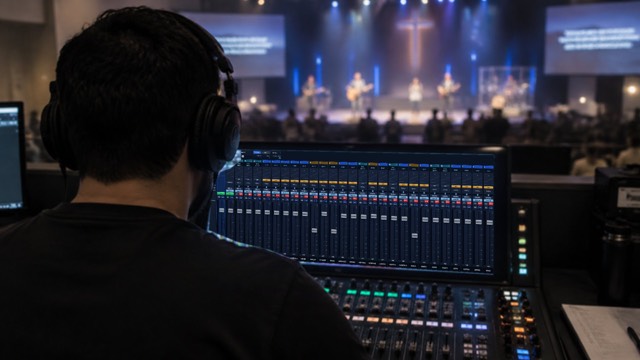
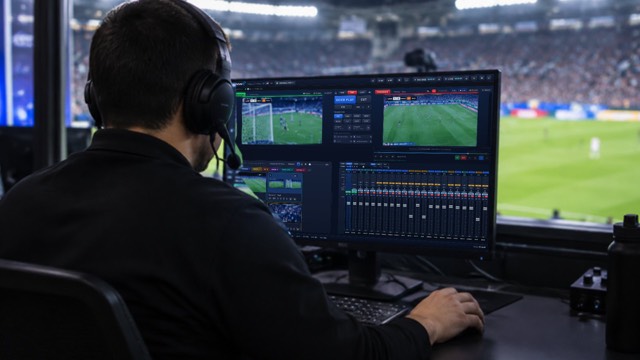
The person switching cameras looks at pictures. Sound problems are heard, not seen: a microphone left open, a guest who speaks too quietly, music covering the voice. When one person does both jobs, the sound gets attention only after something has gone wrong on air. A second operator listens the whole time and corrects the level before the audience notices.
How a small crew divides the functions is in crew roles in a live production.
Where the operator sits and how to listen
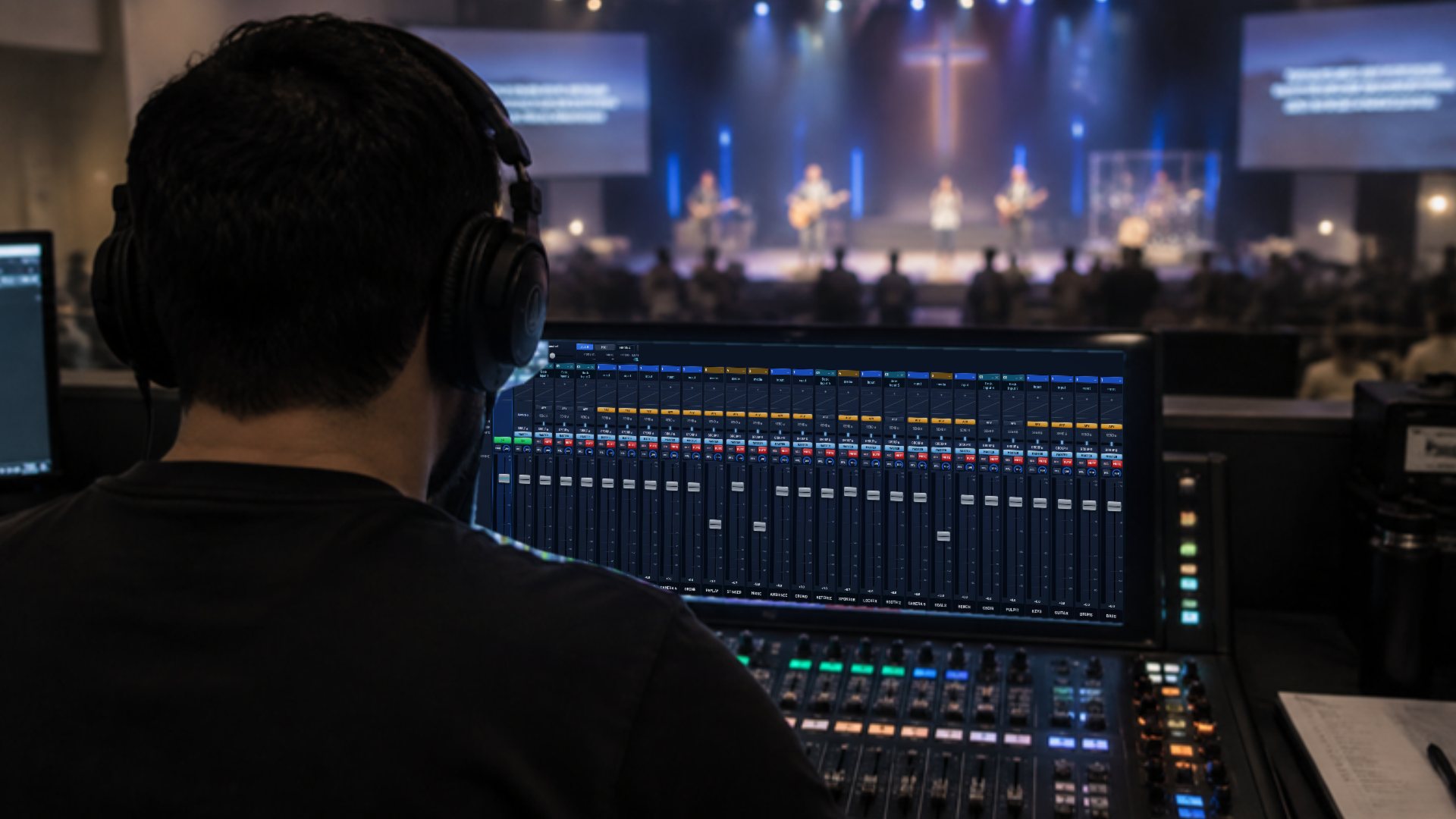
The sound operator has to hear the stream mix, not the room. In a room with loudspeakers, what reaches the ears is the house mix, and the house mix is different from what goes to the stream.
- Use closed headphones that isolate well, or sit away from the loudspeakers.
- Keep a view of the stage, to see who is about to speak or sing.
- Stay within reach of the Wi-Fi that the production computer uses.
In NWK, the Listen button of the Audio Operator plays the sound of NWK in the operator's headphones. The operator chooses what to hear and the quality: High · 48 kHz stereo, or Economy · 24 kHz mono for a weak connection. Sound that travels over a network arrives a little late, so use the headphones to judge balance and tone, and check lip sync on the production computer.
Setting it up in NWK
In Settings, in the Operators tab, turn on Local network. NWK shows the Audio Operator address with its PIN. Copy the address and send it to the operator together with the PIN. On the tablet, the operator opens the address in the browser, the NWK Live Mixer screen appears, and the operator types the PIN and clicks Enter. Nothing is installed on the tablet, and a computer or a phone works as well.
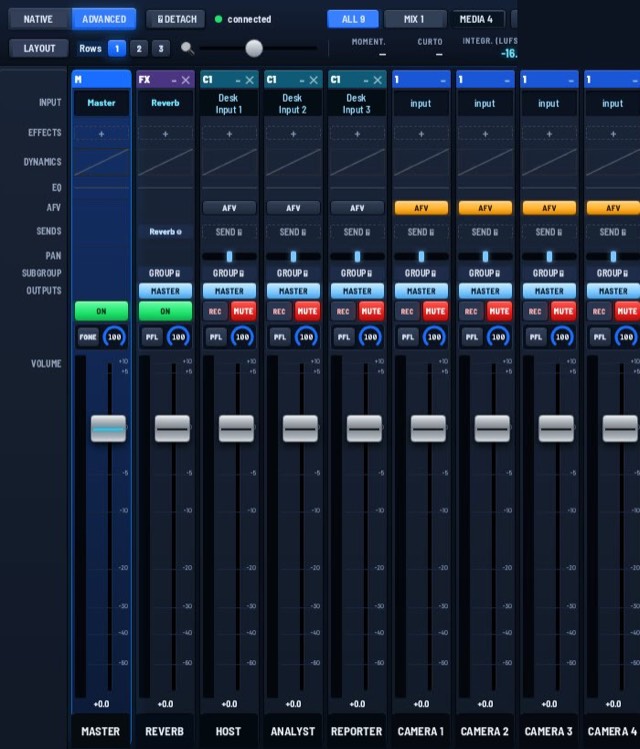
The operator sees the same mixer as in NWK, with faders, meters and effects. At the top, the operator chooses what to show: All, Mix, Media, Devices, Effects or Master. After the first time, the browser on that device remembers the PIN. The exact clicks are in the help article Audio operator, and what the other operator pages do is in operators in the browser with a PIN.
Who touches what
The tablet and the production computer show the same mixer, so two people can move the same fader. Agree before the event:
| Task | Sound operator on the tablet | Person at the production computer |
|---|---|---|
| Levels, mutes and effects of each channel | Yes | Only if the operator asks |
| Level of the Master | Yes | No |
| Cameras, transitions and titles | No | Yes |
| Starting and stopping the stream and the recording | No | Yes |
In Headphones, the sound operator also chooses what plays in the studio headphones: the Master or an output from A to E. This choice does not change what goes on air.
Network, PIN and working from another place
- Same network. With Local network, the tablet has to be on the same Wi-Fi or network as the NWK computer. The Wi-Fi of a venue that works when the room is empty can slow down when the room fills, so test with people in the room or bring your own router.
- Another place. For an operator at home or in another city, also turn on Also over the internet. The internet address is protected by a secret address and the PIN. Without an active license or the free trial, the Audio Operator does not connect over the internet. See Operators over the internet.
- PIN. The Audio Operator has its own PIN, different from the Bible and lyrics PINs. When a volunteer leaves the crew, click New PIN for that function.
- Tablet. Keep the tablet on the charger and turn off the automatic screen lock.
Before the event
- The address was opened on the tablet that will be used, on the network of the venue.
- The headphones were tested with Listen.
- The operator knows which channel is which microphone.
- The loudest part of the event was rehearsed with the Master meter in view.
- The two people agreed on who touches the faders and on a way to talk during the event.
Related questions
Does the sound operator need to install an app on the tablet?
No. The sound operator opens an address in the browser and types a PIN. A tablet, a phone or a computer works, and nothing is installed on the device.
Can the sound operator work from another city?
Yes. In NWK, turn on Also over the internet in Settings › Operators and send the internet address with the PIN. The Audio Operator over the internet needs an active license or the free trial.
Can the person running the lyrics change the sound by mistake?
No. In NWK the Audio Operator, GC Bible and GC Lyrics have different PINs, so each person opens only the page of that person's own function.
In the NWK help center
Written and reviewed by the NWK Live Production team (Setor 360 Tecnologia e Eventos Ltda). Published .
NWK has a full audio mixer that a second operator runs from a tablet, in the browser, with its own PIN.
Try NWK free for 7 days