Short answer
There is no single amount of memory that is right for live production: it depends on how many sources, videos, graphics and other programs are open at the same time. Measure it. Run your whole production in a rehearsal and watch the Memory tab of Activity Monitor. Disk is arithmetic: the recording bitrate in Mbps times 0.45 gives gigabytes per hour, so a 20 Mbps file takes 9 GB per hour.
On this page
What uses memory in a live production
Everything that is open holds memory, on air or not:
- Each camera, capture device and network source that is connected.
- Each video file, image, title and web page loaded as a source.
- The audio mixer with its effects, the recording and each stream.
Measure the memory in rehearsal
Activity Monitor comes with macOS. Click Memory, and the details appear at the bottom of the window. Apple defines the items like this:
| Item | Apple's definition |
|---|---|
| Memory Pressure | A graph of how efficiently the memory is serving your processing needs |
| Swap Used | The space being used on the startup disk to swap unused files to and from RAM |
- Open the production exactly as it will be at the event: every source, every video, the graphics, the stream to a private destination and the recording.
- Leave open the other programs you will really use, and only those.
- Run it for the full length of the event and look at the Memory tab at the start, in the middle and at the end.
How to read the result, as a working rule: a Memory Pressure graph that stays low and steady, with Swap Used near zero, means the production fits in that Mac. A graph that climbs during the rehearsal, with Swap Used growing, means the production is at the limit of that Mac: the system is moving memory to the disk, and that costs speed. Close other programs and open fewer sources, then measure again.
Disk: the calculation
A recording writes its bitrate to the disk every second. Mbps × 0.45 = GB per hour.
| Bitrate of one file | Per hour | 3-hour event |
|---|---|---|
| 12 Mbps | 5.4 GB | 16.2 GB |
| 20 Mbps | 9 GB | 27 GB |
| 40 Mbps | 18 GB | 54 GB |
Multiply by the number of files recorded at the same time: the program output, each camera recorded separately, each audio track. The complete calculation, with uncompressed audio and a worked example, is in external SSD for recording.
Leave room on the internal disk. The system uses the startup disk for swap, and a full startup disk affects the whole computer. Apple shows the available space in System Settings, General, Storage.
In NWK Live Production
NWK Live Production runs on a Mac with Apple Silicon (M1 or newer) and macOS 14 or later. The footer of the main screen shows the FPS going out, the Lost frames and the CPU and memory (Mem) use, so the memory number is in view during the whole rehearsal. If the Lost count goes up, the computer is overloaded: close other programs or use fewer inputs at the same time. See system requirements.
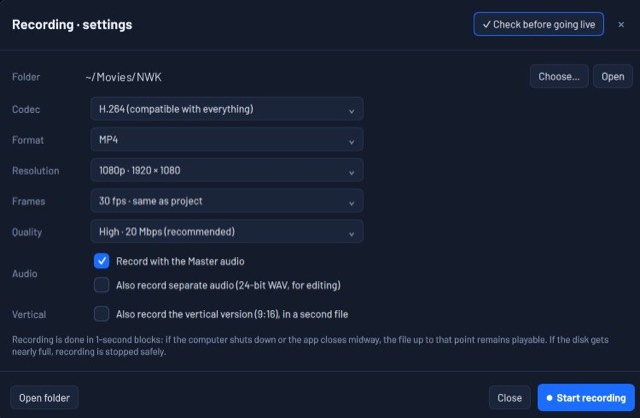
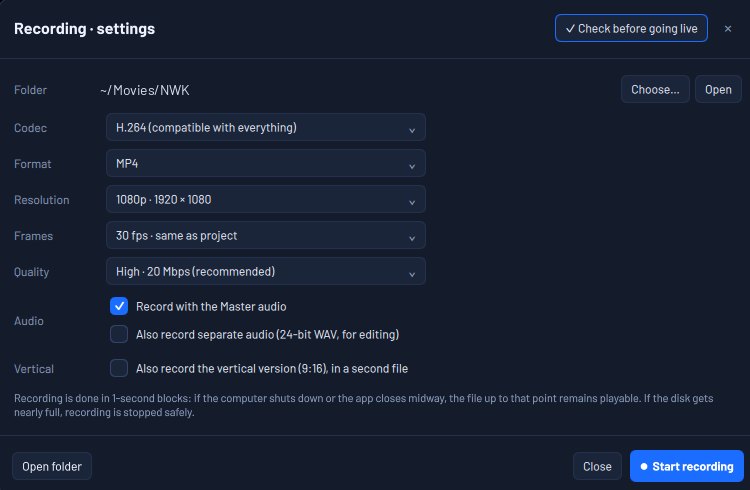
The Program recording has three quality options: Good at 12 Mbps, High at 20 Mbps (recommended) and Maximum at 40 Mbps. See recording settings. The multitrack recording window shows how many tracks are checked, how many MB per minute they take and how many hours of recording fit on the disk. See multitrack recording.
Related questions
How much RAM do I need for live streaming?
It depends on what the production keeps open: the number of sources, videos, graphics and other programs. Measure instead of guessing. Run the complete production for the length of the event and watch Memory Pressure and Swap Used in Activity Monitor. If the graph stays low and swap stays near zero, that amount of memory is enough for that production.
How much disk space does one hour of recording take?
Multiply the bitrate in Mbps by 0.45 to get gigabytes per hour. A 12 Mbps file takes 5.4 GB per hour, a 20 Mbps file takes 9 GB and a 40 Mbps file takes 18 GB. Multiply by the number of files recorded at the same time.
Is it better to spend on memory or on storage?
On a Mac with Apple Silicon, memory cannot be added after the purchase, and recording space can be added at any time with an external SSD. If the budget forces a choice, storage is the part that can be solved later.
In the NWK help center
Sources and references
- Apple Support, Activity Monitor User Guide: view memory usage on Mac
- Apple Support: free up storage space on Mac (where to see available storage)
Written and reviewed by the NWK Live Production team (Setor 360 Tecnologia e Eventos Ltda). Published .
NWK shows CPU and memory use on the main screen, and the multitrack window shows how many hours of recording fit on the disk.
Try NWK free for 7 days