Short answer
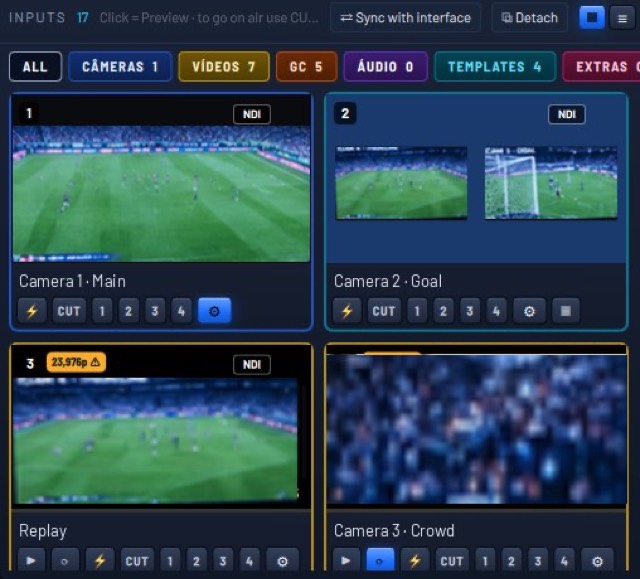
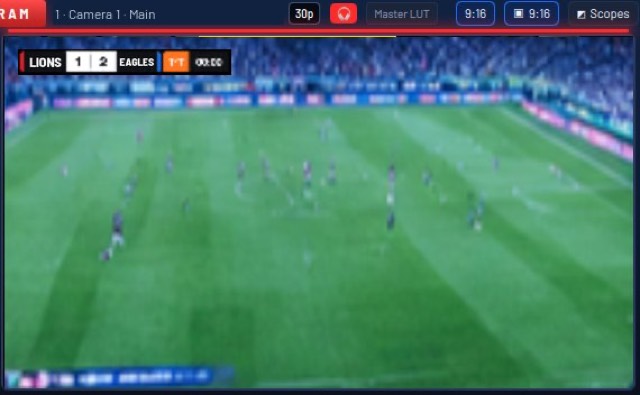
For the multiview, use a computer monitor large enough and with enough resolution for the number of sources, and with little picture delay. For the Program, use a screen that shows the whole frame, with no cropped edges, at a refresh rate that matches the project. An ordinary monitor is not a color reference, so judge exposure and color with scopes. In NWK Live Production, each monitor connected to the computer can show the Program, the Multiview, the Preview or the audio mixer full screen.
On this page
What each screen asks for
| Screen | Who looks at it | What matters most |
|---|---|---|
| Multiview | Whoever switches | Size and resolution to read every tile, little delay |
| Program, at the operator's desk | Whoever switches, the director | The whole frame, the right refresh rate |
| Program, for the room | The audience, the stage | Brightness and size for the distance |
What a multiview is and how to arrange the sources on it is in multiview: seeing every source on one screen. Sending the Program to a projector or to a screen for the audience is in full-screen outputs and multiview on another monitor.
Size and resolution for the multiview
The multiview divides the screen. The more sources, the smaller each tile, and each tile gets only a fraction of the pixels of the monitor. Two things have to be enough at the same time:
- Resolution decides how much detail each tile holds. With many sources, a monitor with more pixels keeps each tile sharp enough to see that a camera is out of focus.
- Physical size decides whether your eyes can use that detail. A small monitor with a very high resolution shows sharp tiles that are too small to judge at arm's length.
Television or computer monitor
A computer monitor shows what it receives. A television is built to improve movies, and by default it changes the picture in ways that get in the way of a control room:
- Delay. The picture processing of a television holds each frame for a moment. If you cut by watching a late multiview, the cut is late. Turn on game mode or the equivalent setting.
- Cropped edges. Many televisions enlarge the picture a little and hide the edges. A title near the border looks fine on the television and is cut off for the viewer, or the other way around. Look for the setting that shows the picture pixel for pixel, with no enlargement.
Refresh rate and color
A monitor redraws the picture a fixed number of times per second. When that number is not a multiple of the project frame rate, movement stutters on the monitor even though the stream is fine. A project at 30 or 60 frames looks right on a monitor at 60 Hz. A project at 25 or 50 frames asks for a monitor that accepts 50 Hz, set to 50 Hz in the system.
For color, an ordinary monitor is not a reference, and two monitors of different models show the same camera in different colors. Match the cameras on one single screen and confirm exposure and color with scopes, which measure the signal instead of showing it. See waveform and vectorscope. In NWK Live Production, the ◩ Scopes button at the top of Preview or Program offers Waveform (luma), RGB parade, Vectorscope and Histogram, and a zebra that marks what is clipped.
Monitors in NWK Live Production
In NWK Live Production, click “🖥 Output” at the top of the window. Each connected monitor has a row, and on that row you choose “Program”, “Multiview”, “Preview” or “Audio mixer”. The output shows only the video, with no interface and no cursor, and the monitor where you operate is marked as “main monitor (operator's)”. If a monitor is disconnected, its output closes on its own. See show the Program on a big screen or another monitor.
Related questions
Can I use a television as a multiview monitor?
Yes, with care. Turn on game mode to reduce the picture delay, turn off motion smoothing and sharpening, choose the setting that shows the picture with no enlargement, and disable the automatic power off. A computer monitor needs none of these adjustments.
Do I need a 4K monitor for the multiview?
Not always. With few sources, a Full HD monitor of a good size is enough. A higher resolution helps when many sources share the screen, and only if the monitor is large enough for you to see the extra detail from where you sit.
How many monitors can I connect?
The limit comes from the computer: each model drives a certain number of external displays, published by its maker. In NWK Live Production, each monitor connected to the computer gets its own row in the Output list, where you choose what it shows.
In the NWK help center
Written and reviewed by the NWK Live Production team (Setor 360 Tecnologia e Eventos Ltda). Published .
NWK opens the Program, the Multiview, the Preview or the audio mixer full screen on each monitor connected to the Mac.
Try NWK free for 7 days