Short answer
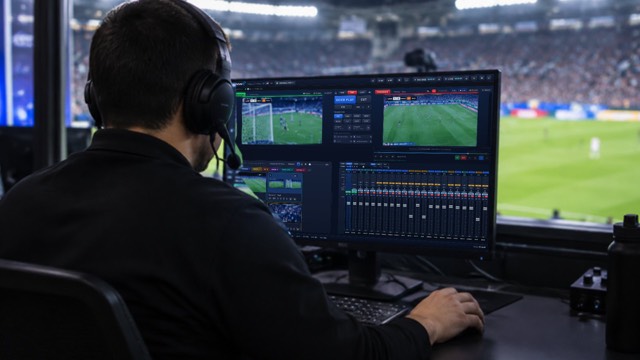
To put the multiview on a second monitor, the production program has to open a full-screen output on that monitor while the controls stay on the first one. In NWK Live Production, the Output button lists the monitors connected to the computer, and on each one you choose Program, Multiview, Preview or Audio mixer. The output shows only the picture, with no interface and no cursor, so the same feature also feeds a projector or a big screen for the audience.
On this page
What each screen should show
Every extra monitor has one viewer, and each viewer needs a different picture.
| Who looks at the screen | What to send | Why |
|---|---|---|
| The audience in the room (projector, big screen) | Program | It is the finished picture, with titles and overlays, and nothing of the interface |
| The director or the camera operators | Multiview | All sources at once, to choose the next shot |
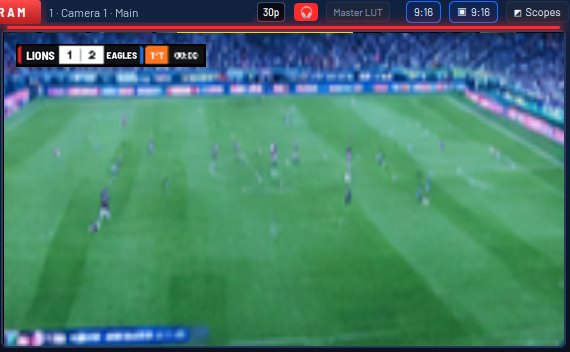
| The presenter or the stage | Program | To know what is on air without asking |
| The person preparing the next shot | Preview | To check framing and text before the cut |
| The sound operator | Audio mixer | Levels and faders in a size that can be read from a distance |
What a multiview is and how to read it is explained in multiview: all the sources on one screen.
Before opening the output
- Set the extra monitor as an extended display in the system, not as a mirror. A mirrored monitor repeats the screen where you operate, with the interface and the cursor.
- Connect and turn on the monitor before the event starts, and leave it on. A monitor that goes to sleep or changes input can reorder the displays.
- For a projector far from the computer, use a cable made for that length or an extender. A long passive HDMI cable is a common cause of a screen that goes black from time to time.
- Keep the operator's monitor for the controls. An output that covers the screen where you work leaves you without the mouse at the worst moment.
Full-screen outputs in NWK
In NWK Live Production, click “🖥 Output” at the top of the window. Each connected monitor has a row, and on that row you click “Program”, “Multiview”, “Preview” or “Audio mixer”. The monitor where you operate is marked as “main monitor (operator's)”.
The output shows only the video, with no interface and no cursor. To close an output, click it and press Esc, or open “🖥 Output” and click “Close” in the “Open outputs” list. If the monitor is disconnected, the output closes on its own. The steps are in show the Program on a big screen or another monitor.
Multiview and panels in a window
A full-screen output takes the whole monitor. When you want to share one monitor between the multiview and something else, NWK also opens the Multiview in a window: the “▦ Multiview” button opens a window that you can drag to another monitor, and inside it the F key makes it full screen.
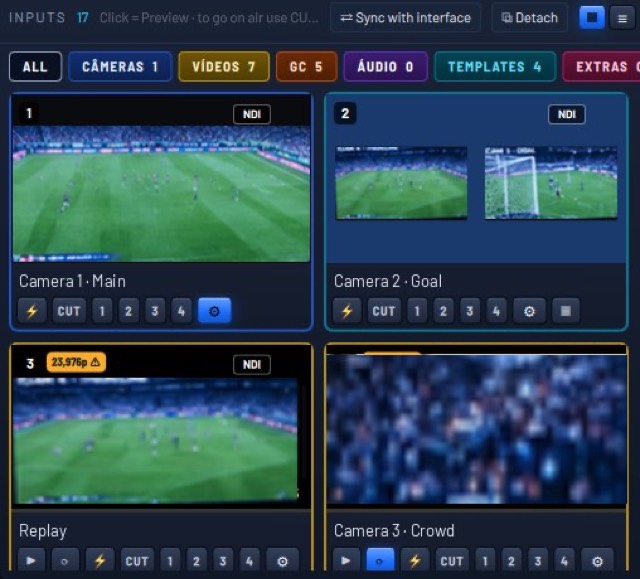
The inputs, the Preview and the Program panels have the ⧉ Detach button, which opens the panel in a window of its own. The Layout button has ready-made arrangements, and the Two monitors layout only appears when two monitors are connected. See arrange the screen.
What happens to the outputs when the window closes
A projector that goes back to the desktop in the middle of an event is seen by everyone in the room. In NWK, if you close the program while on air or recording, it asks what to do: “Close interface only” keeps the stream, the recording and the external outputs running, and “Stop everything” closes everything. See the program closed during the stream.
In any program, test this in rehearsal: open the outputs, close the main window and look at the projector.
Related questions
How do I show the multiview on a second monitor?
Set the second monitor as an extended display and open a full-screen multiview output on it from the production program. In NWK Live Production, click Output at the top of the window and, on the row of that monitor, click Multiview.
Can I send the Program to a projector and the multiview to another monitor at the same time?
In NWK Live Production each connected monitor has its own row in the Output menu, and on each row you choose Program, Multiview, Preview or Audio mixer. The outputs that are open appear in the Open outputs list.
Why does the projector show my desktop instead of the Program?
Usually the projector is mirroring the main display, or no full-screen output was opened on it. Set the projector as an extended display and open the Program output on it. In NWK the output shows only the video, with no interface and no cursor.
In the NWK help center
- Show the Program on another monitor
- Arrange the screen
- View inputs as grid or list
- The program closed during the stream
Written and reviewed by the NWK Live Production team (Setor 360 Tecnologia e Eventos Ltda). Published .
NWK opens the Program, the Multiview, the Preview or the audio mixer full screen on each monitor connected to the Mac.
Try NWK free for 7 days